Print-ready export
Markdown to PDF
Updated · pdftomd.tools team
Markdown to PDF on this page turns plain text into a polished A4 document: it renders GitHub Flavored Markdown with tidy typography, real tables, and shaded code blocks, then saves pages you can print or attach.
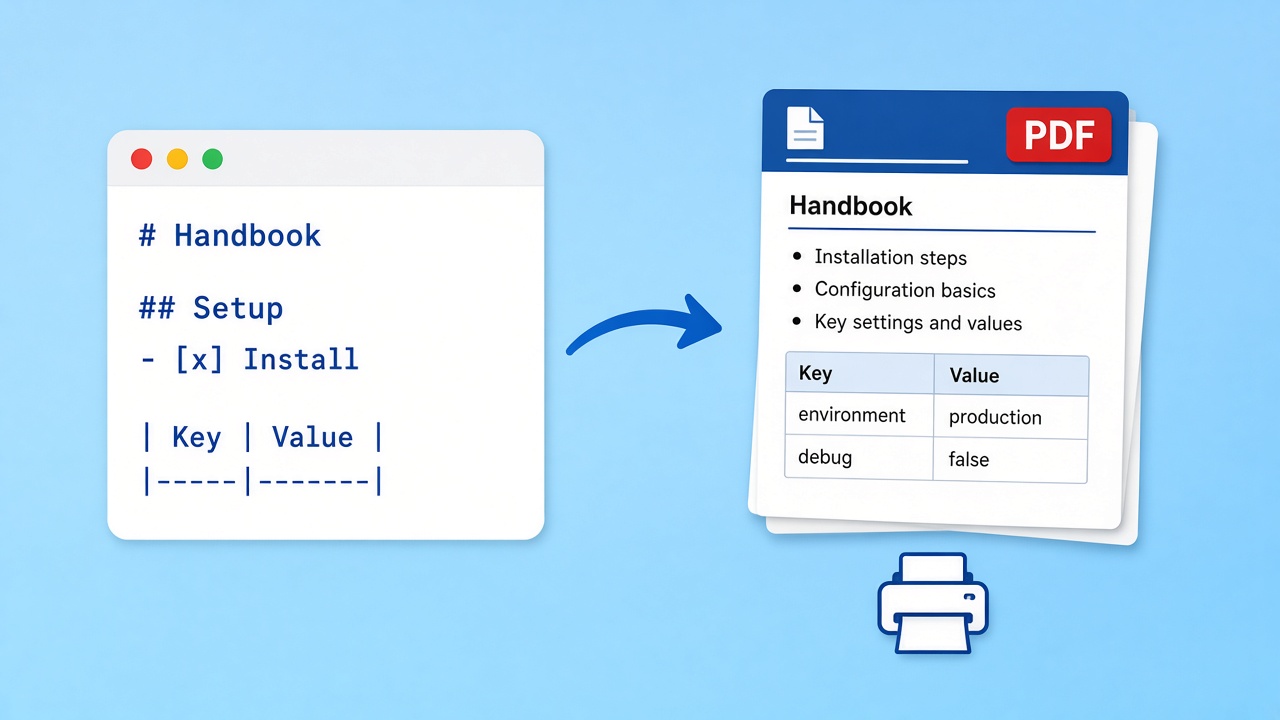
Paste your text or upload a .md file, check the live Markdown to PDF preview, and download. Everything happens in this tab.
Markdown source
Rendered preview
Preview will appear here.
How Markdown to PDF works here
Four Markdown to PDF steps, from a draft in your editor to pages on the printer.
 01
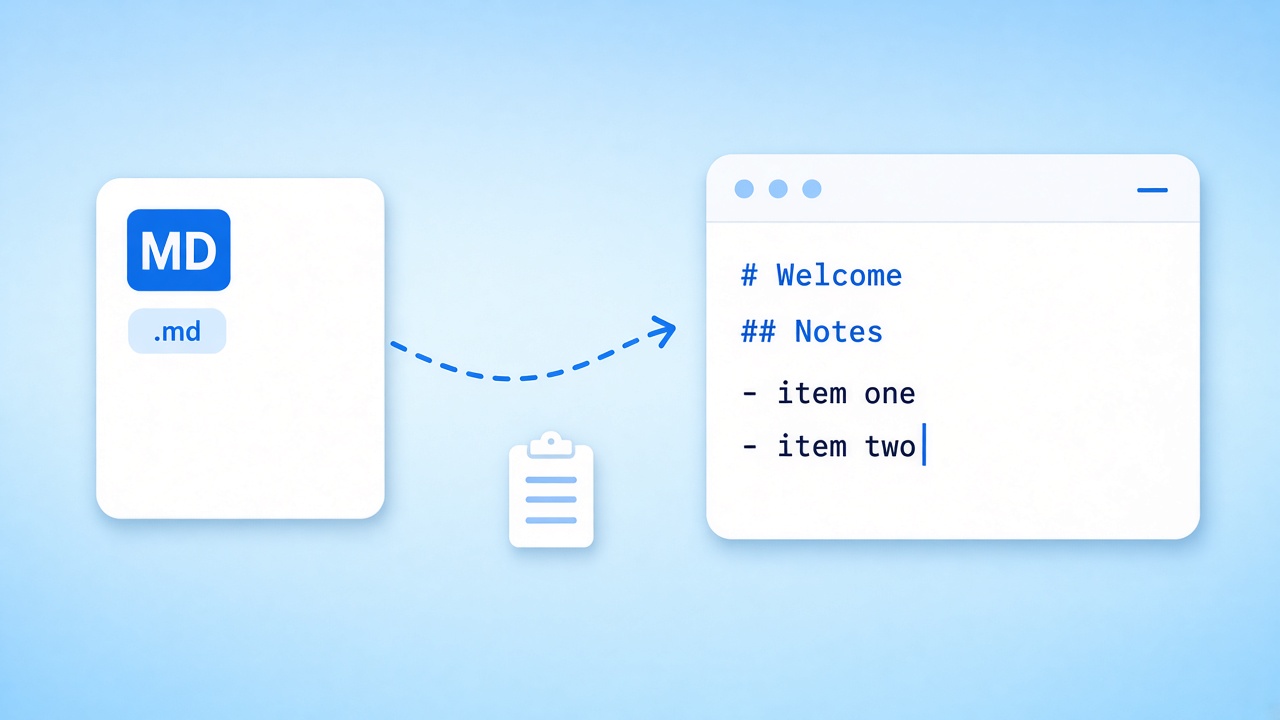
01Bring your text
Paste from any editor, load the sample, or upload a .md, .markdown, or .txt file. The Markdown to PDF preview starts the moment text appears.
Open the editor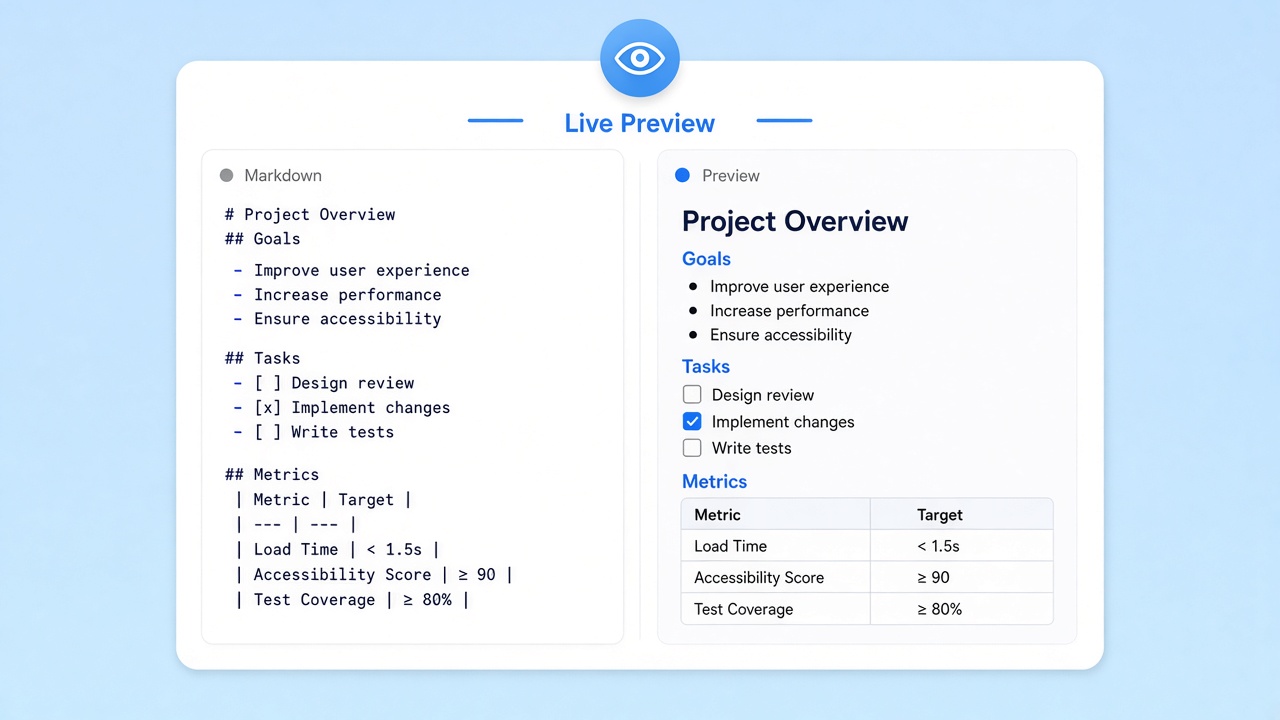 02
02Read the preview
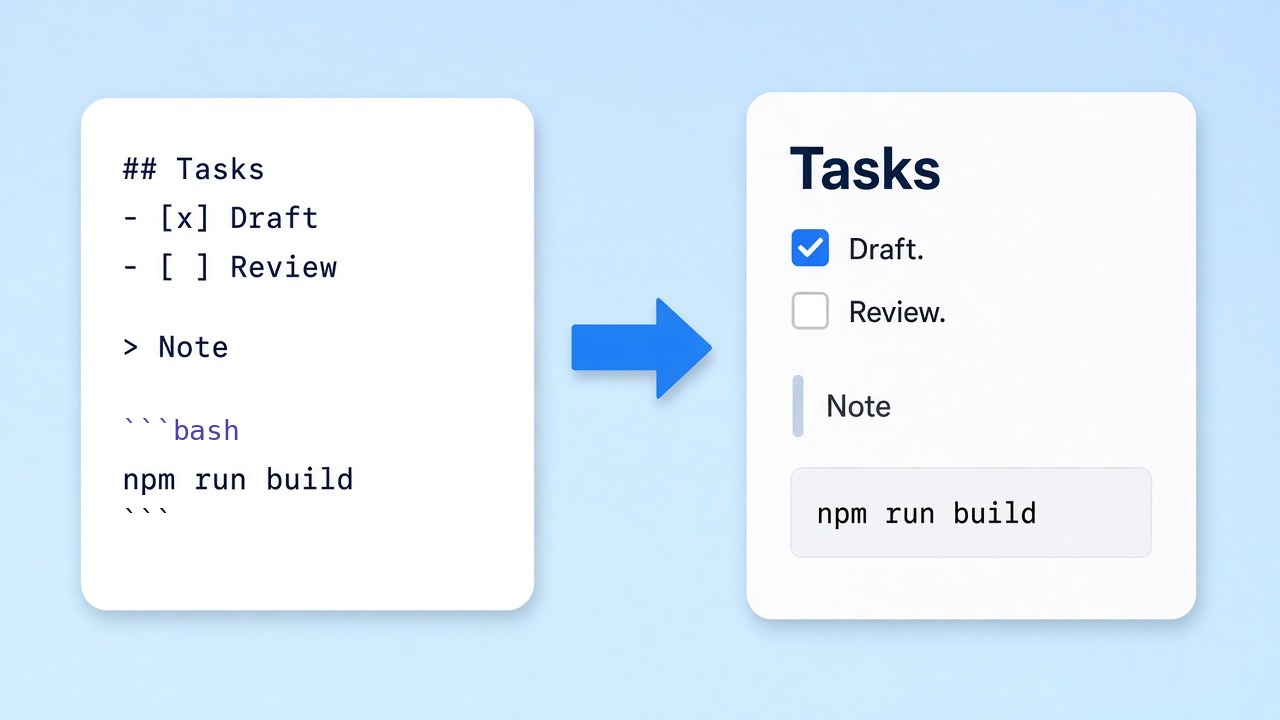
The right pane shows exactly what the Markdown to PDF export will print: headings, task lists, quotes, tables, and fenced code in a GitHub-style theme.
See the preview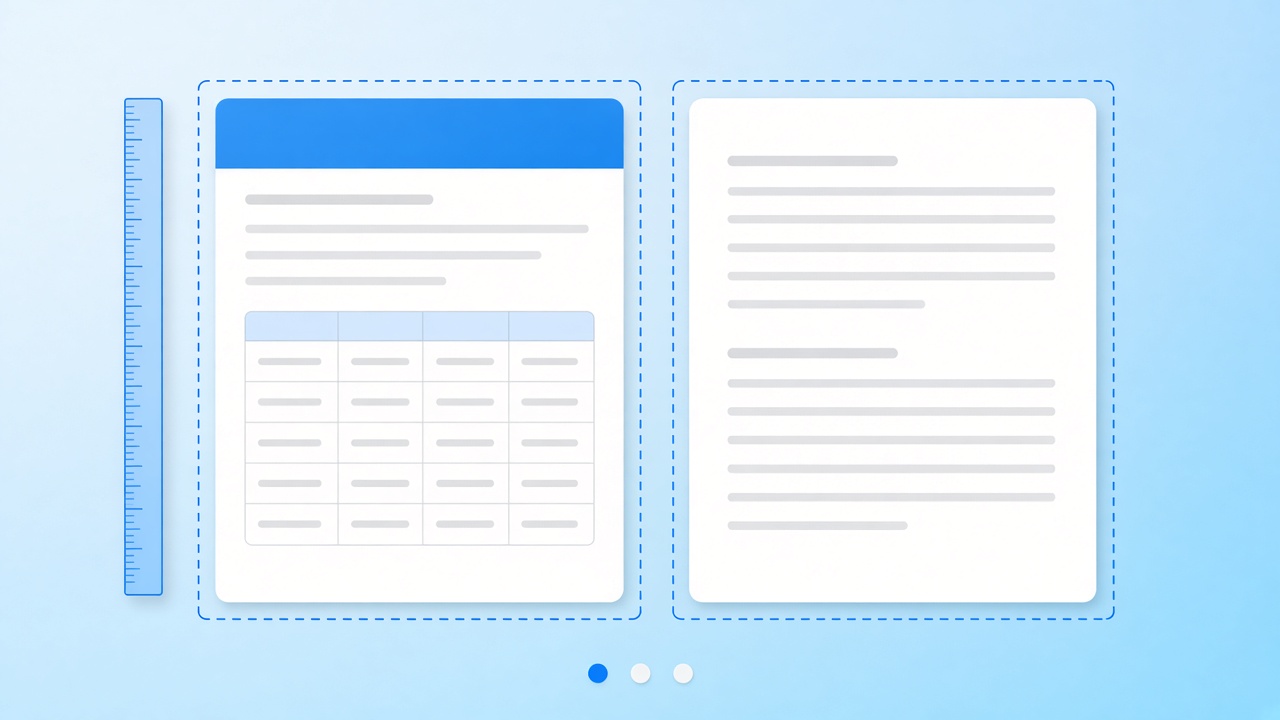 03
03Mind the page flow
Long documents continue onto new A4 pages. Short sections and a heading before each table keep the Markdown to PDF layout easy to follow.
Check the layout 04
04Save the file
Press Download and the browser stores the result. Change the source and run the Markdown to PDF export again whenever the text moves on.
Download now
What Markdown to PDF keeps on the page
Markdown to PDF is about turning lightweight syntax into something a reader never has to decode. A line starting with ## becomes a section heading, a dash becomes a bullet, and a block of pipes becomes a bordered table. The goal of Markdown to PDF is a document that looks deliberate, not like a code file that was printed by accident.
This page follows GitHub Flavored Markdown, a strict superset of CommonMark and the dialect GitHub uses for READMEs. That means task lists with check boxes, fenced code with a grey panel, block quotes with a left rule, and links that keep their colour. If it looks right in a GitHub preview, it will usually look right after a Markdown to PDF export here.
“a Markdown-formatted document should be publishable as-is, as plain text, without looking like it’s been marked up with tags or formatting instructions.”
- Headings, emphasis, links, and block quotes
- Task lists, nested bullets, and numbered steps
- Tables with header rows and fenced code panels in every Markdown to PDF export
Honest limits of Markdown to PDF today
There is one theme, A4 portrait pages, and no page numbers or generated contents page. Text is saved as real, selectable text with embedded fonts; only emoji are stored as small images. Images hosted on other sites may be blocked and appear blank, and Math and Mermaid blocks are shown as plain code. In our tests, a 2-page English README became a 96 KB Markdown to PDF file.
Where Markdown to PDF earns its place
Plain-text writing that needs a Markdown to PDF export to land on paper or in an inbox.
Course handouts
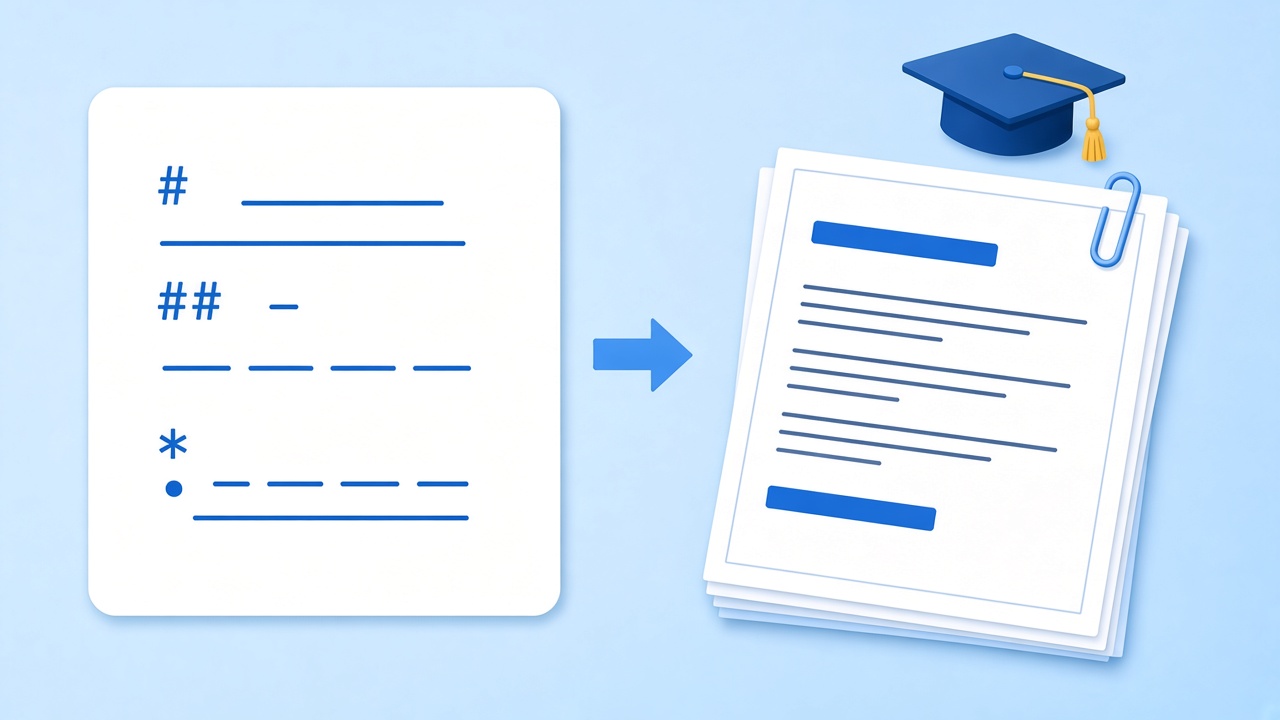
Teachers and trainers keep lesson notes in Markdown, then run a Markdown to PDF export before class so every student gets the same clean pages.
Make a handout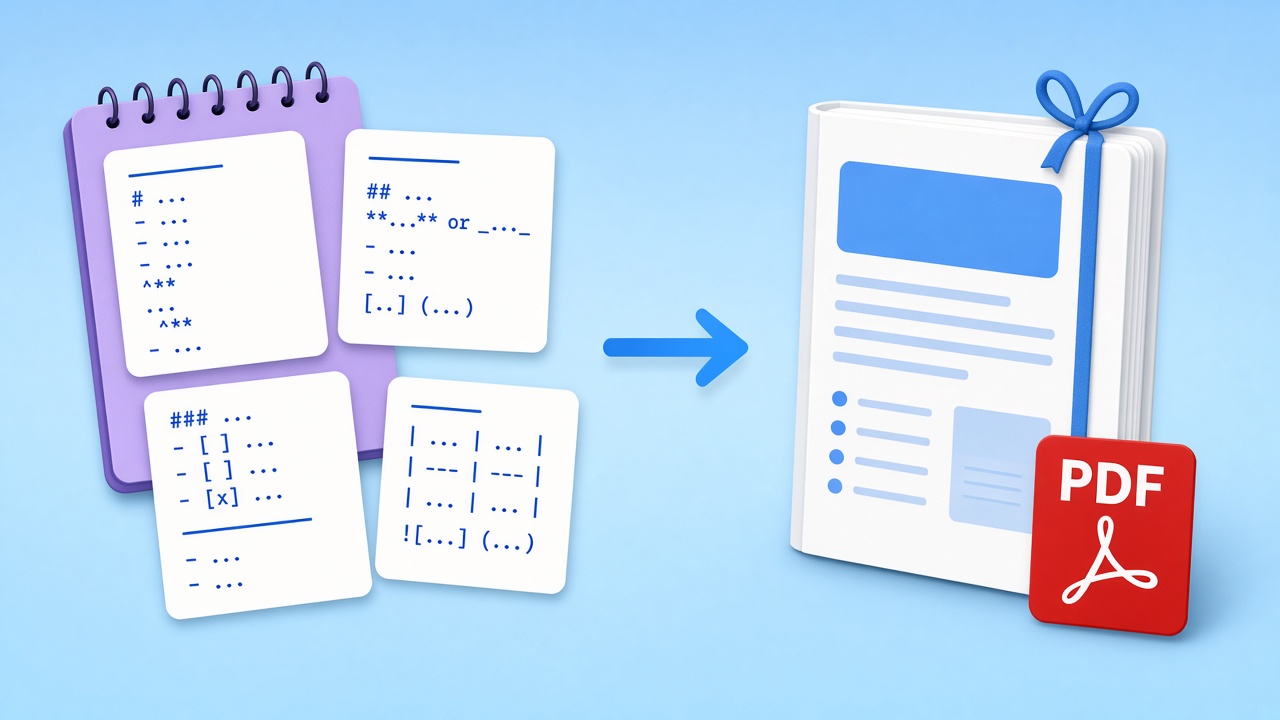
Notes into one booklet
Collect a few notes from your vault, paste them together, and use a Markdown to PDF export to share one bound-looking document instead of loose files.
Working with Obsidian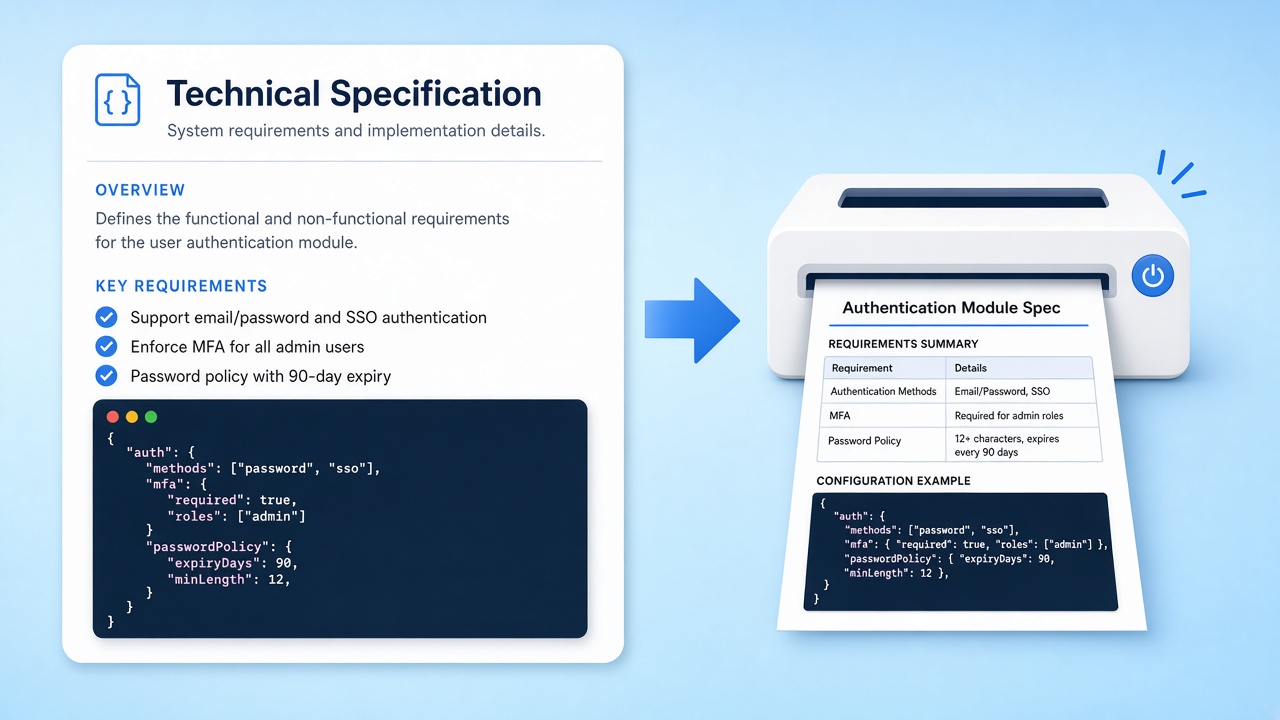
Docs for reviewers
Product specs and runbooks live in Git, but reviewers want something to mark up. A Markdown to PDF export gives them a stable copy while you keep editing.
Export a spec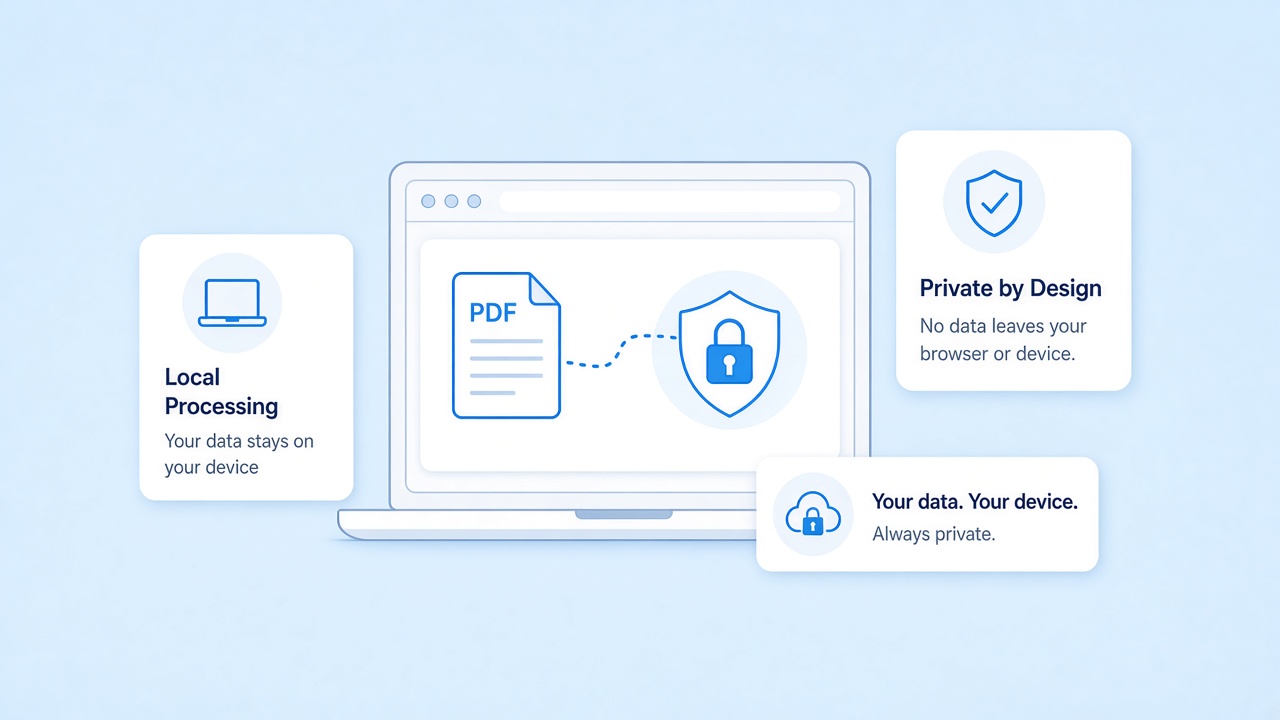
Markdown to PDF without an upload
Markdown to PDF rendering and export run in your browser. Your text is never sent to our servers, so a Markdown to PDF export is safe for contracts, internal plans, and anything still in draft. There is no account and nothing stored after you close the tab.
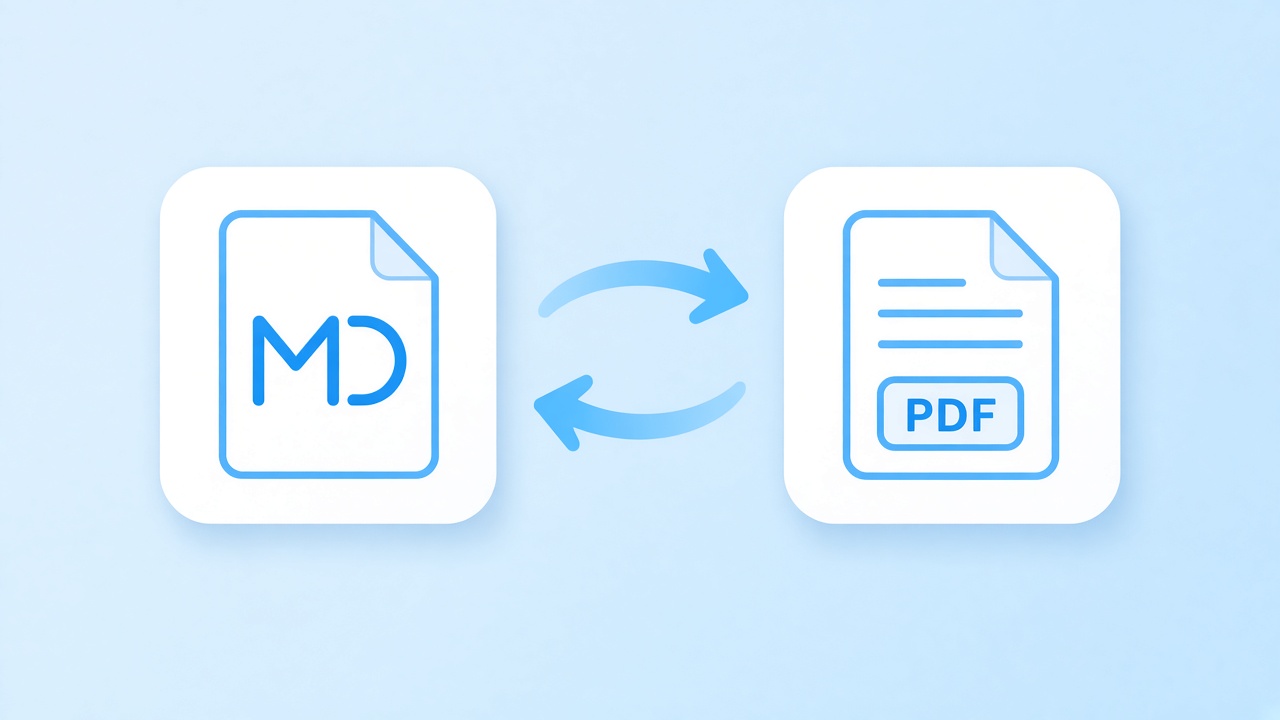
Have a document and need the text back?
The reverse tool reads text-based documents and returns editable Markdown with headings, lists, and now tables rebuilt as Markdown grids. Merged cells are flattened and scans need OCR, which the tool does not run.
Related tools
Pages that pair well with Markdown to PDF, one click away.
Ready for Markdown to PDF?
Paste your text, glance at the Markdown to PDF preview, and download print-ready pages. Free, private, and nothing to install.
Open the editorSources
- Markdown project page — Daring Fireball, 2004
- GitHub Flavored Markdown Spec — GitHub
- CommonMark Spec 0.31.2 — CommonMark, 2024
FAQ
Layout, privacy, and current limits of Markdown to PDF, answered plainly.
Which syntax does Markdown to PDF support?
GitHub Flavored Markdown: headings, emphasis, links, quotes, nested and task lists, tables, and fenced code. Math and Mermaid blocks are not rendered yet.
Does Markdown to PDF add a table of contents or page numbers?
No. Neither is generated today. If you need a contents list, write it by hand at the top of your file with links to each heading.
Can I change the theme, margins, or paper size?
Not yet. Every Markdown to PDF export uses one GitHub-style theme on A4 portrait pages.
Can I select or search text in a Markdown to PDF file?
Yes. The file holds real text with embedded fonts, so you can select, search, and copy it. Emoji are kept as small images.
Is my text uploaded anywhere?
No. Markdown to PDF conversion runs in your browser, and your text never reaches our servers.
Why did an image not appear in my Markdown to PDF export?
Images hosted on other sites can be blocked from loading in the browser. Use sources that allow it, and check the preview before you download.
How do I avoid awkward page breaks?
Add a page-break-after: always div where a new page should start; the export honours it. Headings stay with their next line, but very tall code blocks may still be split.