Vault-ready notes
PDF to Markdown for Obsidian
Updated · pdftomd.tools team
This Obsidian PDF to Markdown workflow turns a paper, a manual, or a handout into a plain-text note with real headings, lists, and tables, ready for your vault.
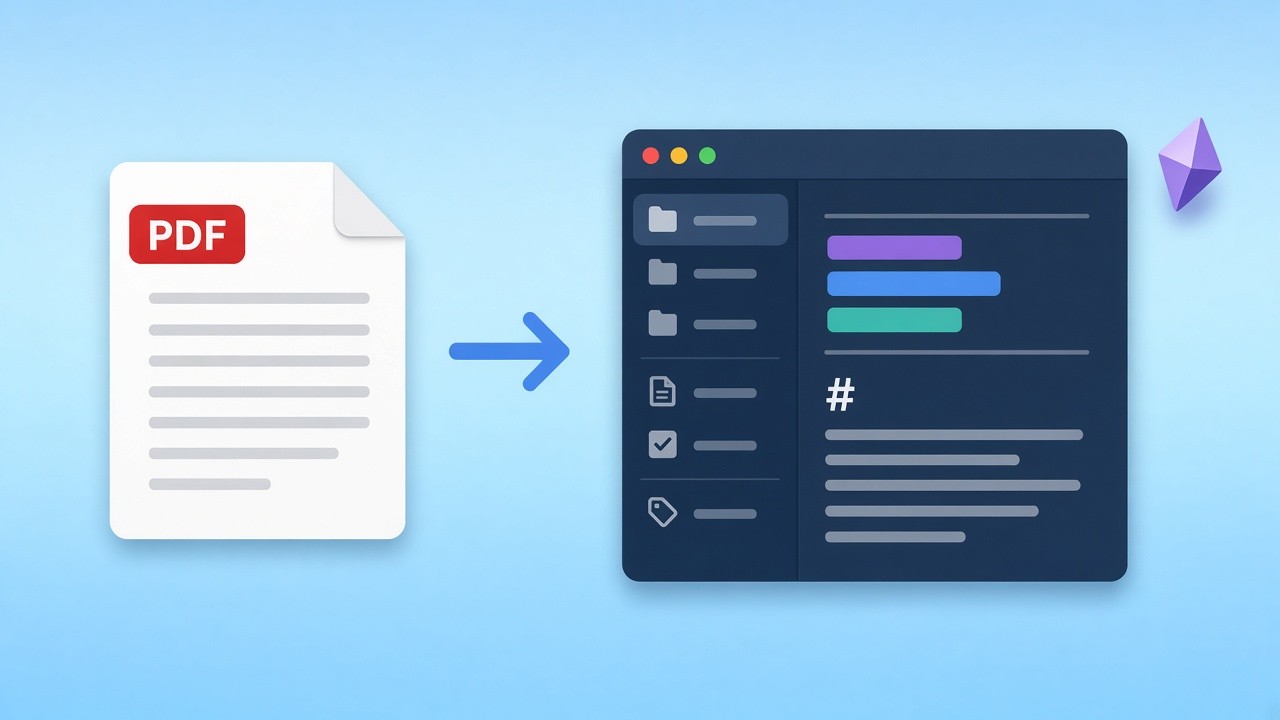
Drop a text-based file below. The PDF to Markdown result appears on the right; copy it into a new note or download the .md file and move it into your vault folder.
Source PDF
Drop a PDF here, or click to browse
Text PDFs only. Scans need OCR, which this tool does not run.
Markdown preview
Markdown output will appear here.
Obsidian PDF to Markdown in four steps
Each PDF to Markdown step runs on your own device and takes a few seconds.
 01
01Drop the source
Choose a text-based file rather than a scan. PDF to Markdown needs a real text layer to read words, sizes, and positions.
Choose a file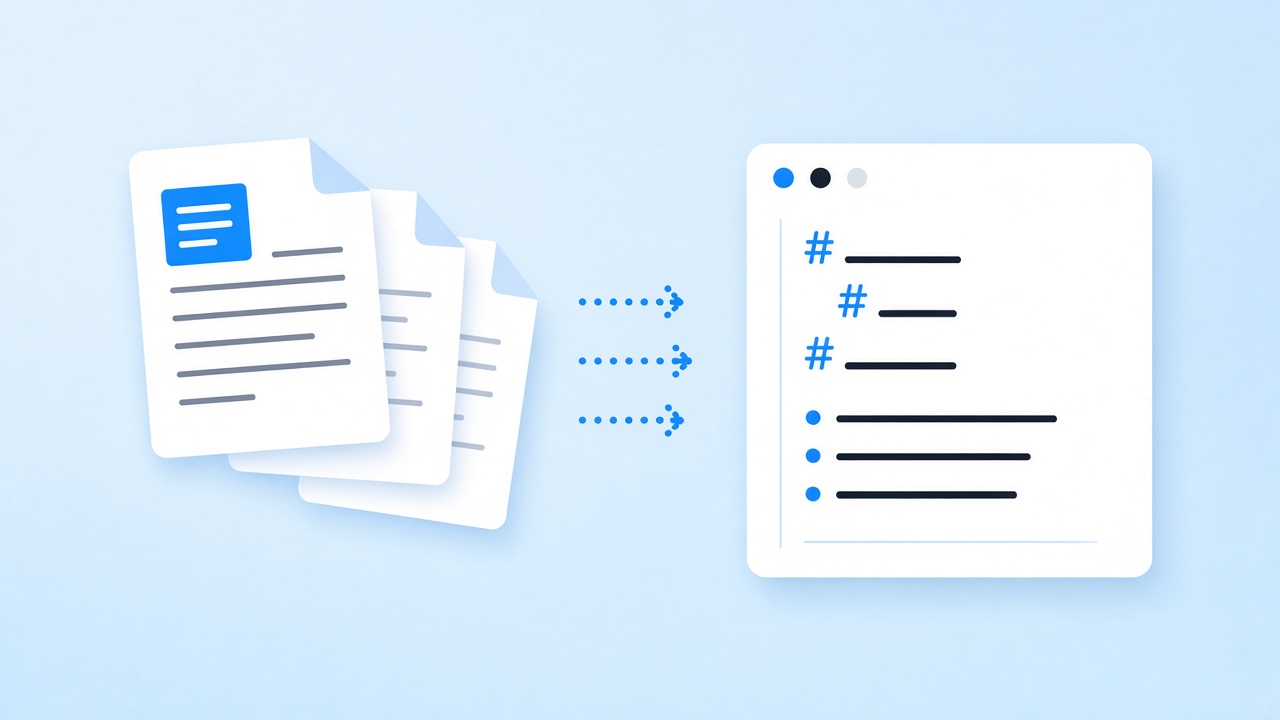 02
02Let the structure appear
Large type becomes headings, bullet markers become lists, and aligned columns become tables. The PDF to Markdown output joins all pages into one note.
See it run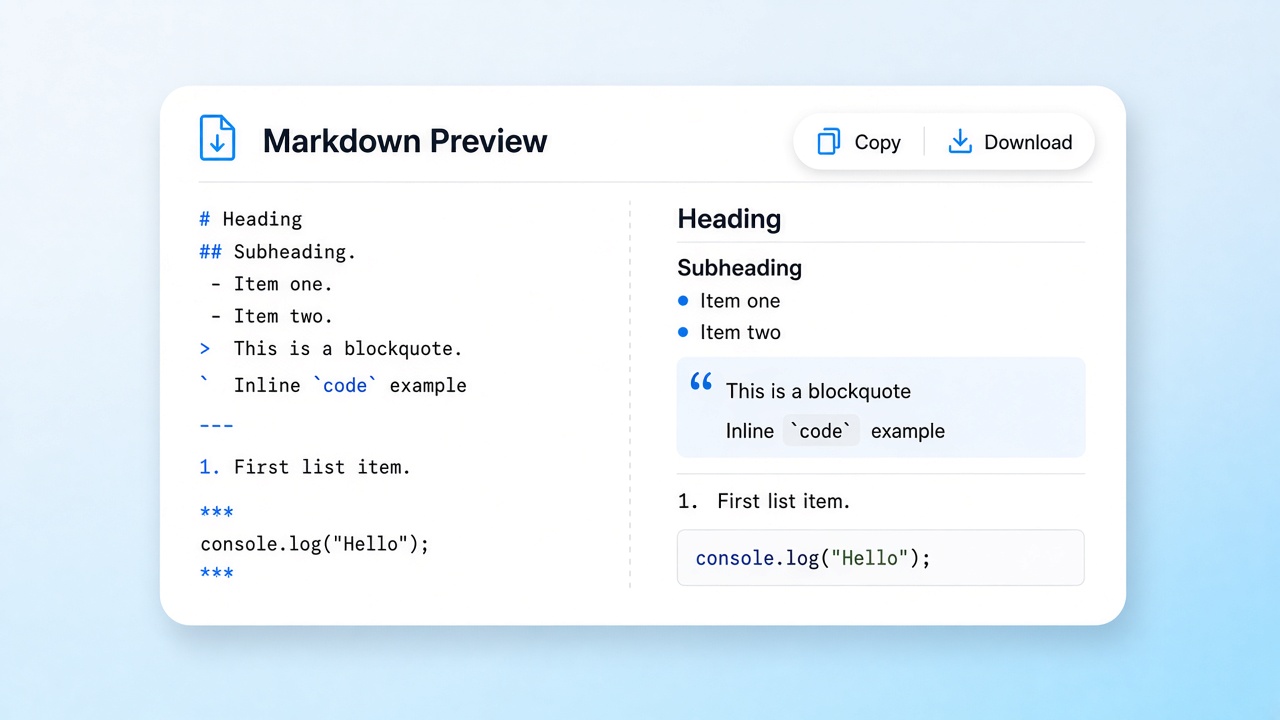 03
03Add frontmatter
Paste the template from this page above the PDF to Markdown text, then fill in the title, source, and tags.
Copy the template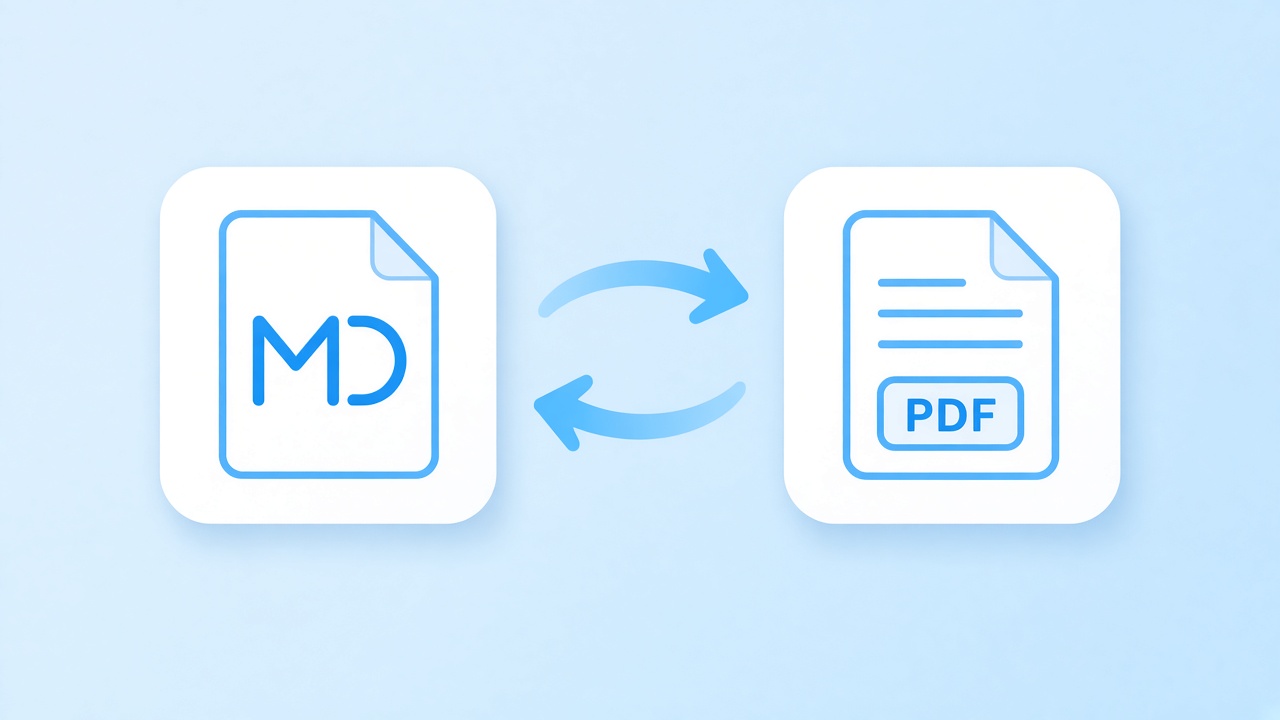 04
04Save into the vault
Download the .md file into your vault folder, or paste the PDF to Markdown text into a new note. Obsidian picks it up straight away.
Save the note
Why convert instead of attaching the file
Once you convert PDF to Markdown, the text becomes an ordinary note: every heading can be linked with [[Note#Heading]], backlinks show where an idea is reused, and graph view connects the source to the notes you write about it. A PDF attached to a vault stays a closed box: you cannot link to one of its sections, and your highlights stay inside the viewer.
Plain files also last. An Obsidian PDF to Markdown note is just text on disk, so it syncs with any service, diffs cleanly in git, and stays readable if you ever leave the app. Keep the original in an attachments folder and point to it from the frontmatter, so each PDF to Markdown note and its source stay paired.
- Headings in the PDF to Markdown output work as link targets
- Lists and tables stay editable as plain text
- Paragraphs stay whole across page breaks
Limits of PDF to Markdown to know first
Scans have no text layer and the tool does not run OCR, so image-only files come out empty. Merged table cells are flattened, rotated tables are not detected, borderless tables need at least three rows, and the first row always becomes the header. Embedded images are not exported, and two-column layouts can interleave. Wiki links and tags are not created for you; add them after the PDF to Markdown pass.
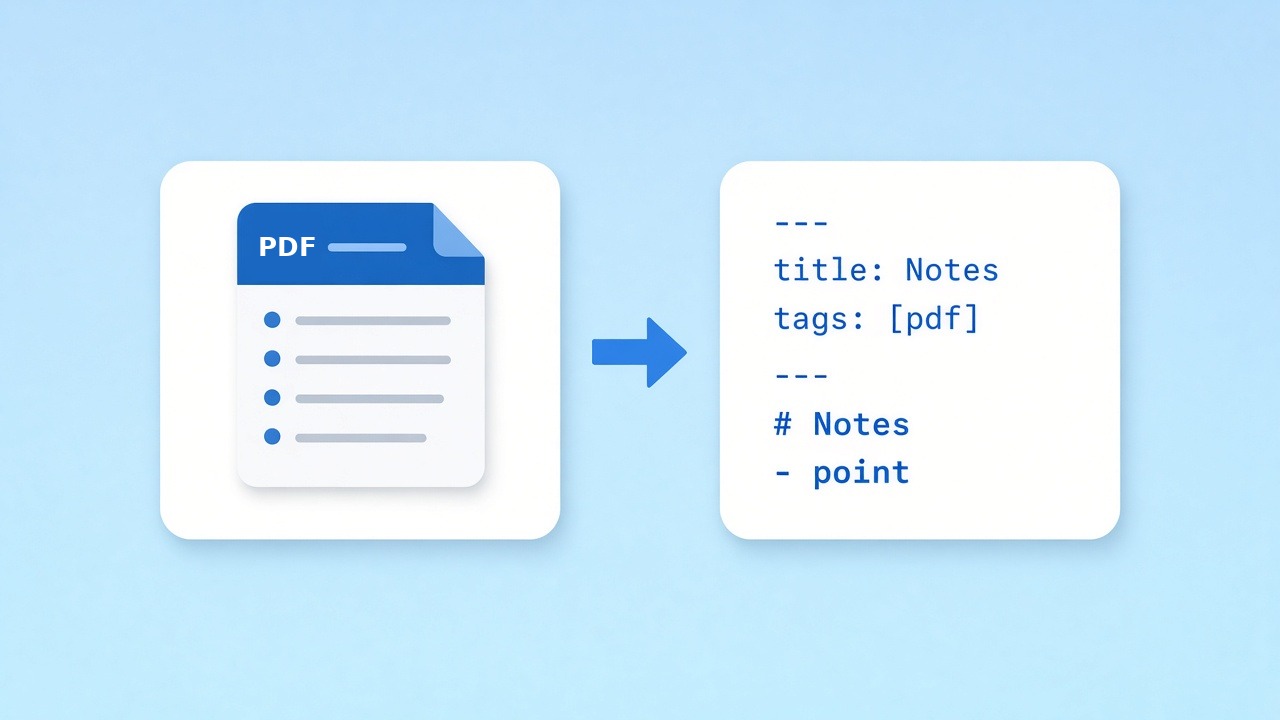
Frontmatter for PDF to Markdown notes
Copy this block, paste it at the very top of the note, and edit the values.
Note frontmatter
Obsidian shows these fields as properties. Keep the source field so every Obsidian PDF to Markdown note points back to its original file.
---
title: Your note title
source: "[[original.pdf]]"
author:
year:
tags:
  - source/pdf
  - to-read
created: YYYY-MM-DD
---
Obsidian PDF to Markdown in real vaults
Three common ways people bring PDF to Markdown notes into a vault.
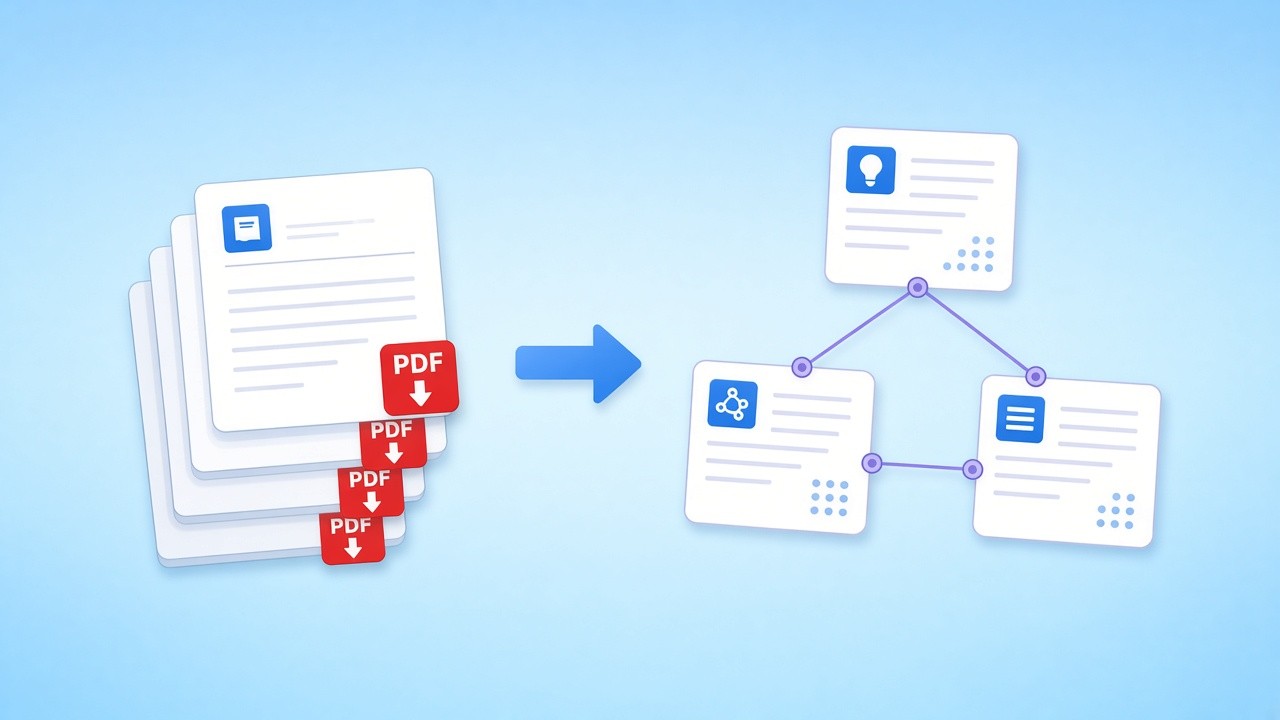
Literature notes
Convert each paper with this Obsidian PDF to Markdown flow, keep its section headings, and link your reading notes to the exact heading you are discussing.
Convert a paper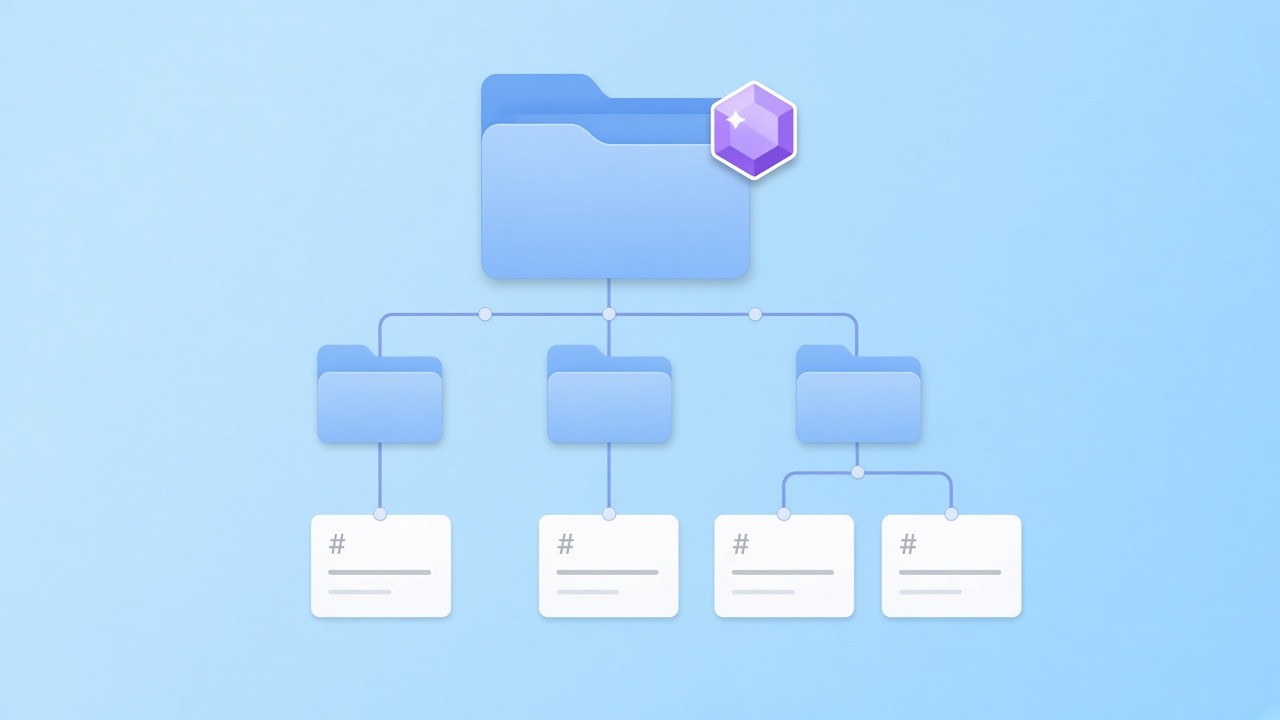
Manuals and handbooks
Split a long PDF to Markdown file at its ## headings into several notes, file them in folders, and link them from one index note.
Convert many files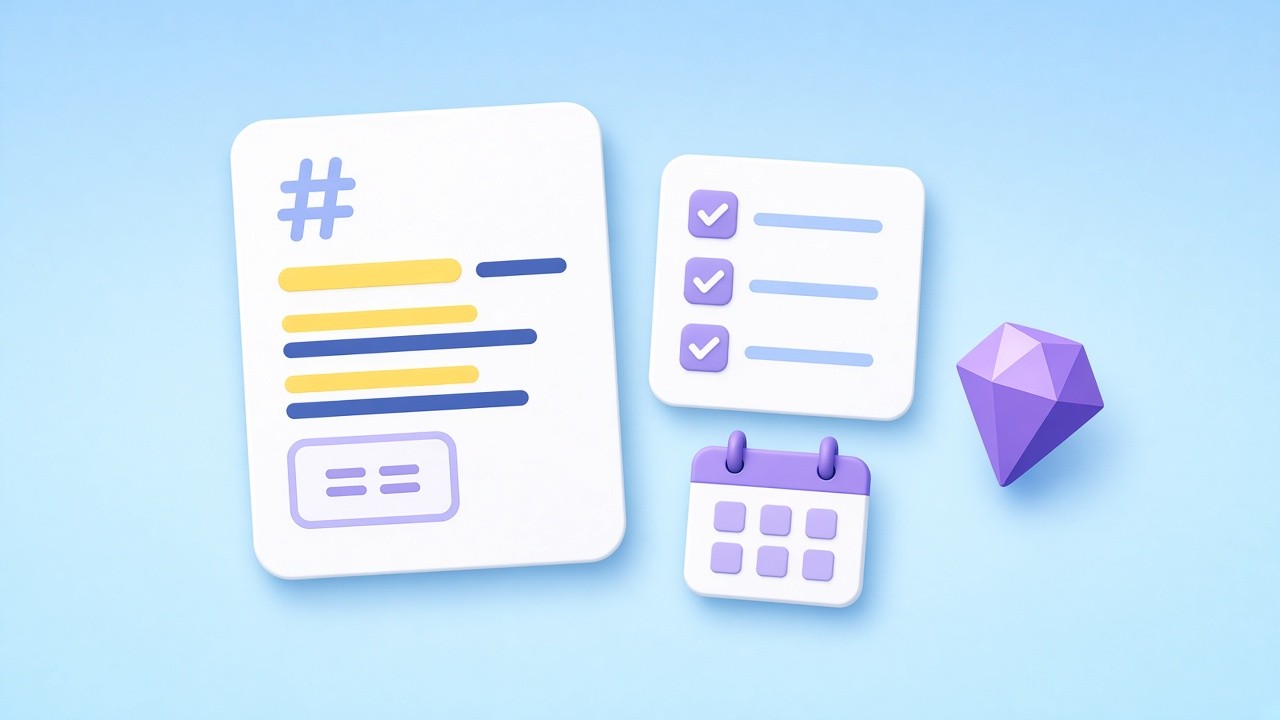
Study and review
Turn lecture handouts into PDF to Markdown notes, highlight key lines with ==marks==, and add checklists for review.
Convert a handout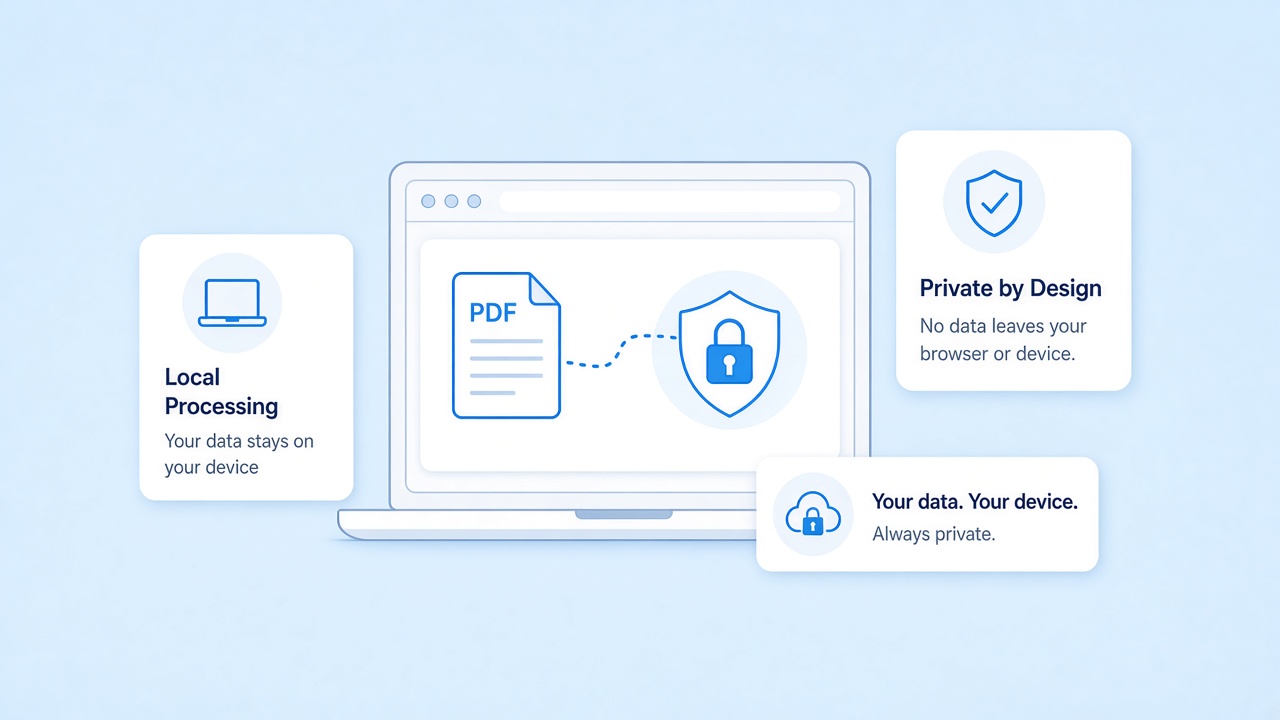
Private Obsidian PDF to Markdown conversion
PDF to Markdown conversion runs in your browser with pdf.js, and the file never reaches our servers. That suits a local-first vault: the text goes from your file to your note without passing through anyone else's computer.
Print a note as a document
When a note built from PDF to Markdown text is ready to share, the reverse page renders it as A4 pages, again entirely in the browser.
Related tools
Other pages that help with PDF to Markdown work.
Start your Obsidian PDF to Markdown import
Drop a file, add the frontmatter, and save a clean PDF to Markdown note into your vault. Free, private, and nothing to install.
Convert a fileSources
- Internal links — Obsidian Help
- GitHub Flavored Markdown Spec — GitHub
- pdf.js — Mozilla
FAQ
Questions about Obsidian PDF to Markdown notes, vaults, and limits.
How do I get a PDF into Obsidian as Markdown?
Drop the file into the converter above, then copy the PDF to Markdown result into a new note or download the .md file into your vault folder.
Is this an Obsidian plugin?
No. It is a web page, so there is nothing to install. The Obsidian PDF to Markdown output is a plain .md file that any vault can open.
Are tables kept in PDF to Markdown notes?
Yes, for most text-based tables: they become GFM pipe tables that Obsidian renders; in our tests all 12 table fixtures passed. Merged cells are flattened and rotated tables come through as plain lines.
Does Obsidian PDF to Markdown work on scans?
No. Scans have no text layer and the tool does not run OCR, so the tool warns you when a file looks image-based.
Are images from the PDF exported?
No. PDF to Markdown output is text only. Keep the original in your attachments folder and embed it with ![[file.pdf]] when you need the figures.
Will links and tags be added for me?
No. Add [[wiki links]] and tags yourself after conversion, or list tags in the frontmatter template above.
Is my file uploaded during PDF to Markdown conversion?
No. Processing happens in your browser and the file never leaves your device.