Model-ready text
PDF to Markdown for LLM
Updated · pdftomd.tools team
Converting a PDF to Markdown for LLM use gives you headings, lists, and tables as plain text, so a chat model or a retrieval pipeline sees the document the way a person does.
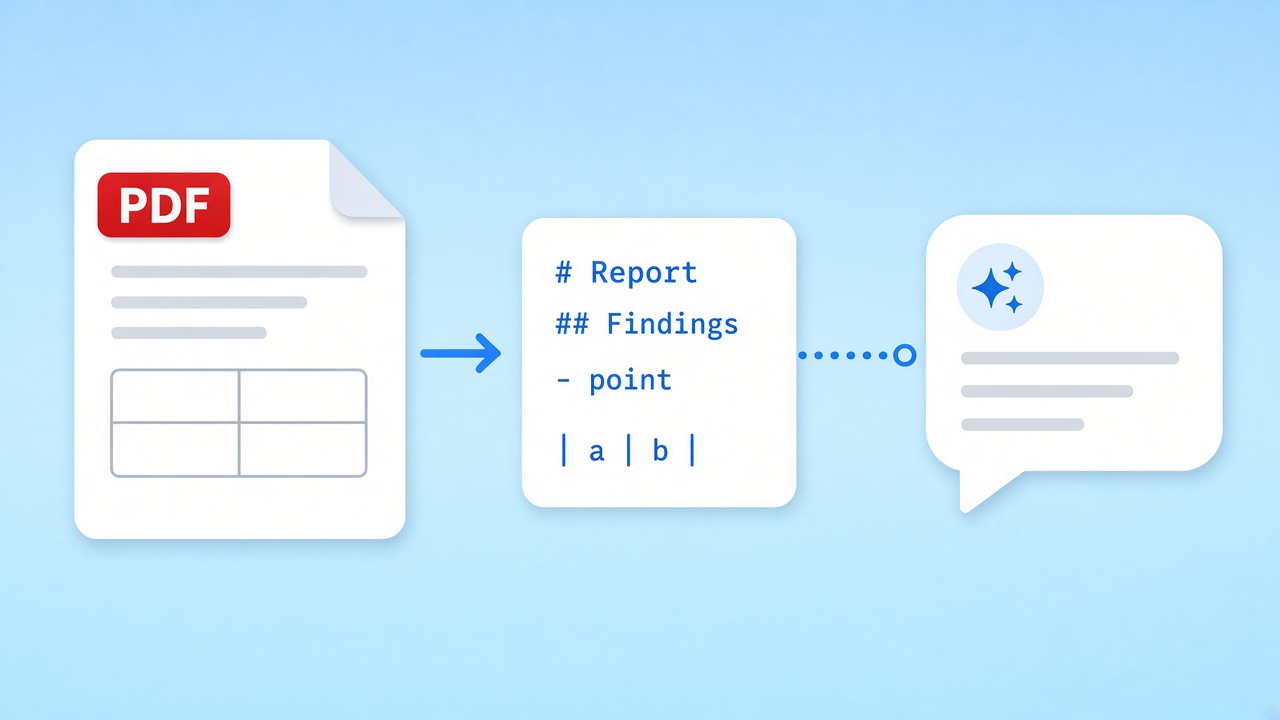
Drop a text-based file below. The PDF to Markdown result appears on the right, ready to copy into a prompt or save as a .md file for your pipeline.
Source PDF
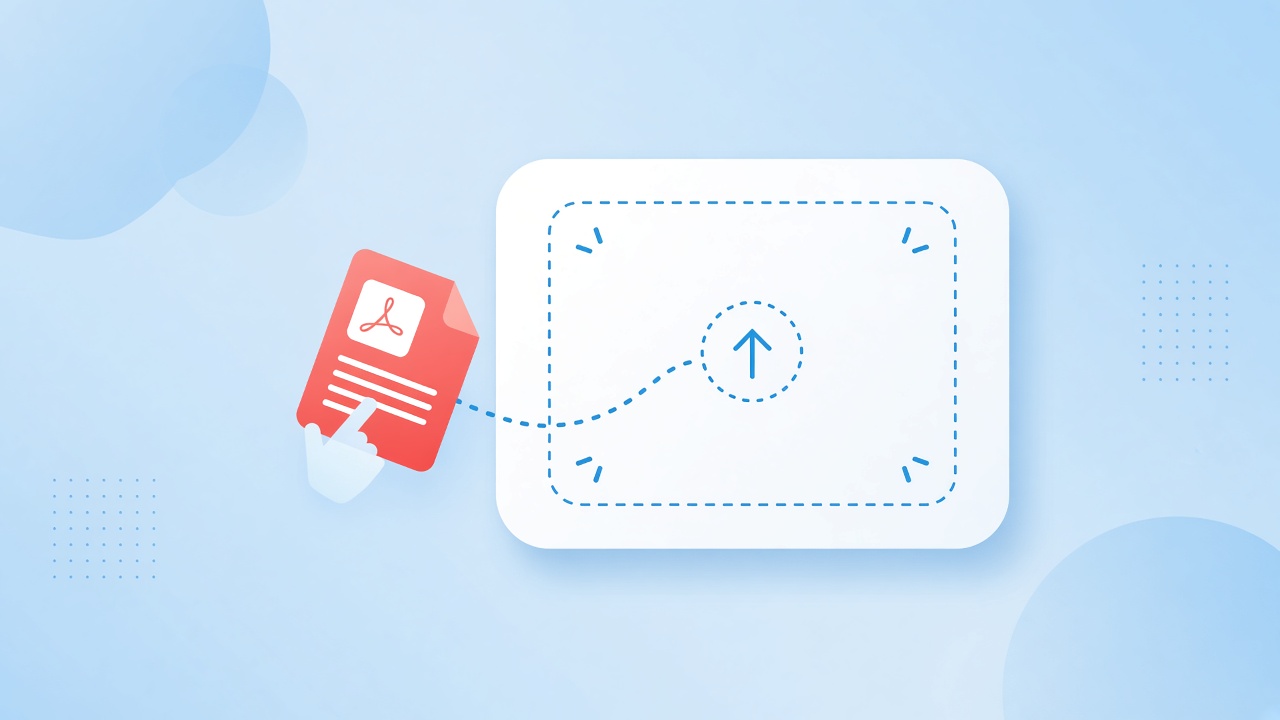
Drop a PDF here, or click to browse
Text PDFs only. Scans need OCR, which this tool does not run.
Markdown preview
Markdown output will appear here.
From PDF to Markdown to prompt
Four PDF to Markdown steps that take a few seconds and run on your own device.
 01
01Drop the source
Pick a text-based export rather than a scan. A real text layer gives PDF to Markdown accurate words to work with.
Choose a file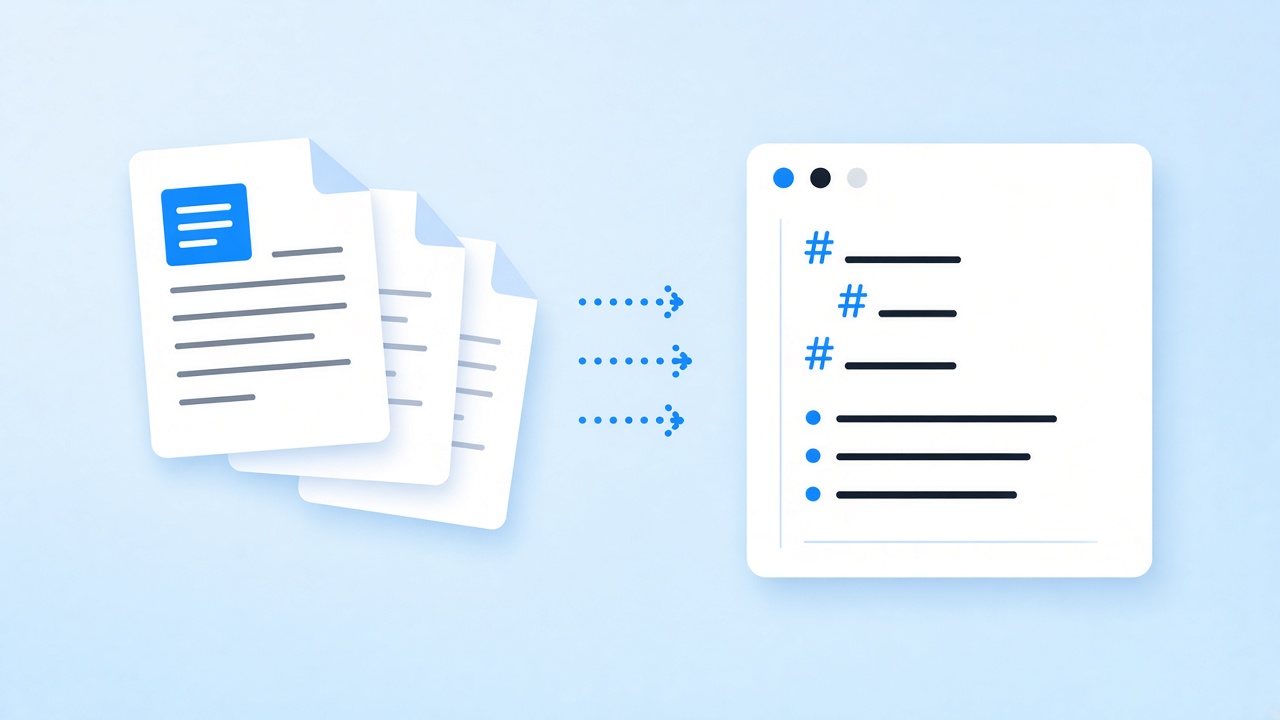 02
02Let structure appear
Headings come from font size, lists from their markers, and aligned columns become tables. Pages are joined into one PDF to Markdown file with no page markers in the way.
See it run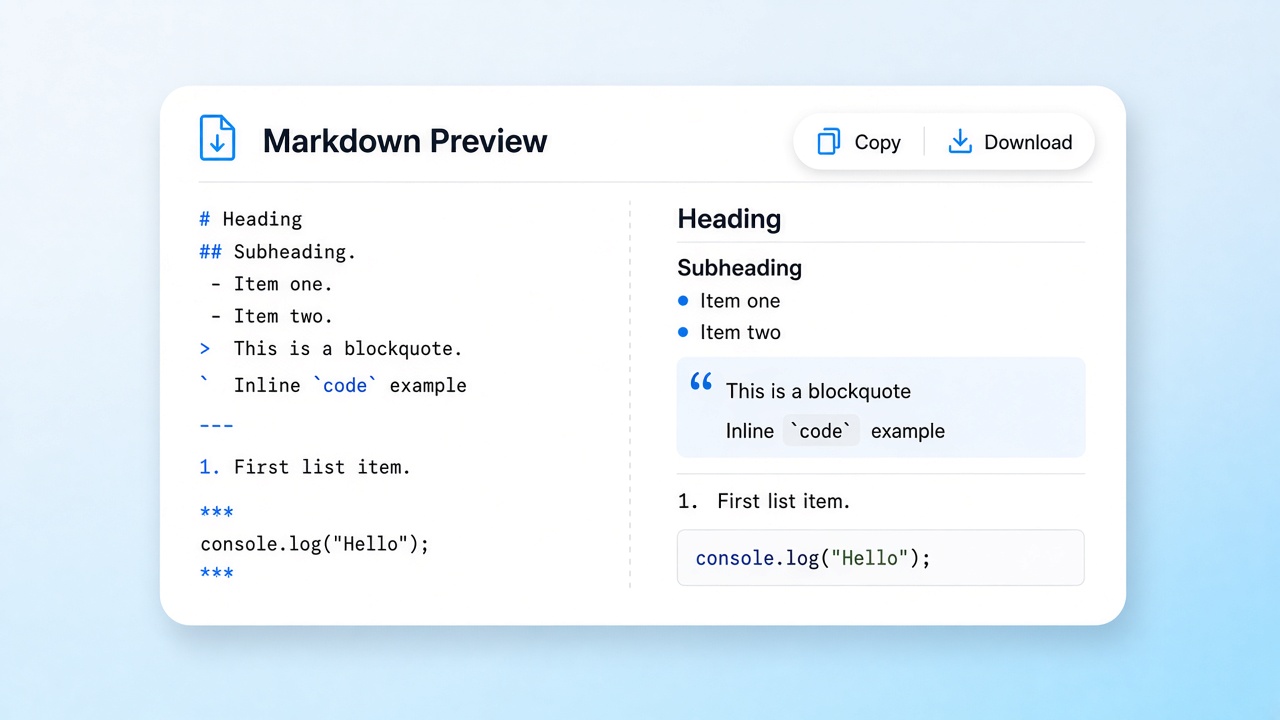 03
03Trim the noise
Delete repeated headers, footers, and cover-page filler in the PDF to Markdown preview. Less boilerplate means more room for the content you care about.
Review the output 04
04Copy into context
Paste the PDF to Markdown output into a chat, or save it for an indexing job. Split at headings when a document is long.
Copy the result
Why PDF to Markdown for LLM input
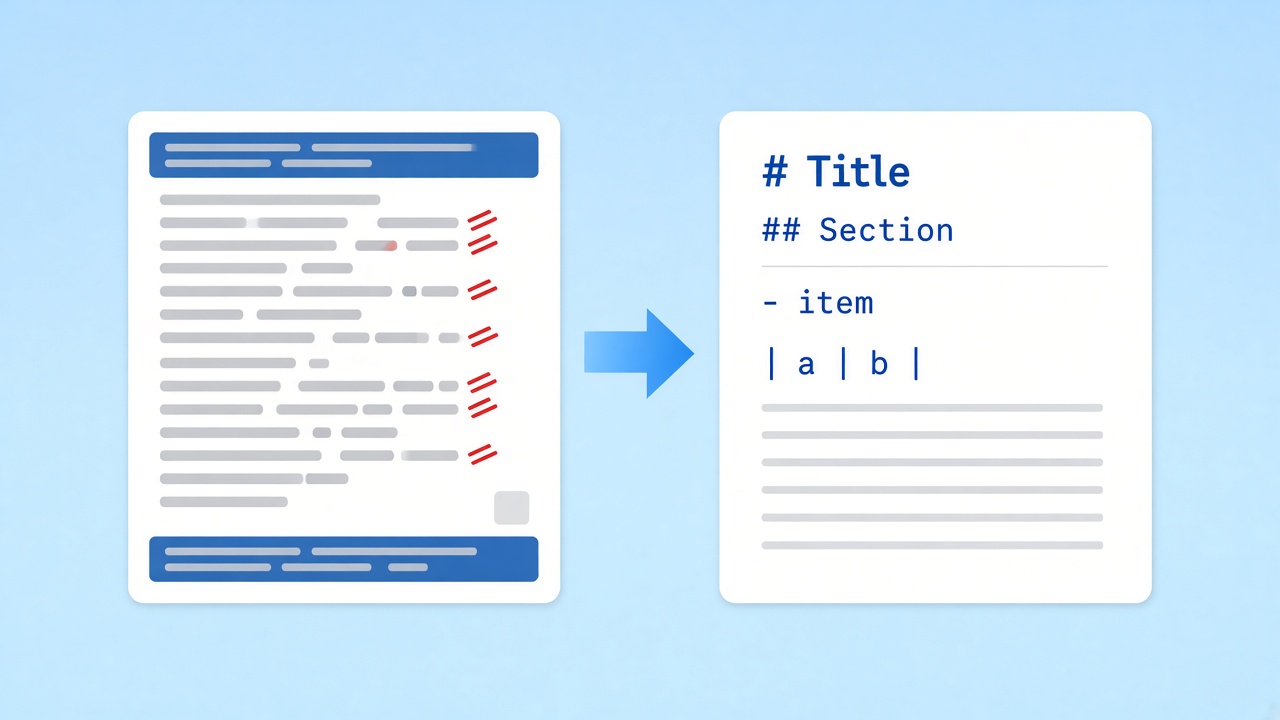
A raw copy from a print layout mixes running headers, page numbers, broken hyphenation, and table cells that spill across lines. A model has to spend attention and tokens untangling that before it can answer. Converting PDF to Markdown for LLM prompts removes most of the noise up front: sections are marked with #, steps with 1., and tabular data with GFM pipes, so the model can tell a heading from a footnote.
Structure also makes the text easier to cut. When every section starts with a heading, you can split a long PDF to Markdown file into self-contained chunks, keep the heading as a label, and cite that section when an answer needs a source. Anthropic notes that a prompt's formatting may influence the style of the reply, and OpenAI's GPT-4.1 guide, on choosing delimiters in a prompt, says of Markdown:
“We recommend starting here, and using markdown titles for major sections and subsections (including deeper hierarchy, to H4+).”
- Headings in the PDF to Markdown output mark each new topic
- Lists and tables kept as readable plain text
- Page numbers and running headers removed
Limits of PDF to Markdown to know before you prompt
Page numbers, and headers or footers repeated on most pages of a file with three or more pages, are removed automatically; a header that changes wording or appears on only a few pages can stay, so skim the preview. Merged table cells are flattened, rotated tables come out as plain lines, and two-column layouts can interleave. Scans have no text layer and the tool does not run OCR. There is no built-in token counter or automatic chunking; split long PDF to Markdown output by hand at headings.
PDF to Markdown for LLM projects
Three common ways teams use PDF to Markdown for LLM pipelines.
RAG ingestion
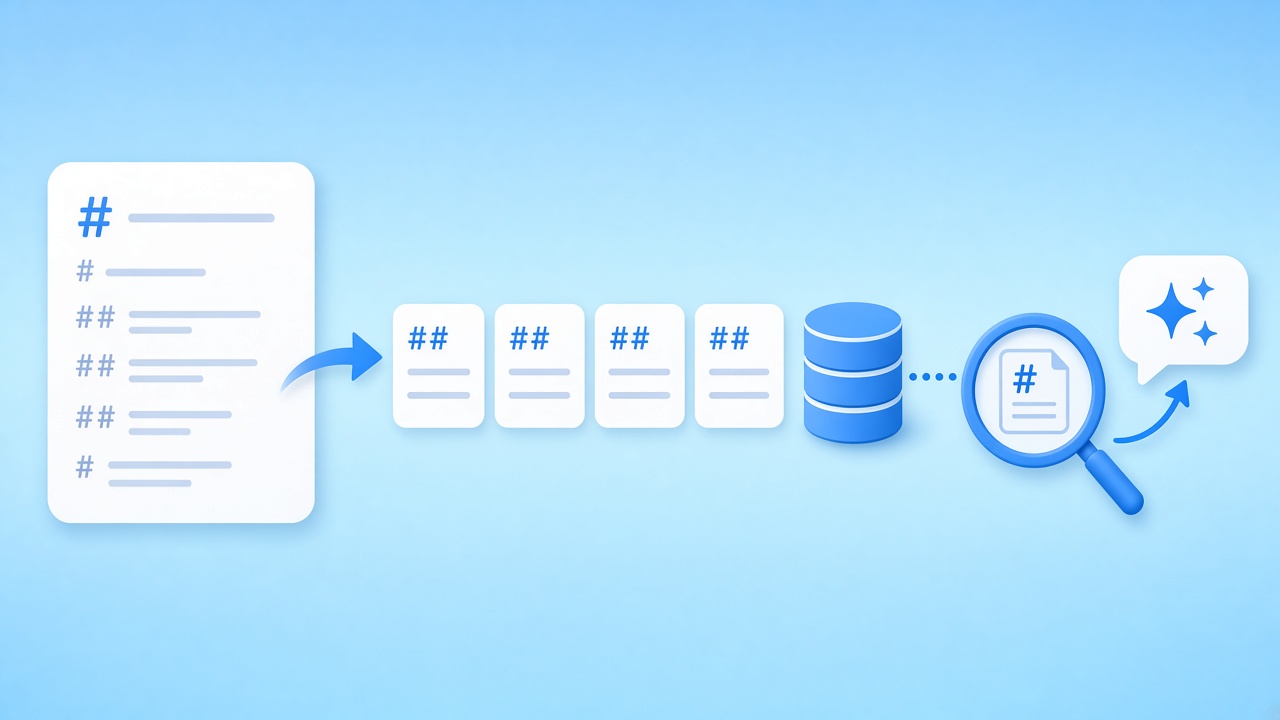
Convert manuals and reports from PDF to Markdown for LLM retrieval, index the sections, and let search return whole, headed passages instead of fragments.
Prepare a source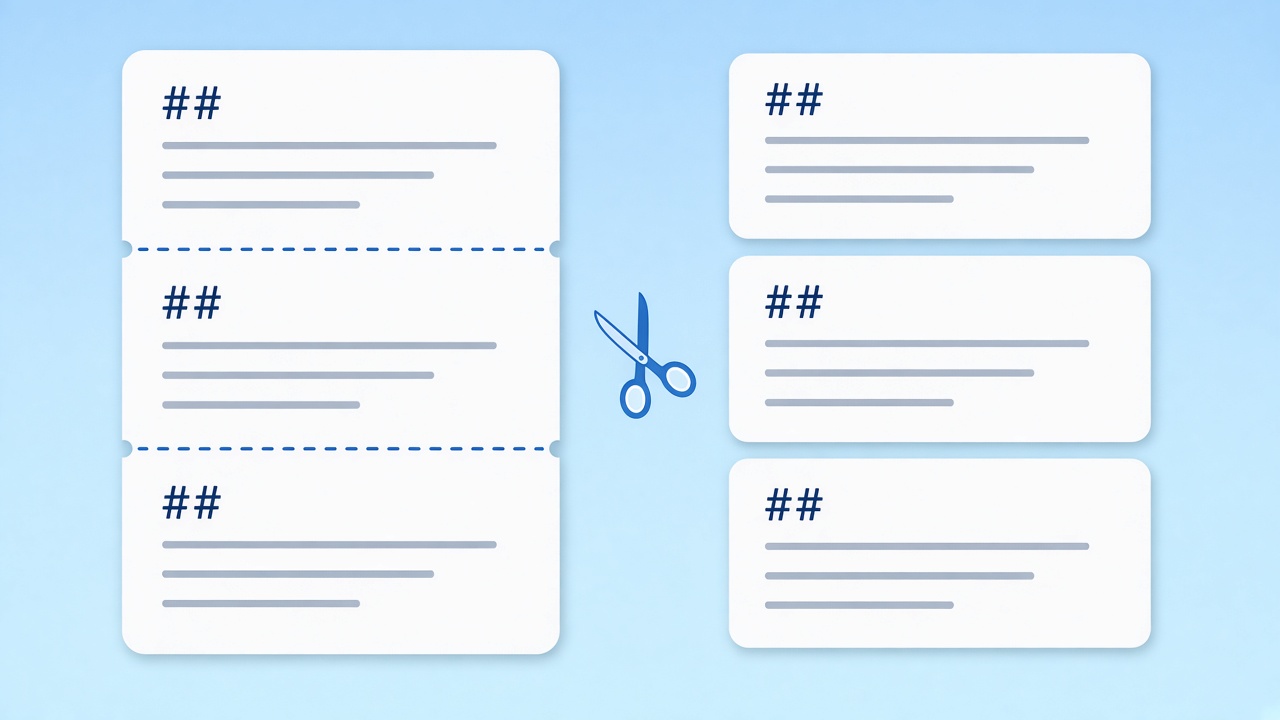
Chunking by heading
Split each PDF to Markdown file at its ## headings. Every chunk keeps a clear title, which makes retrieval and citations easier to trust.
Convert many files
Chat context
Convert a PDF to Markdown for LLM chats, paste one section, and ask focused questions. Tables arrive as pipes, so figures stay attached to their labels.
Copy a section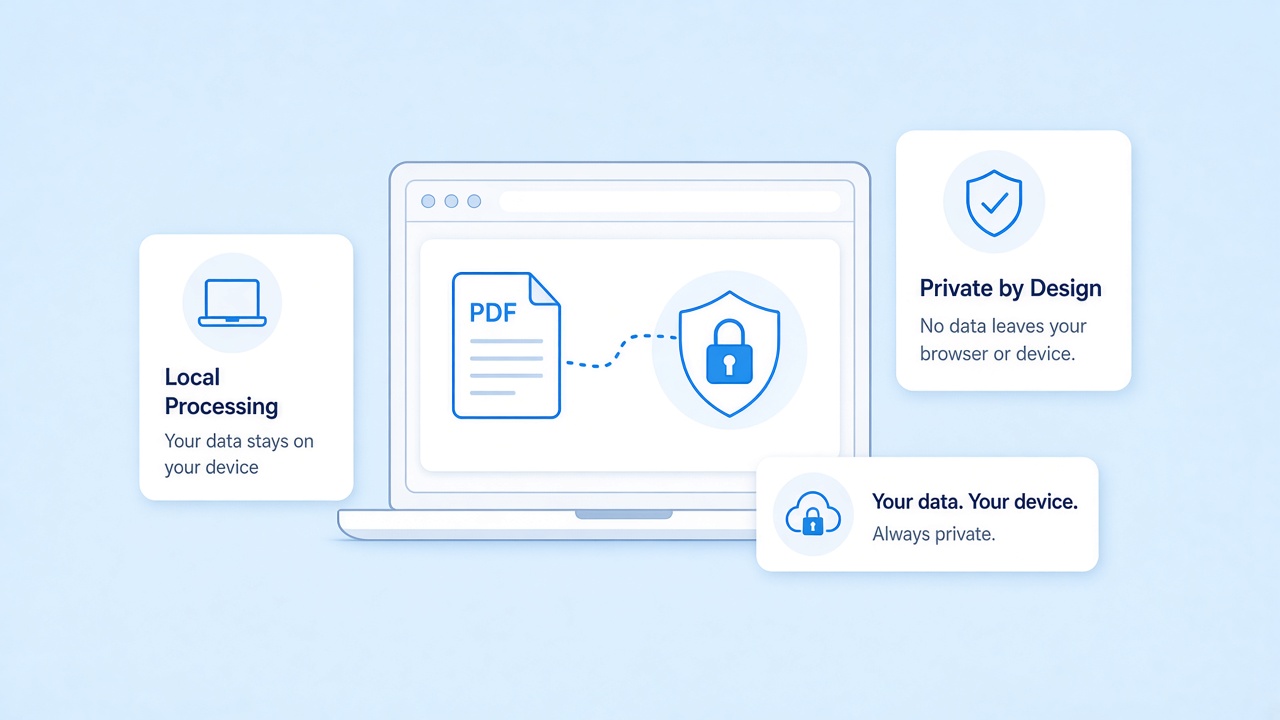
PDF to Markdown for LLM work, kept private
PDF to Markdown conversion runs in your browser with pdf.js, and the file never reaches our servers. That matters when the source is a contract or an internal report: you decide which sections leave your device and which model they go to.
Turn an answer back into a document
When a model drafts a summary from your PDF to Markdown text, the reverse page renders it as A4 pages you can share, again entirely in the browser.
Related tools
Other pages that help with PDF to Markdown work.
Convert PDF to Markdown for LLM input now
Drop a document, trim the noise, and copy structured PDF to Markdown text into your prompt or pipeline.
Convert a fileSources
- GPT-4.1 Prompting Guide — OpenAI
- Prompting best practices — Anthropic
- GitHub Flavored Markdown Spec — GitHub
FAQ
Questions about PDF to Markdown for LLM prompts, retrieval, and limits.
Why use PDF to Markdown for LLM prompts instead of raw text?
PDF to Markdown marks headings, lists, and tables explicitly, so the model can follow the structure without guessing from line breaks.
Does this count tokens or split the file for me?
No. There is no token counter or automatic chunking yet. Split long output at headings and check size with your LLM tooling.
Are tables kept when I convert PDF to Markdown?
Yes, for most text-based tables: they become pipe tables with a header row. Merged cells are flattened and rotated tables come through as plain text.
Is PDF to Markdown for LLM use private?
Yes. PDF to Markdown processing happens in your browser and the file is never uploaded. Only what you paste into a model leaves your device.
Can I run PDF to Markdown on scanned documents?
No. Scans have no text layer, and the tool does not run OCR. The tool warns you when a file looks image-based.
Which LLM can read PDF to Markdown output?
Any model that accepts text. Markdown is plain text, so chat assistants, embedding jobs, and local models all read it.
How should I chunk a long PDF to Markdown file?
Cut at ## or ### headings, keep the heading at the top of each chunk, and keep the file name so answers can point back to the source.