How to Import PDF Into Obsidian as Notes You Can Edit
By pdftomd.tools team · Updated · 7 min read
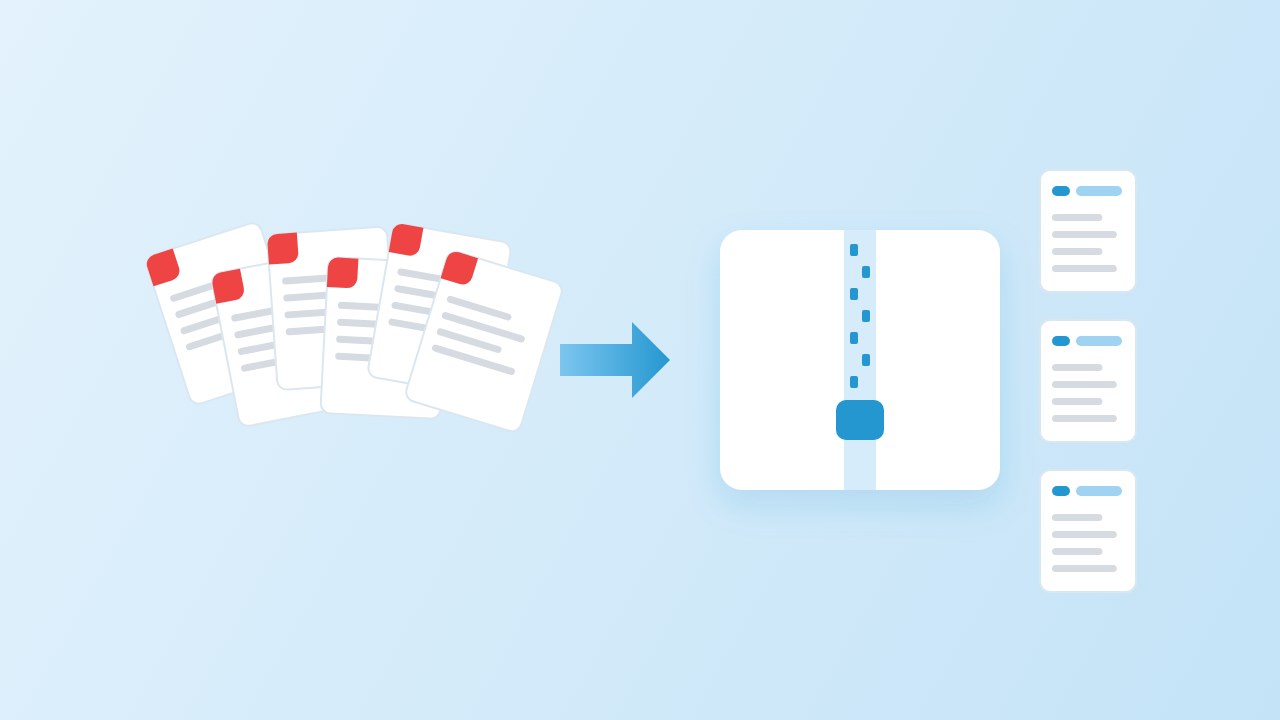
You can import a PDF into Obsidian in two ways. Drop the file into your vault and embed it with ![[file.pdf]] to read it, or convert it to Markdown, for example with our PDF to Markdown converter for Obsidian, to get a note you can edit, search and link. Most people do both: the note for thinking, the PDF as the source.
Short answer: embed it or convert it
Can you import PDF into Obsidian? Yes: PDF is one of Obsidian’s accepted file formats, and the app opens it in a built-in viewer. But a PDF in the vault is still a PDF. Its text is not part of your notes, you cannot edit it, and links between ideas have to point at the file. That is why the question of how to import PDF into Obsidian as notes has two answers:
- Embed when you mainly read the document: a contract, a manual, slides, anything where layout matters.
- Convert when you want to work with the content: quote it, rewrite it, link sections to other notes or search it alongside the rest of your vault.
If you are not sure, start with the embed and convert later. Nothing is lost: the PDF stays in the vault either way. People who import PDFs into Obsidian as notes usually reach that point when they catch themselves retyping a quote from the viewer.

Embedding a PDF, and its limits
Drag the PDF into an open note and Obsidian copies it to your attachment folder and embeds it. You can also type the embed yourself. The embed syntax takes options after a #:
![[Annual report.pdf]]
![[Annual report.pdf#page=3]]
![[Annual report.pdf#page=3&height=400]]An Obsidian embed PDF is the fastest way to keep a source next to your writing, and the viewer has page thumbnails, the file’s table of contents and search inside the file on desktop. From a thumbnail you can copy a link to a single page and paste it into any note. The limits are written in Obsidian’s own PDF help page:
“Obsidian doesn't support adding annotations or highlights to a PDF.”
The mobile app also cannot search inside a PDF or copy a quote from it. If you want highlights, quotes and links to individual ideas, you need text, which means converting.
Import a PDF into Obsidian as notes by converting it
To import a PDF into Obsidian as notes you can edit, convert it to Markdown first. With a text PDF, our converter reads the file in the browser, rebuilds headings, lists and tables, and removes running headers and page numbers. Download the .md, move it into your vault, and it appears in the file explorer like any other note.
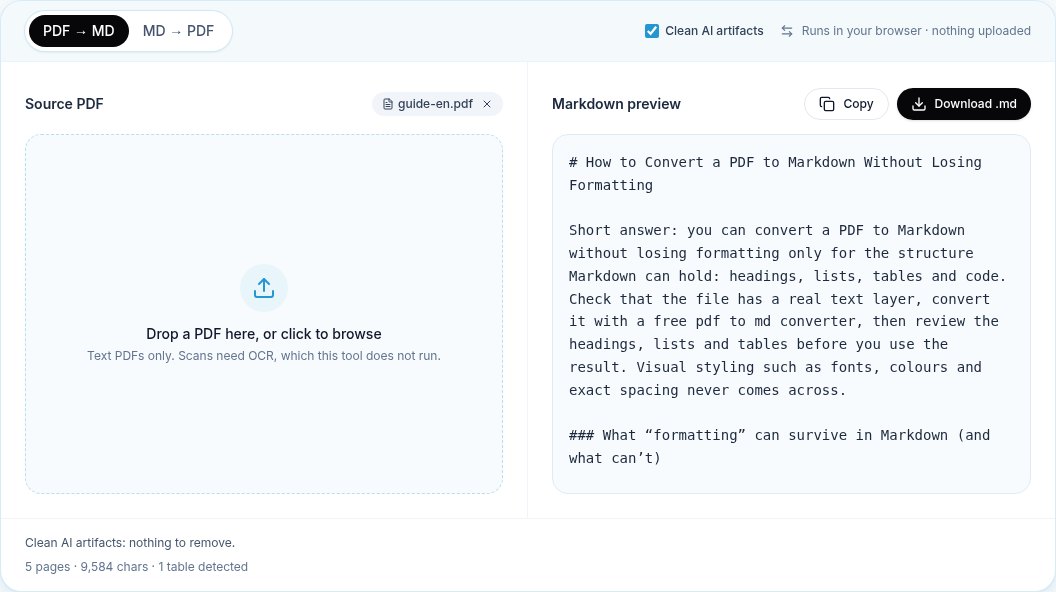
Check three things before you start linking. Headings should form a clean outline, because they become your link targets. Tables should have one header row. And a scanned PDF will come out empty, since our tool does not run OCR; for those, keep the embed or use an OCR tool first. The formatting guide has the full checklist.
After you import a PDF into Obsidian as notes, a few minutes of cleanup pays off. Rename the note to a short title, because that title is what you will type inside [[ ]]. Fix any heading that came out at the wrong level, since the outline panel and heading links follow it. Delete repeated boilerplate such as copyright lines at the end of each chapter. And turn the author’s cross-references (“see section 4”) into real links once the sections exist as headings.
A note template: frontmatter, source link, tags
Give every converted note the same block of properties at the top. Obsidian reads YAML between two --- lines and shows it as fields; tags and aliases are built-in properties. The source link is the important one: it ties the note to the original file.
---
source: "[[Annual report.pdf]]"
author:
year:
aliases:
tags:
  - literature
  - to-read
---This is the classic shape of literature notes: one note per source, with your own comments added under each heading the author wrote. Tag them consistently and Obsidian’s search and Bases views can list every source by author, year or status. When you are importing PDFs into Obsidian as notes every week, a fixed template is what keeps a hundred sources searchable instead of a hundred differently shaped files.
Splitting a long PDF into linked notes
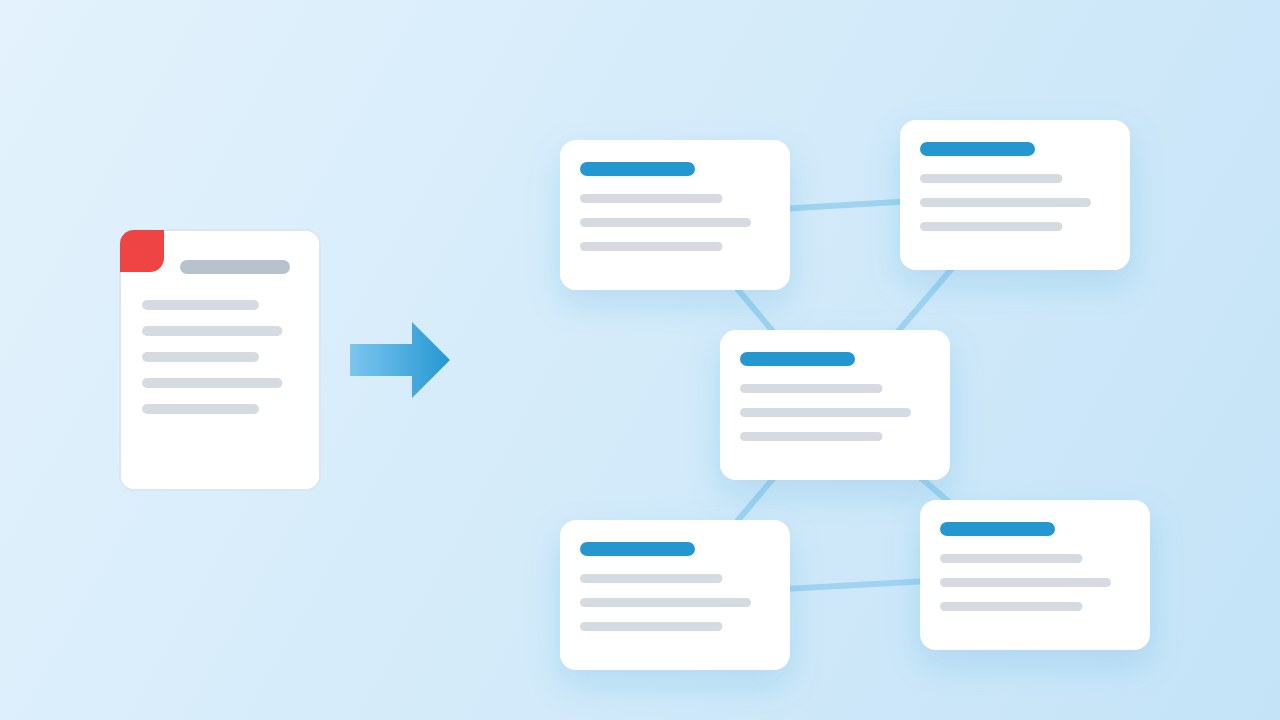
A 40-page report as one note is hard to link to. Splitting it at its section headings gives you one note per section and an index note that lists them. Then an Obsidian link to heading still works inside each part ([[Section note#Subheading]]), and the graph shows how your own notes connect to specific sections.
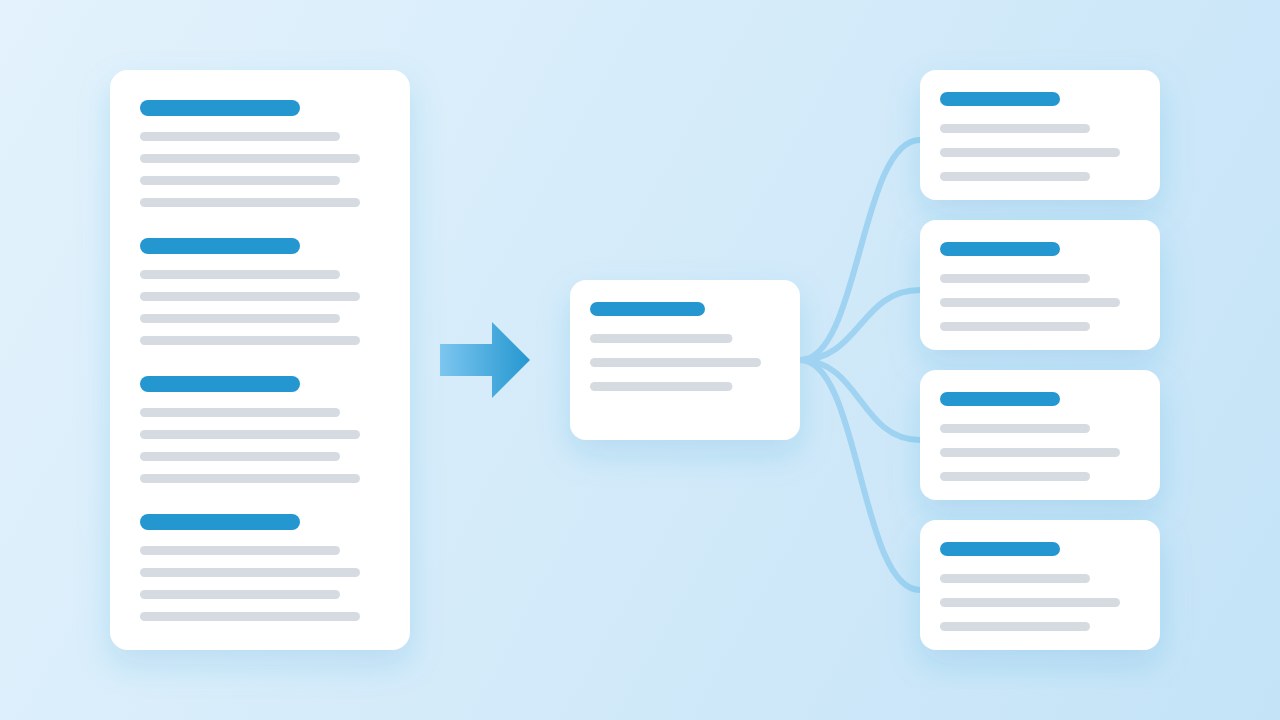
We wrote a small script for this, using only Python’s standard library. It splits at the top section level below the title, because converters do not always use ## for sections (ours chose ### for one of our test files, based on font sizes). Each section note gets the same properties plus a link back to the index:
import re, pathlib

def split_into_notes(md, title, pdf_name, out):
    out.mkdir(parents=True, exist_ok=True)
    levels = [len(h) for h in re.findall(r"(?m)^(#{2,6}) ", md)]
    if not levels:
        return []
    parts = re.split(rf"(?m)^{'#' * min(levels)} +", md)
    intro, names = parts[0], []
    for sec in parts[1:]:
        heading, _, body = sec.partition("\n")
        name = " ".join(re.sub(r'[\\/:*?"<>|#^\[\]]', " ", heading).split())[:80]
        names.append(name)
        (out / f"{name}.md").write_text(
            f'---\nsource: "[[{pdf_name}]]"\nparent: "[[{title}]]"\ntags: [literature]\n---\n'
            f"# {heading.strip()}\n{body.strip()}\n", encoding="utf-8")
    links = "\n".join(f"- [[{n}]]" for n in names)
    (out / f"{title}.md").write_text(
        f'---\nsource: "[[{pdf_name}]]"\ntags: [literature]\n---\n{intro.strip()}\n\n{links}\n', encoding="utf-8")
return namesIn our tests the script turned our 5-page English guide into 10 notes (an index and 9 sections) and our 11-page Chinese report into 13 notes, with every link resolving. For a whole folder of papers, run our batch converter first and then the script once per file.
Splitting is optional. A short article, a paper under ten pages or anything you will read once is easier as a single note with heading links. Split when sections have their own life: chapters you will cite separately, a standard with numbered clauses, or a report where different notes of yours discuss different parts.
Keeping the original PDF paired with the note
- One attachment folder. Under Settings → Files & Links → Default location for new attachments, pick a folder such as
Sources/. Every dropped PDF lands there. - Same base name.
Annual report.pdfandAnnual report.mdsort together and are easy to match by eye. - Link both ways. The note’s
sourceproperty points at the PDF; when you need the layout, embed one page with![[Annual report.pdf#page=12]]right under the paragraph you are discussing. - Do not edit the PDF to fix the note. Fix the Markdown. The PDF stays the unchanged reference.
This pairing is what makes an obsidian pdf to note workflow trustworthy months later: you can always go back to the page the quote came from. It is also the last step of importing a PDF into Obsidian as notes; everything after that is ordinary note-taking.
Community plugins: what to check before installing
Several community plugins promise to import PDFs, extract highlights or run OCR. Before you turn one on, read Obsidian’s plugin security page. It says Obsidian cannot restrict plugins to specific permissions, so a plugin can access files on your computer, connect to the internet and install other programs. Check four things:
- Does it send your PDF to an online service? The README should say so; if it mentions an API key, assume it does.
- When was it last updated, and does it work with your Obsidian version?
- Is the source code public, and under which licence?
- Could you do the same with a converter outside Obsidian and a plain note? Often you can, with nothing extra running in your vault.
Sources
- Accepted file formats — Obsidian Help
- Embed files: Embed a PDF in a note — Obsidian Help
- PDFs — Obsidian Help
- Internal links: Link to a heading in a note — Obsidian Help
- Properties — Obsidian Help
- Plugin security — Obsidian Help
FAQ
Can you import a PDF into Obsidian?
Yes. Drag it into the vault and Obsidian opens it in its viewer or embeds it in a note with ![[file.pdf]]. To edit the text, convert the PDF to Markdown and import the result as a note.
How do I import PDF into Obsidian as notes?
Convert the PDF to Markdown, move the .md into your vault, add properties with a source link to the PDF, and split long files at their headings if you want one note per section.
Can I highlight a PDF inside Obsidian?
Not with the built-in viewer; Obsidian’s help says annotations and highlights are not supported. Highlight the converted Markdown instead with ==text==, or annotate the PDF in another app.
How do I link to a specific page of a PDF?
Embed it with ![[file.pdf#page=3]], or right-click a page thumbnail in the viewer and copy its link.
Do converted notes keep the PDF’s headings?
With a text PDF, usually yes: our converter maps font sizes to heading levels. Check the outline, since the top level may come out as ### instead of ##.
Does the converter upload my PDF?
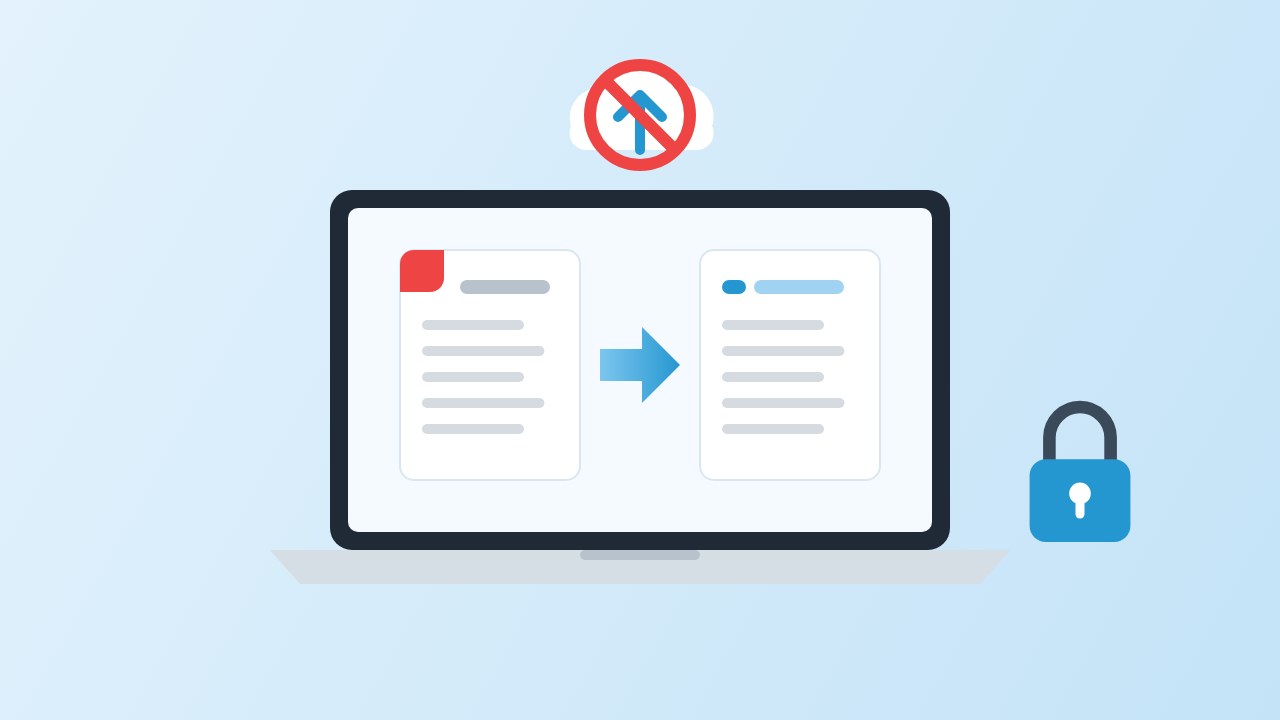
No. It runs in your browser, and the Markdown is built on your computer.