How to Convert a PDF to Markdown Without Losing Formatting
By pdftomd.tools team · Updated · 9 min read
Short answer: you can convert a PDF to Markdown without losing formatting only for the structure Markdown can hold: headings, lists, tables and code. Check that the file has a real text layer, convert it with a free pdf to md converter, then review the headings, lists and tables before you use the result. Visual styling such as fonts, colours and exact spacing never comes across.
What “formatting” can survive in Markdown (and what can’t)
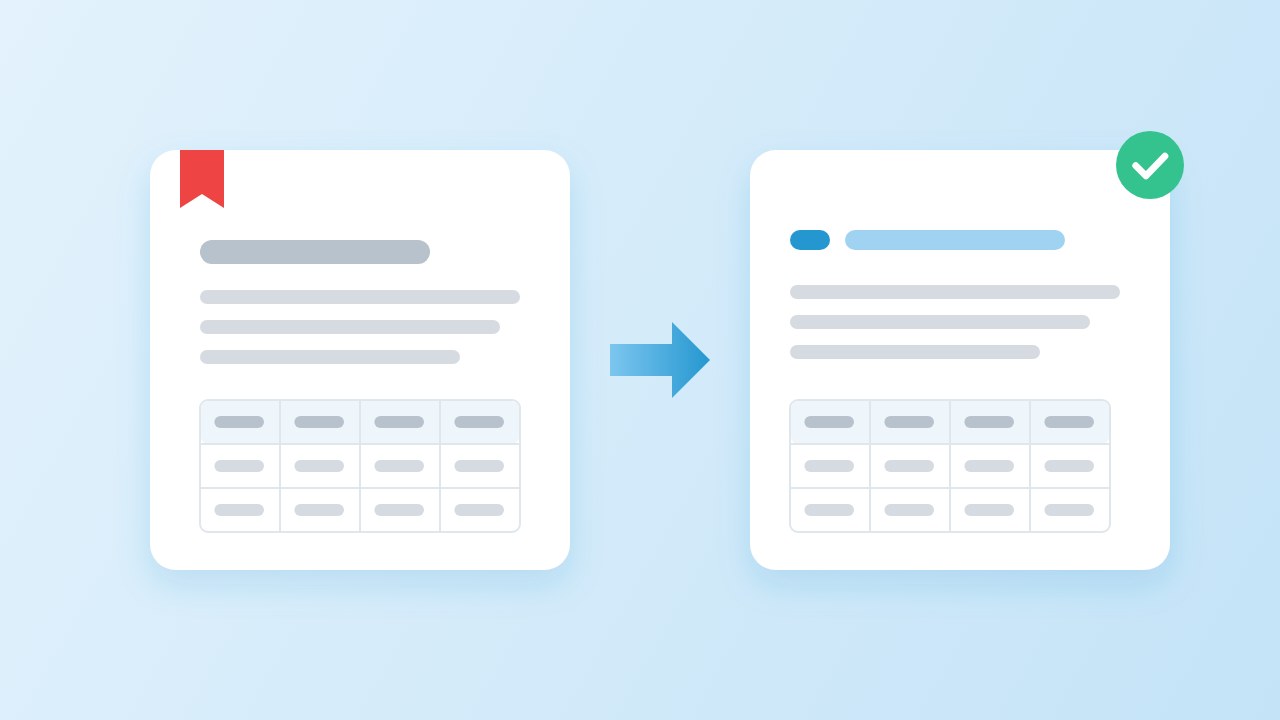
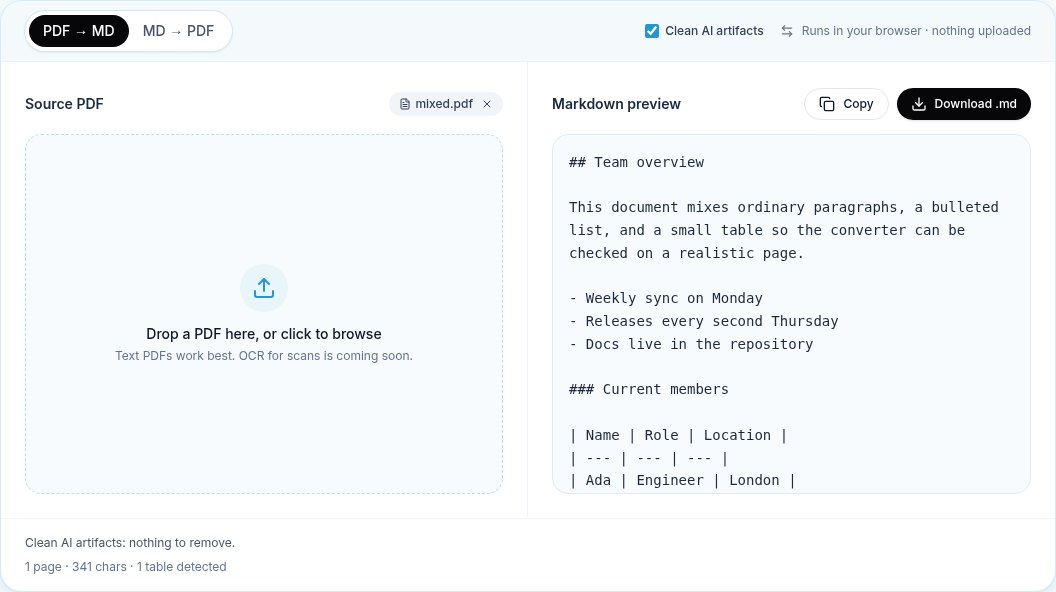
A PDF describes how a page looks. The format, defined in ISO 32000-2, stores glyphs at positions on a page, plus fonts, lines and images. It has no built-in notion of “this is a heading” unless the author added tags, and most files you meet in the wild don’t carry useful tags. Markdown is the opposite: it records what each block is (a heading, a list item, a table row) and leaves the look to whatever renders it.
So when people ask how to convert PDF to Markdown without losing formatting, the honest answer is that “formatting” splits into two groups. Structure can be rebuilt. Appearance cannot, because Markdown has no syntax for it.
| Formatting in the PDF | In Markdown | Notes |
|---|---|---|
| Headings (larger text) | Yes | Rebuilt from text size; check levels |
| Bulleted and numbered lists | Yes | Numbering is rewritten, not copied |
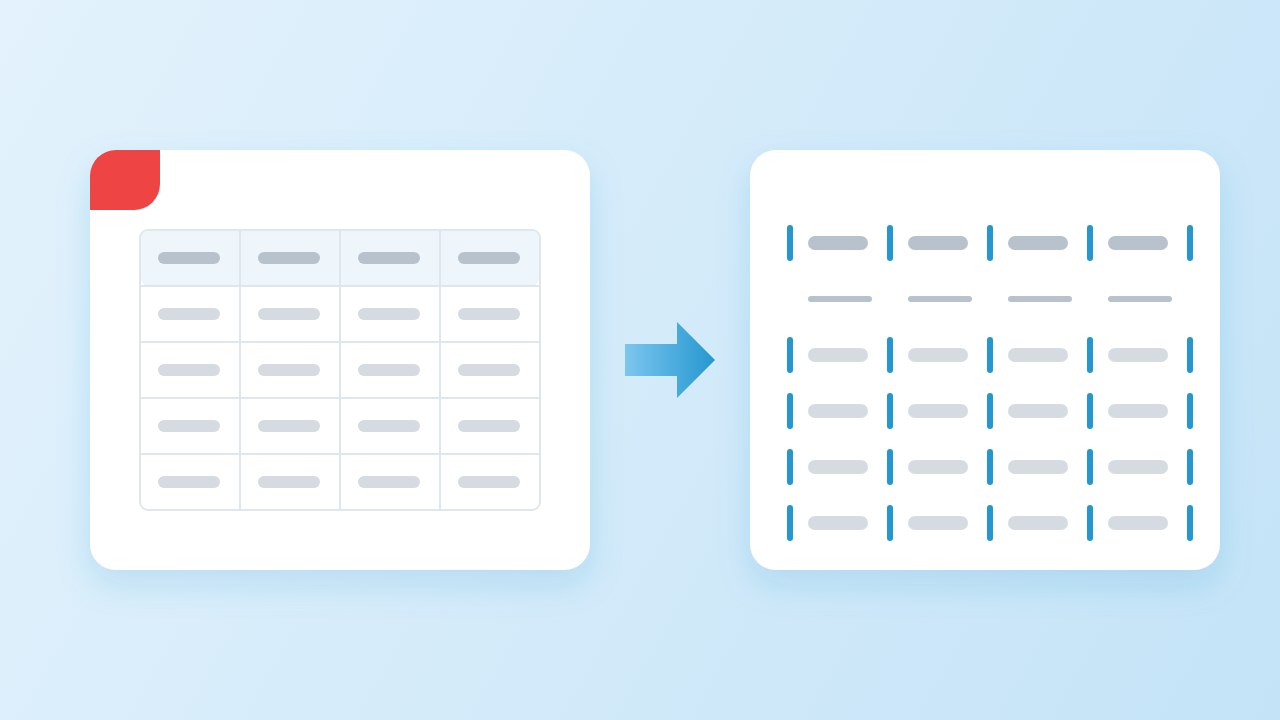
| Tables | Yes, as pipe tables | One header row, no merged cells |
| Links | Only printed URLs | Link targets behind words are not read |
| Code in a monospace font | Yes, as fenced code | Language name is not known |
| Bold and italic | Not with our tool | Needs font-weight analysis |
| Images and charts | No | Export them separately |
| Fonts, colours, page layout | No | Markdown has no syntax for these |
“The overriding design goal for Markdown’s formatting syntax is to make it as readable as possible.”
That design goal is why the trade-off is worth making. You give up the exact look of the page and get plain text that reads well, diffs cleanly in Git and pastes into a wiki or a chat model. The CommonMark spec defines the core syntax, and GitHub Flavored Markdown adds tables and task lists on top.
Check the PDF first: text layer, columns, fonts
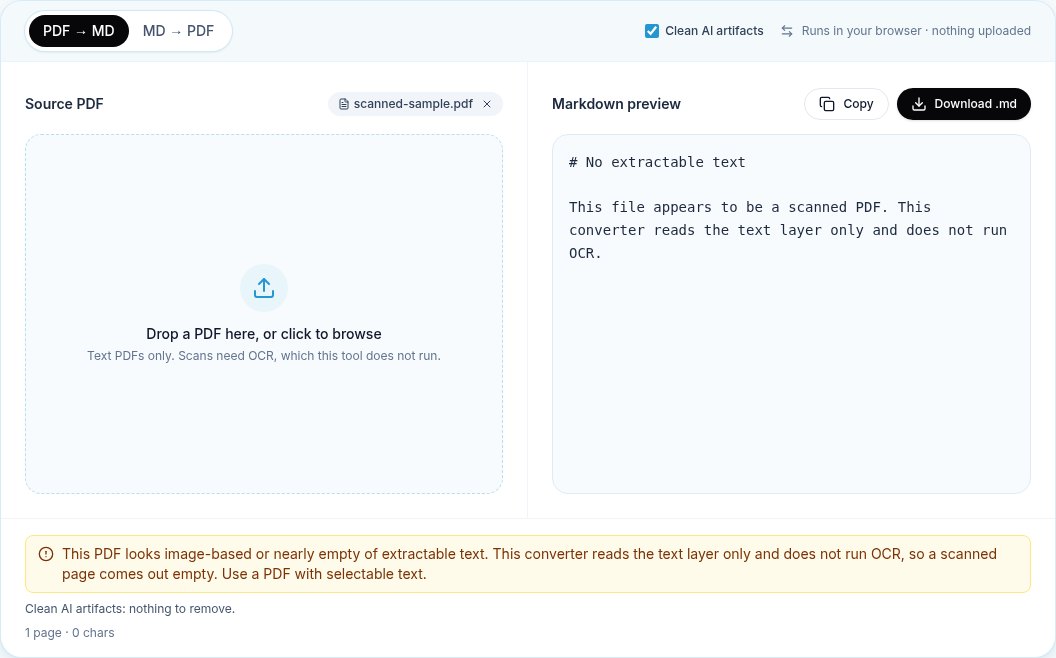
If you want to convert a PDF to Markdown without losing formatting, start before the conversion: two minutes of checking saves an hour of fixing. Open the file in any viewer and do a quick text layer check: try to select a sentence and paste it somewhere. If you can, the page has real text. If the whole page highlights as one block, or nothing is selected, you have a scanned PDF, which is a photo of a page with no characters to extract.
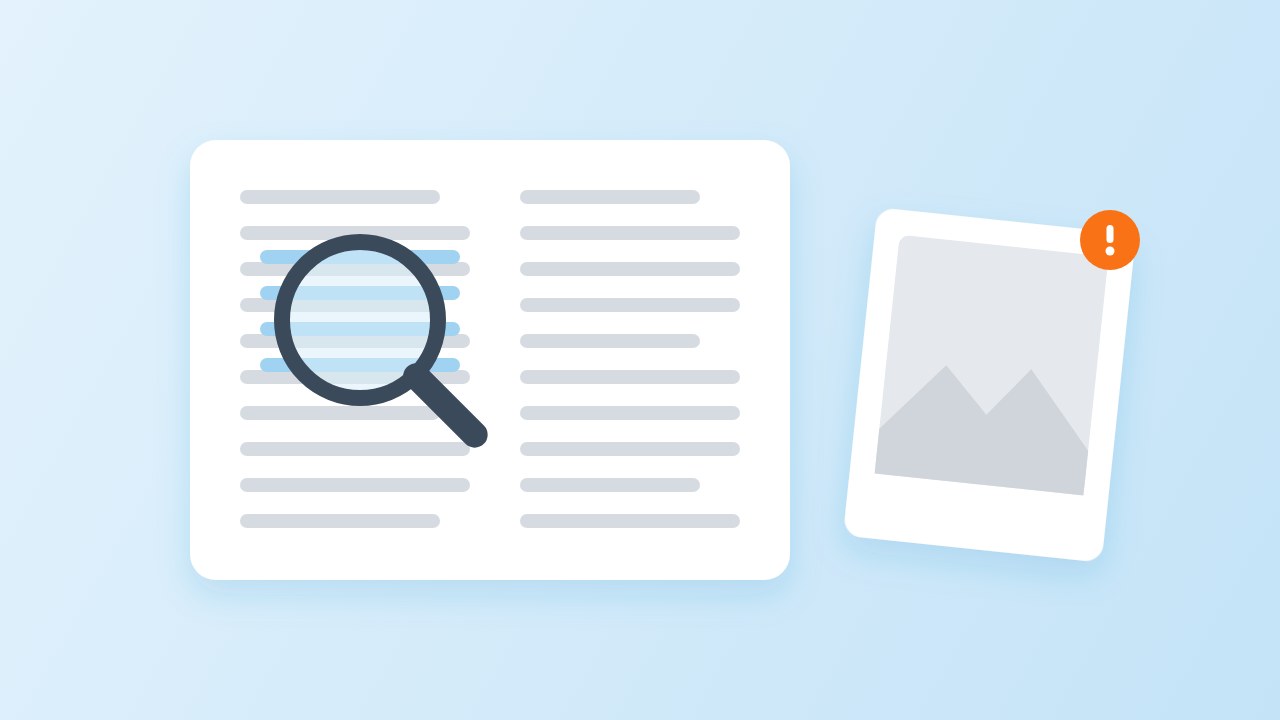
On the command line, pdffonts from Poppler lists the fonts a file uses. An empty list on a page full of words is a strong sign of a scan. Then look at three layout features that decide how clean the output will be:
- Columns. Two-column papers and newsletters force the converter to guess the reading order.
- Heading style. Headings set in a larger size are easy to detect. Headings that are only bold, at body size, look like ordinary paragraphs to a size-based detector.
- Fonts. Code in a monospace font can become a fenced block. Odd font encodings can turn letters into boxes or unreadable symbols, which no converter fixes.
Step by step: convert a PDF to Markdown without losing formatting
This routine works with any text-based converter. We use ours because we can explain exactly what it does: it reads the text layer with pdf.js, groups words into lines, and rebuilds headings, lists, tables and code from their size and position. The file is not uploaded.
- Open the converter and drop in the file. Leave “Clean AI artifacts” on unless you need the raw text.
- Read the summary line under the preview. It shows pages, characters and how many tables were found. A page count with very few characters means some pages are scans.
- Skim the preview top to bottom. Look at the heading levels first, then lists, then tables.
- Copy or download the .md file and open it in your editor next to a preview.
- Fix what the checklist below finds, then commit or paste the result.
If you mostly convert reports and handbooks, the online converter page explains the heading and list rules in more depth. For files that are mostly tables, read our guide on how to convert PDF tables to Markdown.
Headings, lists and tables: what to check
Headings, lists and tables carry most of a document’s structure, so they decide whether you convert PDF to Markdown without losing formatting that matters to readers.
Headings
To keep headings when converting PDF files, the converter compares each line’s height with the body text. Ours maps the largest steps to # through #### and also treats short all-caps lines as headings. Check two things: that the title is the only #, and that sections and subsections did not swap levels. A chapter title set only slightly larger than body text can drop a level.
Lists
Bullets come from the marker glyph (•, –, *) or from a number followed by a dot or bracket. Numbered items are written as 1. each time, which Markdown renders as 1, 2, 3. Watch for list items that wrapped onto a second line: in a PDF the second line is just more text, and it should stay inside the same item.
Tables
PDF to Markdown tables are the part most likely to need a hand. Ruled grids and cleanly aligned columns usually convert well. In our tests of 12 table layouts, all eight single-table layouts and the page with two tables came back with the expected rows, and the two-column prose page correctly produced no table. A table rotated 90 degrees was not detected. Merged cells are flattened, because a pipe table cannot express them.
What gets lost: bold/italic, figures, columns
No tool can convert a PDF to Markdown without losing formatting of every kind. Some losses are built into the format and some are limits of a particular tool, and it helps to know which is which.
- Bold and italic. Markdown has
**bold**and*italic*, so this is a tool limit, not a format limit. Our converter does not detect emphasis yet; it outputs the words without the markers. Re-add emphasis where it carries meaning, such as warnings. - Figures and charts. These are drawings or embedded images, not text. They are skipped. Export the images you need separately and link them with
. - Footnotes. The note text survives, but the link between the marker and the note does not. Rebuild important ones by hand.
- Multi-column layouts. Columns can interleave when the reading order is ambiguous. Check the first page of each section.
- Exact spacing and page breaks. Page boundaries are removed, and a paragraph cut by a page break is joined back together where that is safe.
Running headers, footers and page numbers are a special case: they are formatting you usually want to lose. Our converter drops lines that repeat at the top or bottom of most pages, so “Annual report · Page 7” does not appear in the middle of a paragraph.
Fix-up checklist after conversion
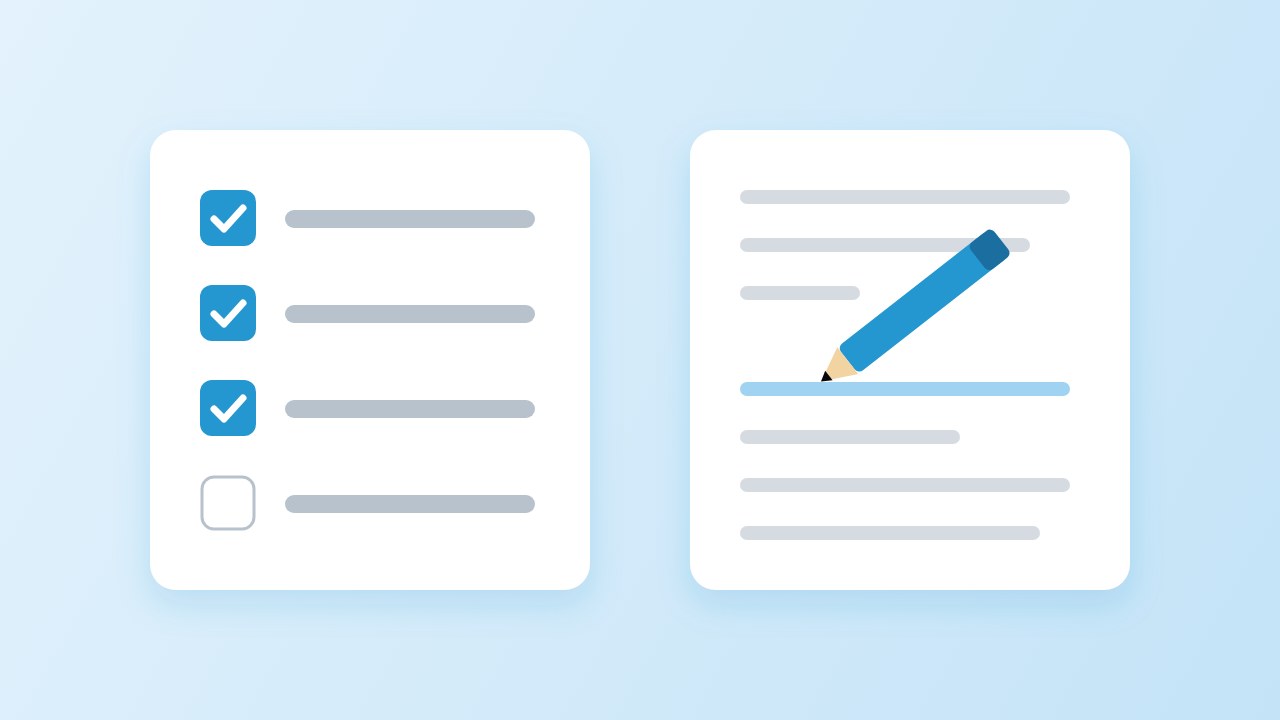
The last step to convert a PDF to Markdown without losing formatting is a short review. Work through this list in your editor with the preview open; it takes a few minutes for a typical report.
- One
#title at the top, then##for sections. Fix any level that jumps. - No heading made of a stray page header or a figure label.
- List items complete, with wrapped lines inside the item they belong to.
- Every table has a header row and the same number of cells in each row.
- Merged or empty cells filled in or explained in a note under the table.
- Emphasis re-added where it changes meaning.
- Image placeholders or links added where a figure was.
- Links re-added: our converter keeps printed URLs as text but does not read link targets hidden behind words.
For a chat model or a RAG index, headings matter most because they become chunk boundaries; our guide for LLM use covers that case.
When to use another tool (OCR, layout models)
A text-layer converter suits files exported from a word processor, a slide tool or a typesetting system. Switch tools in three situations rather than fight the output.
- Scans. A scanned PDF needs OCR first. OCRmyPDF adds a searchable text layer to scanned files; after that, a text converter can read them.
- Complex layouts. For dense papers with formulas, multi-column pages and many tables, layout-model tools such as Docling describe support for page layout, reading order and table structure. They run locally in Python and are heavier to set up.
- Mixed scans and text at volume. marker can combine the text layer with OCR and optional LLM help. Check its licence terms for the model weights before commercial use.
Whatever you choose, keep the review step: no tool can convert a PDF to Markdown without losing formatting the file never stored. Our About page lists what our converter does not do, including OCR.
Sources
- ISO 32000-2:2020 Document management — Portable document format — Part 2: PDF 2.0 — ISO, 2020
- CommonMark Spec, version 0.31.2 — CommonMark, 2024
- GitHub Flavored Markdown Spec — GitHub, 2019
- Markdown — Daring Fireball (John Gruber), 2004
- pdf.js — Mozilla
- pdffonts(1) manual page — Poppler / Debian
- OCRmyPDF — OCRmyPDF project
- Docling — Docling project
FAQ
Can you convert a PDF to Markdown without losing formatting?
You can keep the structure: headings, lists, tables, code and any URLs printed on the page. You cannot keep the visual design, such as fonts, colours, columns and exact spacing, because Markdown has no syntax for them. Bold and italic are possible in Markdown, but our converter does not detect them yet.
Why did my headings come out as plain paragraphs?
Most converters, including ours, find headings by text size. A heading that is bold but the same size as body text looks like a paragraph. Add the # marks by hand, or check whether the source document can be exported again with real heading styles.
How do I know if my PDF has a text layer?
Try to select and copy a sentence. If it pastes as text, there is a text layer. On the command line, pdffonts file.pdf lists the fonts in the file; no fonts on a page full of words usually means a scan.
What happens to tables when I convert?
Detected tables become GitHub-style pipe tables with one header row. Merged cells are flattened into the first cell with empty cells after it, and a table that runs across pages comes back as one table per page. See our table guide for fixes.
Does converting a scanned PDF work?
Not with a text-layer converter. A scan has no characters to read, so our tool reports “No extractable text”. Run OCR first, for example with OCRmyPDF, and convert the result. OCR adds its own errors, so you are less likely to convert a scanned PDF to Markdown without losing formatting.
Is my file uploaded when I convert it?
Not with our converter. The PDF is read by pdf.js inside your browser tab. Our privacy page explains what the site collects.