How to Print Markdown to PDF With Tables That Stay Readable
By pdftomd.tools team · Updated · 7 min read
If you want to print Markdown to PDF with tables intact, write plain GFM tables, keep them narrow enough for the page, and export with a renderer that never cuts a row in half, such as our MD to PDF converter. Then open the PDF and check three things: every column is visible, rows are whole at page breaks, and the cell text can be selected and searched.
Short answer: GFM tables + a renderer that keeps rows whole
Markdown tables are a GitHub Flavored Markdown extension: one header row, a delimiter row, and body rows separated by pipes. Every serious exporter understands them. The differences show up when a table meets the edge of the page, either the right edge (too many columns) or the bottom edge (too many rows).
Three things decide whether a printed table stays readable: the width of the table compared with the page, what happens at a page break, and whether the result is real text. The rest of this guide takes them one at a time, with numbers from our own exporter measured on Oct 18, 2026.
Writing tables that print well
When you print Markdown to PDF with tables, most problems start in the source file. A few habits prevent them:
- Keep cells short. Put long explanations in a paragraph under the table and leave a short label in the cell.
- Use alignment for numbers. A
---:delimiter right-aligns a column, which makes figures easy to compare on paper. - Always include a header row. GFM requires one, and it is the row readers look for when a table runs onto a second page.
- Avoid long unbroken strings. URLs and file paths cannot wrap at spaces, so they force a column wide. Shorten them or move them into a footnote-style list.
- Escape pipes in cells as
\|, or the row gains an extra column.
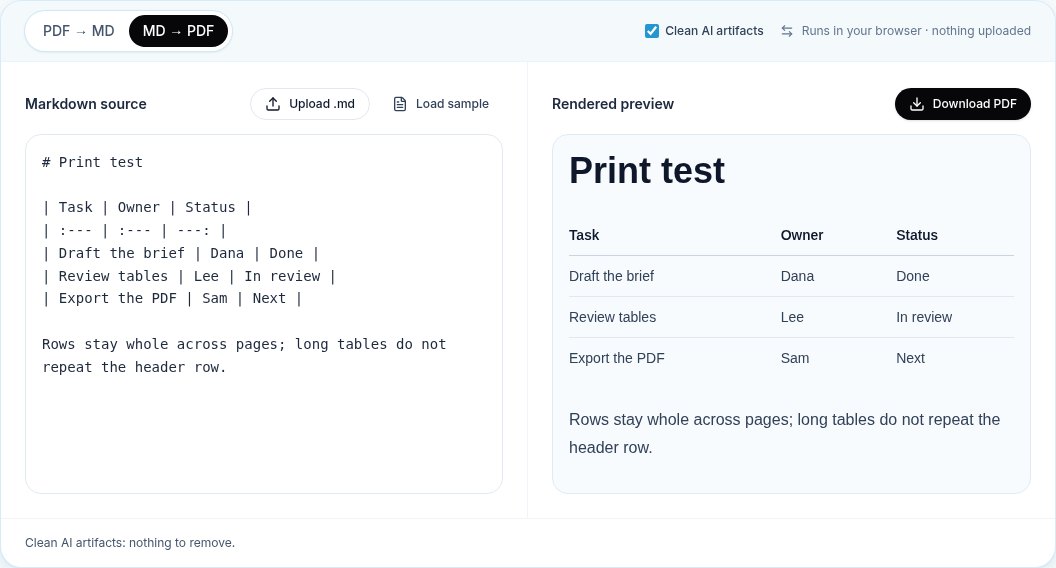
| Task           | Owner | Status    |
| :------------- | :---- | --------: |
| Draft the brief | Dana  | Done      |
| Review tables  | Lee   | In review |
| Export the PDF | Sam | Next |Before exporting, preview the table at roughly the printed width. In our exporter the A4 text column is about 680 CSS pixels wide. If it already scrolls sideways in a narrow preview, it will be cramped on paper.
Wide tables: options when columns don’t fit A4
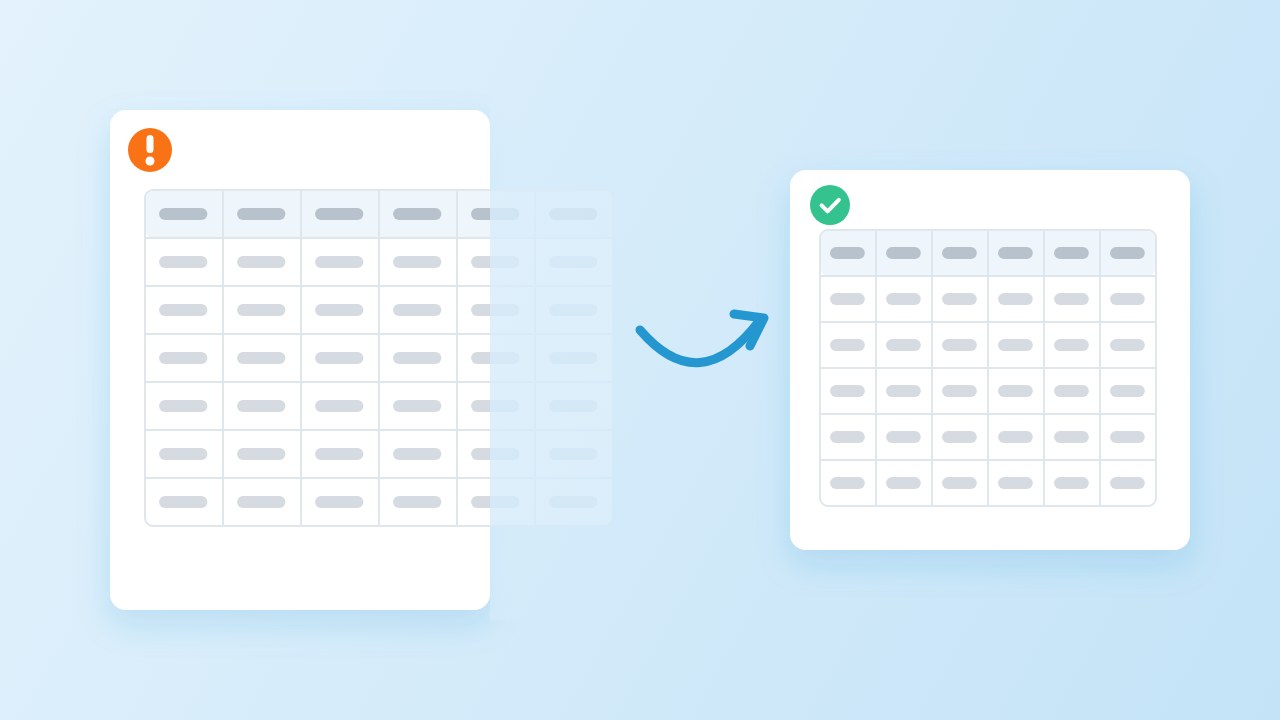
Wide tables are where PDF exports most often fail quietly. When we started testing for this article, a 9-column table exported with our own tool had only 5 of 9 header cells fully on the page and none of the last column visible: the rest ran past the right edge. We changed the exporter the same day. Tables that would overflow now wrap their cells to fit, and in the repeat test all 9 columns were on the page with no text past the right margin.
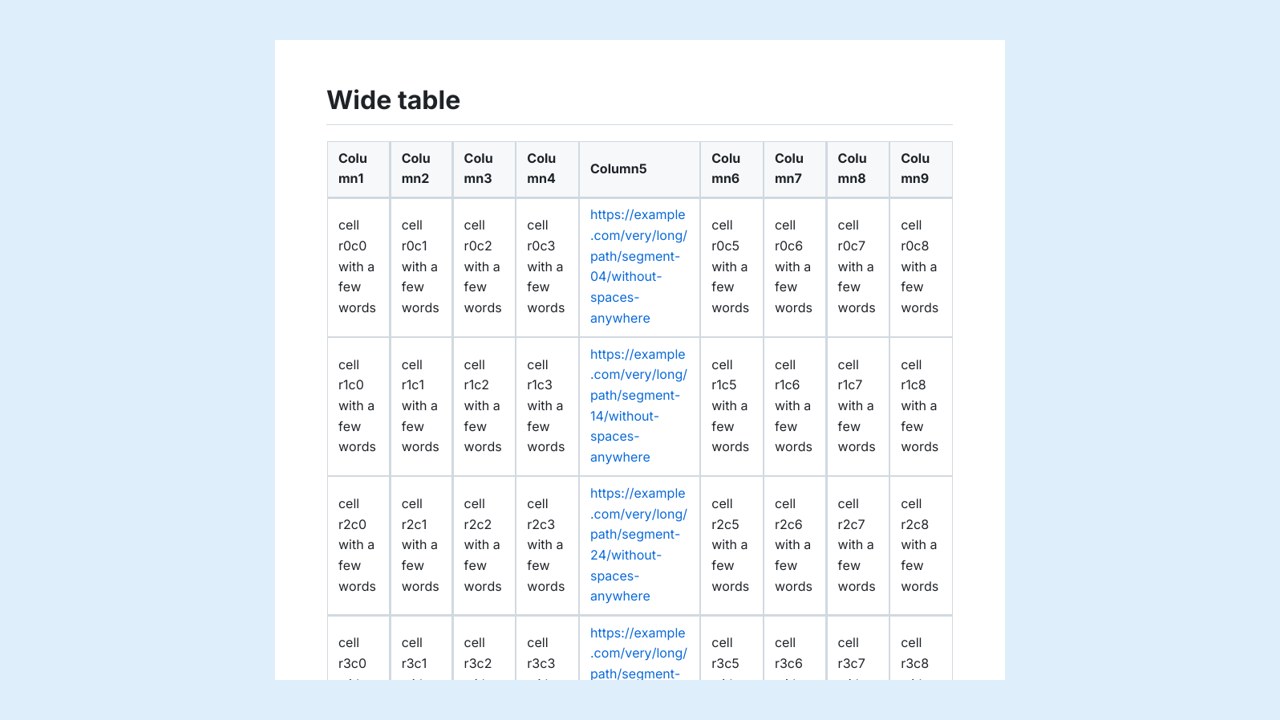
Fitting is better than losing columns, but it is not pretty: very narrow cells break words. For wide tables PDF layout offers four better options, in this order:
- Drop or merge columns that readers do not need on paper.
- Split the table into two that share a key column, such as an ID or a name.
- Transpose it so the many columns become rows.
- Print in landscape. Our exporter writes A4 portrait only. Chromium-based exporters accept a CSS rule such as
@page { size: A4 landscape; }(MDN: size).
Long tables across pages
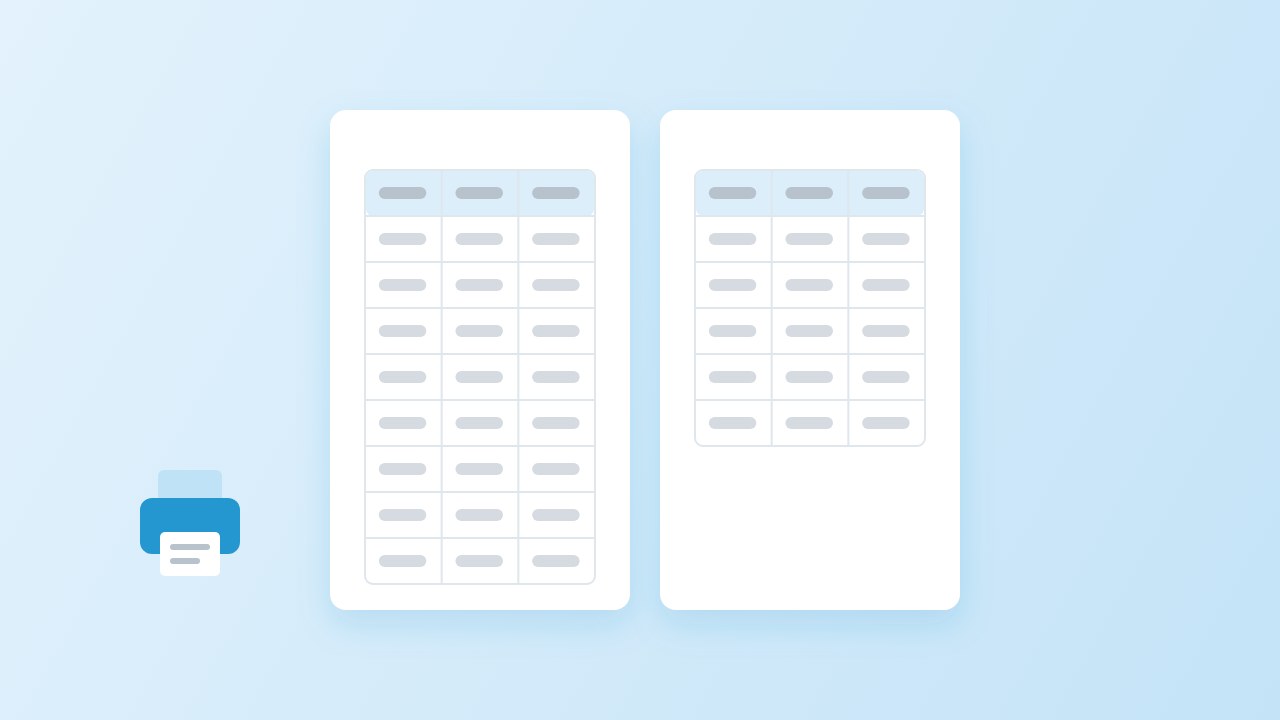
A table split across pages has two failure modes: a row cut in half, with its top on one page and its bottom on the next, and a second page that starts with no header, so readers lose track of the columns. Both matter whenever you print Markdown to PDF with tables longer than a page. We tested them with a 60-row table whose rows each wrap onto two lines.
| Exporter | Pages | Rows split | Pages with header row |
|---|---|---|---|
| pdftomd.tools MD to PDF | 4 | 0 | 1 of 4 |
| Chrome print to PDF (Chrome 155.0.8059.84) | 3 | 0 | 3 of 3 |
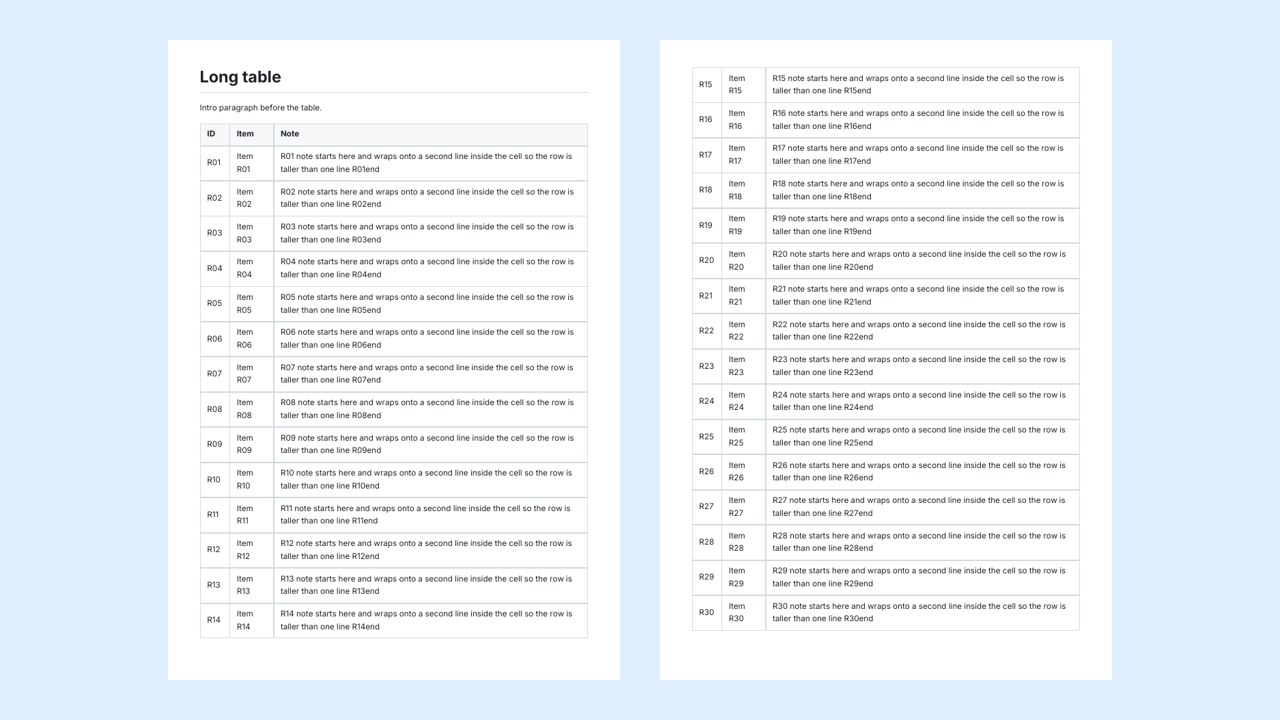
Our exporter keeps every row whole, but it does not repeat the header row on later pages. Chrome did both. The CSS 2.1 specification allows it without requiring it:
“Print user agents may repeat header rows on each page spanned by a table.”
If you need repeated headers from our tool today, split a long table into page-sized parts and repeat the header row yourself. In HTML-based exporters, tr { break-inside: avoid; } (MDN) asks the browser to keep rows whole.
Print Markdown to PDF with tables: browser tool vs VS Code vs Pandoc
All three routes can print Markdown to PDF with tables. They differ in setup and in how much control you get.
| Route | How it renders | Tables in practice |
|---|---|---|
| Our browser tool | Lays out the page in the browser, then writes text with pdf-lib | Rows kept whole; header not repeated; wide tables wrap to fit |
| VS Code with the Markdown PDF extension | Prints through Chrome, Edge or Chromium | Accepts your own stylesheet and a landscape setting |
| Pandoc | Converts through LaTeX by default | Uses the longtable environment, so tables can span pages |
For vscode markdown to pdf tables, the Markdown PDF extension documents a markdown-pdf.styles setting for custom CSS and a portrait or landscape option. It prints with a Chromium browser, the same engine as the Chrome row above, but we did not test the extension itself.
For pandoc markdown to pdf tables, the Pandoc manual says LaTeX output uses longtable by default, so tables “can span page boundaries”. It also says that when a pipe table has a line longer than the column width, relative column widths follow the number of dashes in the delimiter row. That gives you a way to make one column wider without HTML.
pandoc report.md -o report.pdfChecking the PDF: selectable text, searchable cells
The last check when you print Markdown to PDF with tables is the text layer. A markdown table pdf export is only useful if the cells are real text. Some exporters, including the fallback mode of our own tool, save each page as an image inside the PDF, which looks fine but cannot be searched, copied or read by a screen reader. Check it in ten seconds: open the PDF, press Ctrl+F (or Cmd+F) and search for a word that appears only inside a table cell. Then select one row and paste it.
Our exporter writes real text with embedded font subsets. In our round-trip test, four tables printed to a PDF and converted back with our PDF to Markdown tool gave 17 of 17 rows identical to the source, including an escaped pipe and right-aligned numbers. For the other direction, see our guide on how to convert PDF tables to Markdown.
Sources
- GitHub Flavored Markdown Spec, 4.10 Tables (extension) — GitHub, 2019
- CSS 2.1 Specification, 17 Tables — W3C, 2011
- break-inside — MDN Web Docs
- size (@page descriptor) — MDN Web Docs
- Pandoc User’s Guide — pandoc.org
- Markdown PDF (VS Code extension) — yzane, Visual Studio Marketplace
FAQ
How do I print Markdown to PDF with tables?
Write GFM pipe tables with a header row, keep them narrow enough for the page, and export with a tool that keeps rows whole. Then check the PDF for cut-off columns, split rows and selectable text.
Why are my table columns cut off in the PDF?
The table is wider than the printable area and the exporter does not shrink it. Remove or split columns, transpose the table, or print in landscape. Our exporter now wraps wide tables to fit the page.
Does the header row repeat on every page?
It depends on the exporter. In our tests Chrome’s print to PDF repeated it on every page; our own exporter shows it on the first page only, so split long tables if readers need it.
Can I print a Markdown table in landscape?
Not with our exporter, which writes A4 portrait. Chromium-based tools accept @page { size: A4 landscape; } in a stylesheet, and the VS Code Markdown PDF extension has an orientation setting.
Will the table text be searchable in the PDF?
With our exporter, yes: cells are real text with embedded fonts. Some tools save page images instead, so search for a word from a cell to be sure.
Are tables merged across pages when I convert the PDF back to Markdown?
No. Converting back gives one table per page; delete the repeated header and delimiter rows to join them. Our table guide shows how.