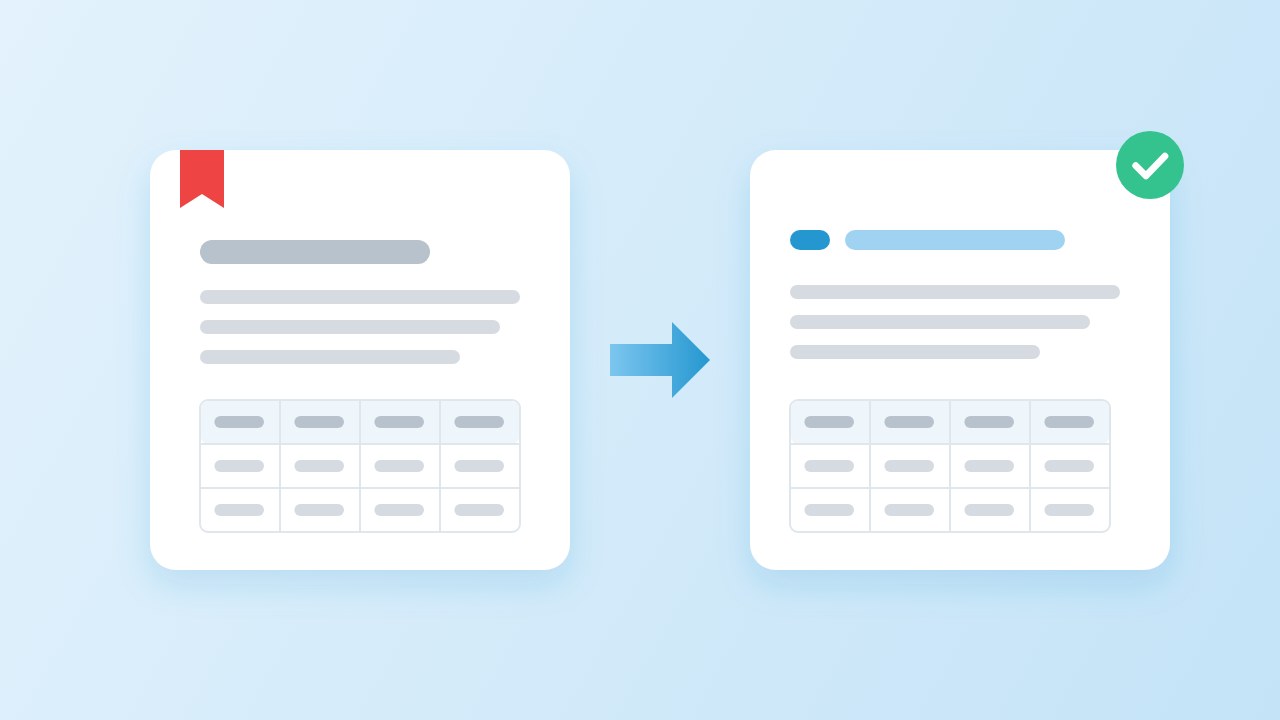
How to Convert PDF to Markdown Locally, Without Uploading It
By pdftomd.tools team · Updated · 8 min read
Here is how to convert PDF to Markdown locally: open a converter that runs in your browser, such as our PDF to MD converter, then cut the network and convert. If it still works, nothing left your machine. For scripts or large batches, a Python library or a command-line tool does the same job on your own computer.
What “local” means and how to check it
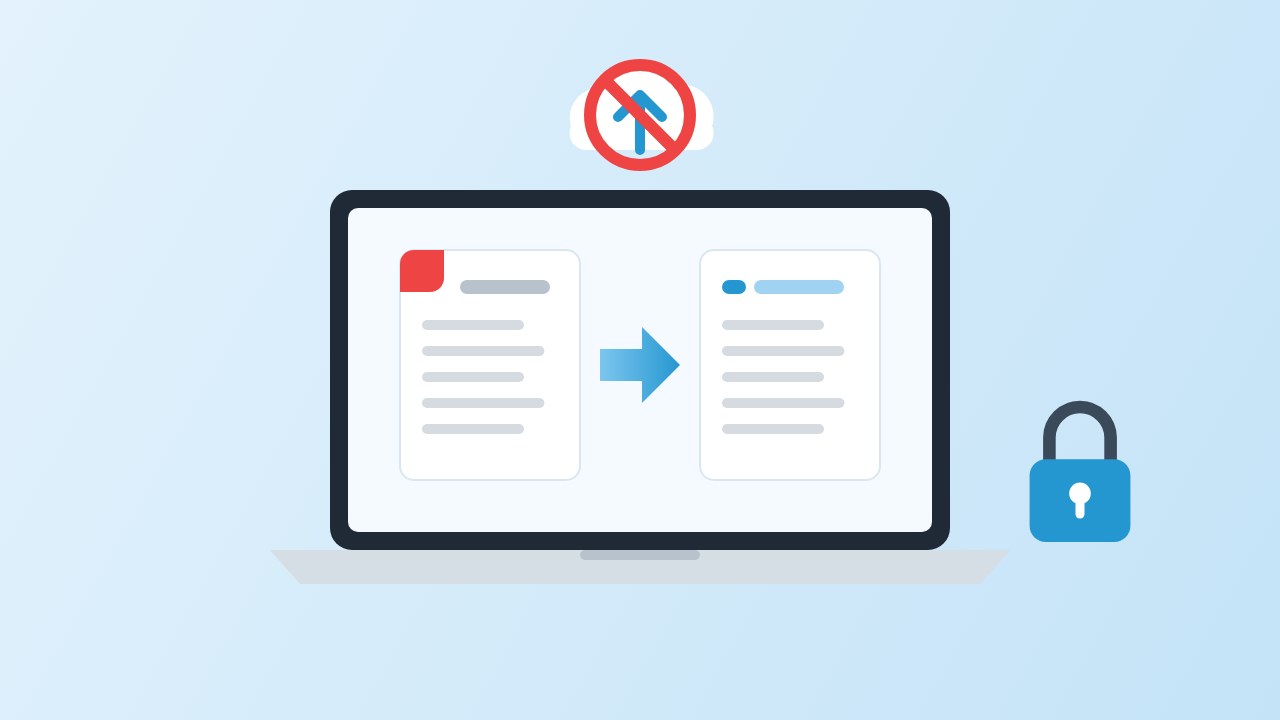
A conversion is local when the file is read and turned into Markdown by software on your own device, and no copy of the file is sent to a server. That rules out most “free online converters”, which upload the PDF, process it remotely and send the result back. It also rules out tools that run on your laptop but quietly call a cloud service for the hard parts.
You do not have to take anyone’s word for it, ours included. Whichever way you convert PDF to Markdown locally, two checks work for any tool:
- Pull the plug. Load the tool, turn off Wi-Fi (or set the browser’s developer tools to Offline), then convert. A tool that needs a server will fail.
- Watch the traffic. In the browser, open the Network panel before you drop the file and look for POST requests or any request carrying a payload while the conversion runs. For a desktop program, a firewall prompt or a network monitor tells you the same thing.
Option 1: convert PDF to Markdown locally in the browser
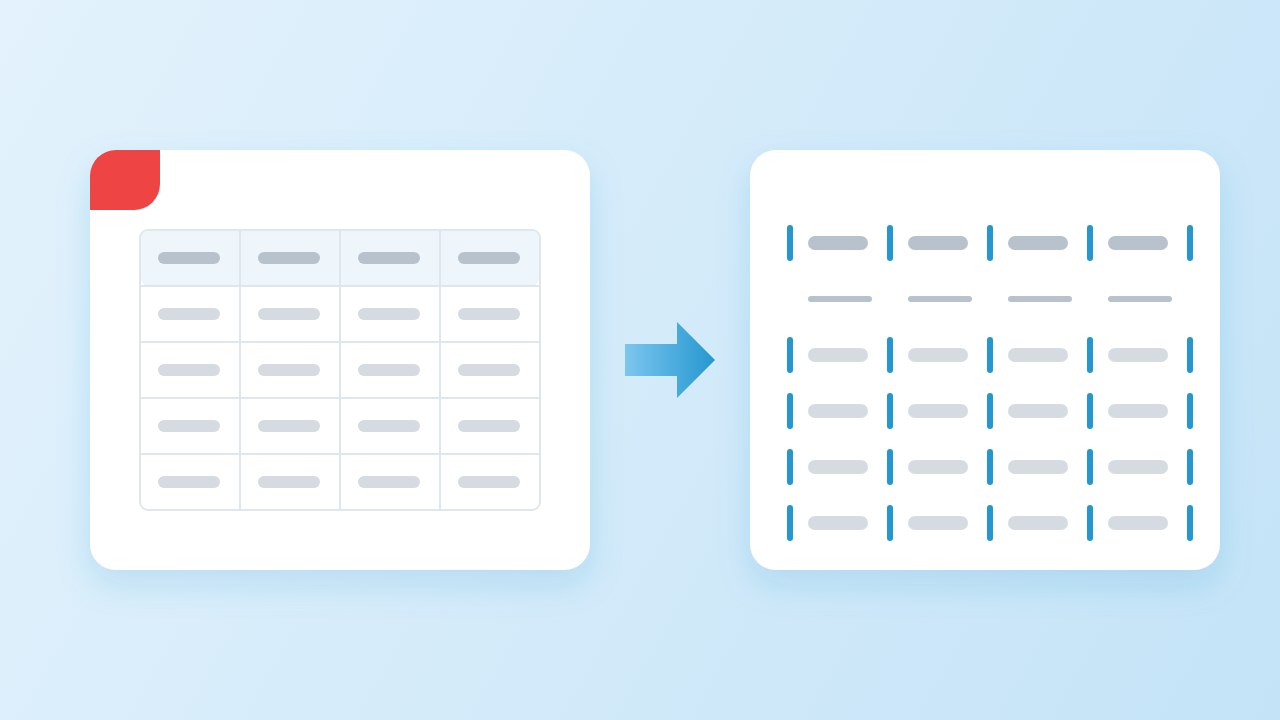
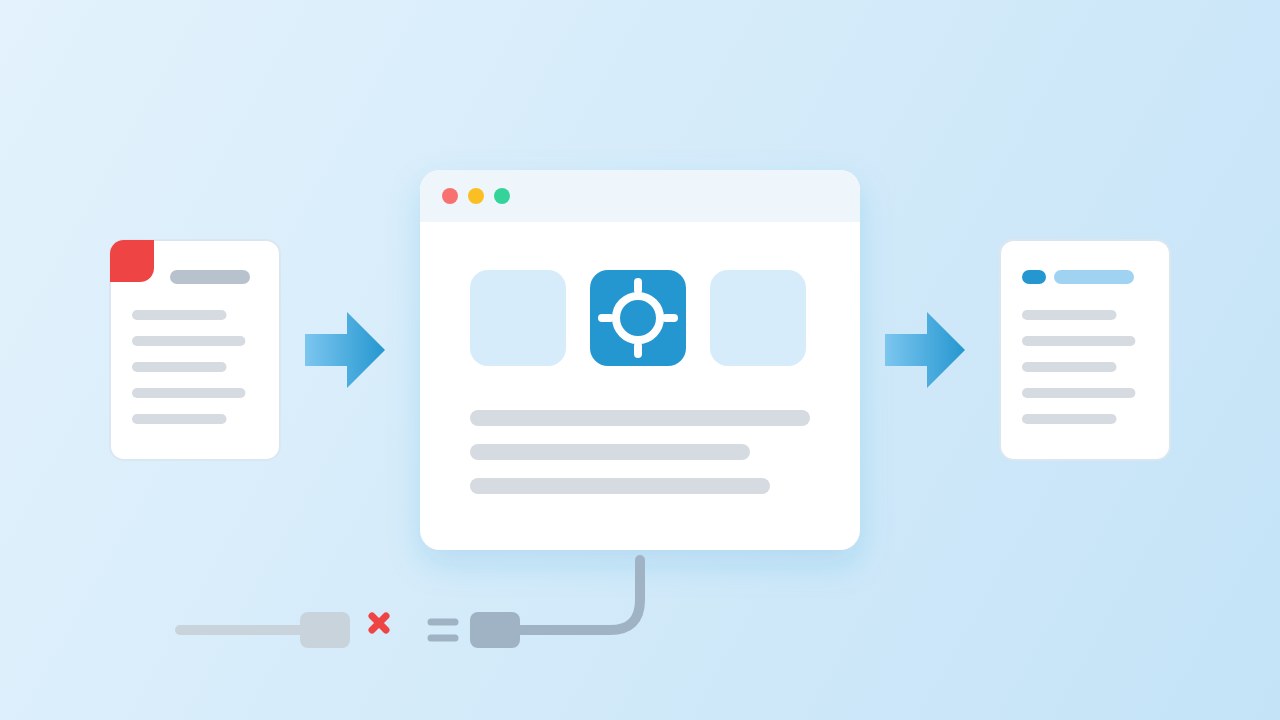
A browser tool is the quickest route when you have one file and no Python setup. Our converter reads the PDF with the open-source PDF.js engine inside the tab: it finds headings by font size, rebuilds lists and pipe tables, and can remove running headers and page numbers. There is no upload step, so this is the same private PDF conversion whether the file is a contract or a recipe.
We ran the “pull the plug” test with a script on 2026-10-19. It opened the page in Chrome 155.0.8059.84, switched the browser to offline mode, then converted a 4-page report with a running header, page numbers and a table. In our tests the conversion finished offline in 87 ms and produced 546 characters of Markdown. While offline the page made 1 request, a GET for a decorative image lower down the page, and 0 requests carried any data. There were no POST requests while the page loaded either.
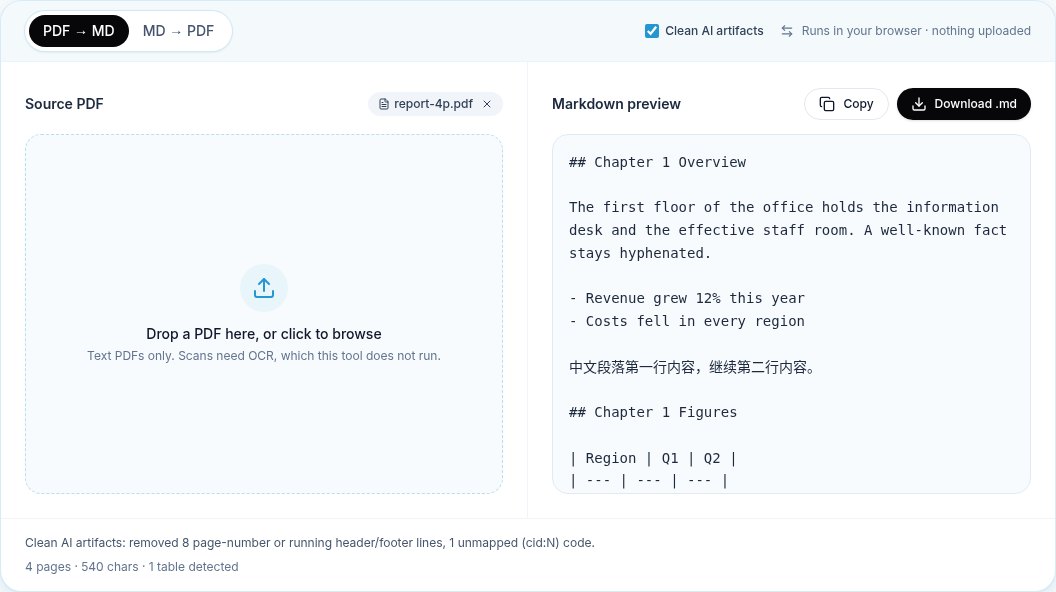
The limits are the ones every text-layer converter has. A scanned page has no text to read, and our tool does not run OCR, so it tells you the file looks scanned instead of guessing. Multi-column layouts and complex tables need a check afterwards; the formatting guide lists what to look at.
Option 2: Python libraries on your machine
For repeatable jobs, converting PDF to Markdown locally with a Python library is the better fit: you can loop over a folder, keep the code in version control and run it on a server you control. Our Python guide covers the code in more depth; here is the local-only view of four common packages.
- PyMuPDF4LLM turns a PDF into Markdown with one call,
pymupdf4llm.to_markdown("report.pdf"). It runs fully offline. Check the licence first: it and PyMuPDF are AGPL-3.0, with a commercial licence sold separately. - MarkItDown from Microsoft (MIT) converts many file types. Install the PDF extra with
pip install 'markitdown[pdf]'and runmarkitdown report.pdf -o report.md. The plain PDF path is local. Optional extras send files to Azure Document Intelligence or Content Understanding, so leave them off for confidential work. - Docling (MIT) uses layout and table models and lists local execution for sensitive data among its features. Models download on first use; its documentation shows
docling-tools models downloadto fetch them in advance for air-gapped machines. - Marker (Apache-2.0 code; model weights under a separate licence with commercial limits) is also model-based. Its optional
--use_llmflag sends content to an LLM service, Gemini by default, so it is only local if you point it at a model you run yourself.
python -m venv .venv && . .venv/bin/activate
pip install pymupdf4llm 'markitdown[pdf]'

# then work with the network off
python -c "import pymupdf4llm; open('report.md','w').write(pymupdf4llm.to_markdown('report.pdf'))"
markitdown report.pdf -o report-markitdown.mdIf you want to convert PDF to Markdown on Mac, nothing changes: both packages install with pip on macOS, and Homebrew’s poppler package gives you pdftotext for the next option.
Option 3: command-line tools
The classic offline tool is pdftotext from Poppler. It is fast and installed almost everywhere, but it writes plain text, not Markdown: no # headings, no pipe tables. Its -layout flag keeps columns lined up with spaces, which helps a person reading the file and helps less when a parser or a model needs structure. Pandoc, the usual answer for format conversion, does not read PDF at all.
To compare the ways to convert a PDF to Markdown locally on the same file, we ran the two Python packages and pdftotext on our build box (Linux x86_64, 8 vCPU) with networking disabled for the process, then counted what came out. The file was the same 4-page report as the browser test. Our converter’s row comes from the same file in clean mode.
| Tool | Time | Headings | Pipe table | Running header copies | Page number lines | Word split by hyphen |
|---|---|---|---|---|---|---|
| PyMuPDF4LLM 1.28.2 | 1 s | 4 | Yes | 4 | 4 | No |
| MarkItDown 0.1.8 | 0.32 s | 0 | Yes | 4 | 4 | Yes |
| pdftotext 25.03.0 -layout | 0.02 s | 0 | No | 4 | 4 | Yes |
| Our browser converter (clean mode) | 87 ms | 4 | Yes | 0 | 0 | No |
Which option fits which job
- One file, now, no setup: the browser. Use our PDF to MD converter, or the batch page for a stack of files.
- A folder every week, or a pipeline: PyMuPDF4LLM if the AGPL licence suits you, MarkItDown if you need MIT and many file types.
- Hard layouts, scans, formulas: Docling or Marker, accepting the model download and slower runs.
- Just the words, for search or a quick diff: pdftotext.
- Straight into a vault: convert in the browser and follow the Obsidian workflow.
A note on terms: an offline PDF to Markdown tool and a private one are not the same promise. Offline means it does not need a network. Private also covers what the tool keeps on disk, such as caches, logs or crash reports, so read the privacy page of whatever you install.
A privacy checklist for confidential PDFs
- Check the tool’s privacy statement, then confirm it yourself with the offline test above. Ours is on the privacy page.
- Install packages and download models while online, then convert PDF to Markdown locally with the network off.
- Leave cloud extras disabled: MarkItDown’s Azure options, Marker’s LLM mode, any “AI cleanup” toggle that calls a service.
- Convert in a folder you control and delete scratch copies when you are done.
- Before you paste the Markdown into a chat model, remember that this step is an upload. No upload during conversion does not cover what happens next.
- For legal or medical files, prefer tools whose code you can read, and keep the versions you used with the output.
Sources
- PDF.js — Mozilla
- PyMuPDF4LLM (README and licence) — Artifex, GitHub
- MarkItDown (README and licence) — Microsoft, GitHub
- Docling: model prefetching and offline usage — Docling project
- Marker (README and licence) — Datalab, GitHub
- Poppler (pdftotext) — freedesktop.org
FAQ
How do I convert PDF to Markdown locally?
Use a browser converter that processes the file in the tab, or install a Python library such as PyMuPDF4LLM or MarkItDown and run it on your own machine. Test either one with the network off to confirm nothing is uploaded.
How can I tell whether an online converter uploads my file?
Open the browser’s Network panel, then convert. Requests that carry your file show up as POST or upload traffic. Simpler still: go offline before you convert. A tool that uploads cannot finish without a connection.
Does your converter work offline?
Yes, for text PDFs. Load the page while online so the PDF engine is downloaded, then you can disconnect. In our tests a 4-page report converted offline with no request carrying data.
Which Python library is best for local conversion?
PyMuPDF4LLM gave the most structure in our small test but is AGPL-licensed. MarkItDown is MIT and handles many formats. Docling and Marker suit hard layouts and scans, at the cost of downloading models.
Can I convert scanned PDFs locally?
Only with a tool that runs OCR on your machine. Docling and Marker can; our browser converter reads the text layer only and does not run OCR, so it reports that the file looks scanned.
Is pdftotext good enough instead of Markdown?
For search and quick reading, often yes. It does not produce headings or tables in Markdown syntax, so notes, documentation and AI prompts that rely on structure need a real Markdown converter.