How to Convert Multiple PDFs to Markdown at Once
By pdftomd.tools team · Updated · 7 min read
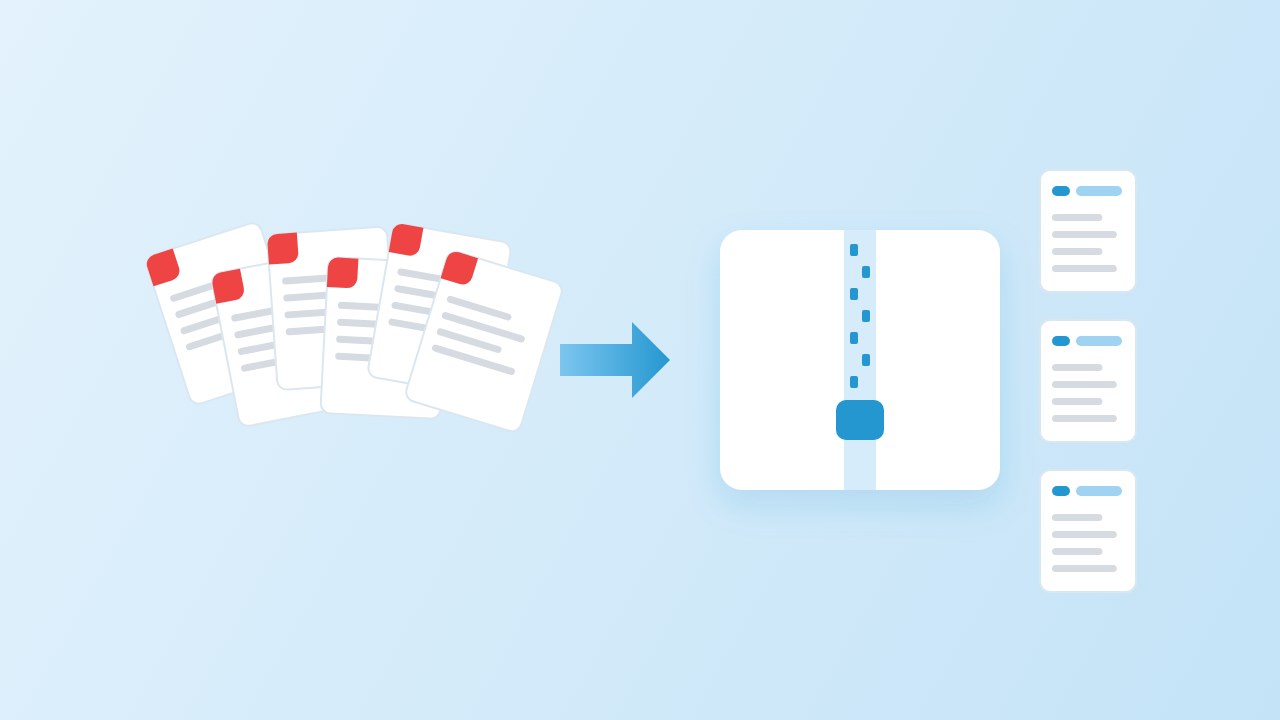
To convert multiple PDFs to Markdown at once, select them all on a batch page such as our batch PDF to Markdown converter and download one ZIP. For hundreds of files or a job that repeats, a short Python loop is better, and for difficult layouts, marker’s folder command. Whichever you pick, check for empty outputs afterwards.
Pick a method by volume
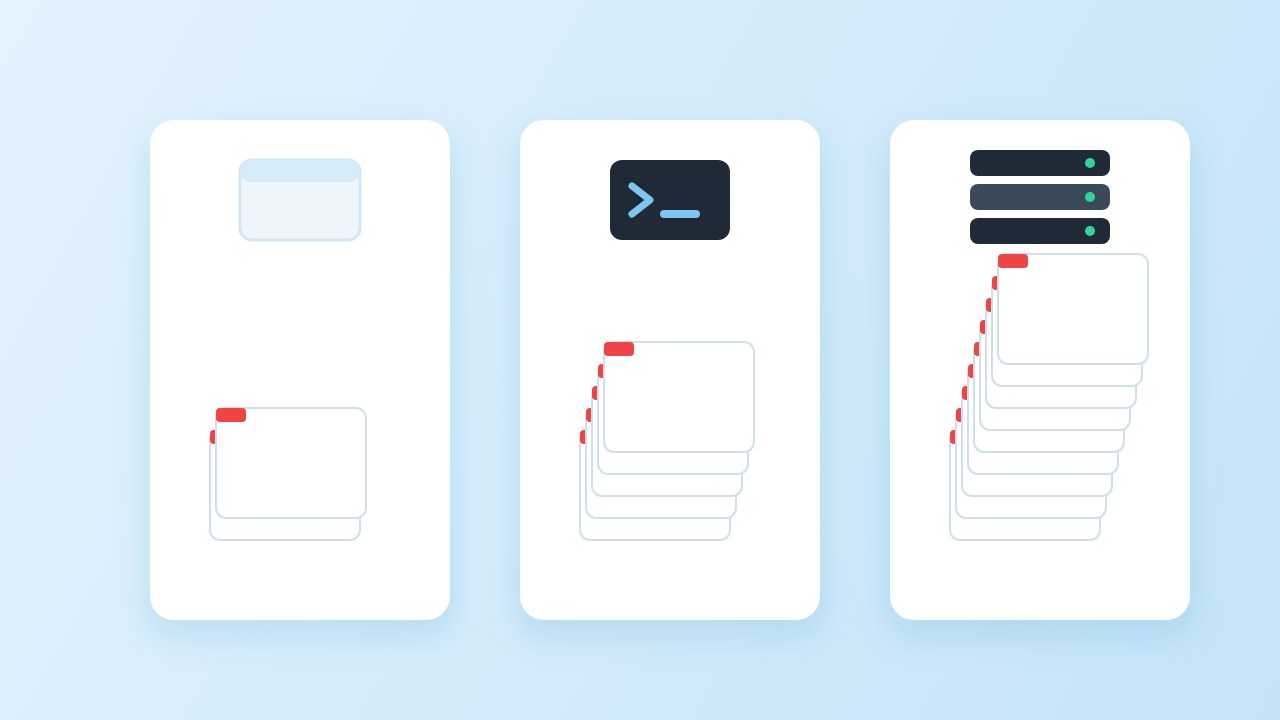
The right way to convert multiple PDFs to Markdown depends less on the PDFs than on how many there are and how often the job comes back. A rough guide:
- A handful to a few dozen, once: a browser batch page. Nothing to install, and the files stay on your computer.
- Hundreds, or every week: a Python loop over a folder. You can schedule it, log it and keep the folder structure.
- Scans, forms, formulas, odd layouts: a model-based tool such as marker. It is much slower on a normal laptop. It is built to OCR pages without a text layer, but in our CPU run it still returned our scanned page empty, so test a few files first.
To compare the three ways to convert multiple PDFs to Markdown fairly, we used one test set of 20 files and 40 pages: twelve table and layout samples, an English guide, an 11-page Chinese report, a 4-page report with running headers, a scanned page with no text layer, and two different files that are both called notes.pdf in two folders. Everything ran on our build box (Linux x86_64, 8 vCPU, 16 GB RAM, no GPU).
Convert multiple PDFs to Markdown in the browser
Before you start, open two or three of the PDFs and try to select a sentence. If the text highlights, the file has a text layer and any of the methods below will work. If nothing highlights, the file is a scan or an image, and only an OCR tool will get words out of it. Knowing the mix up front saves a second run.
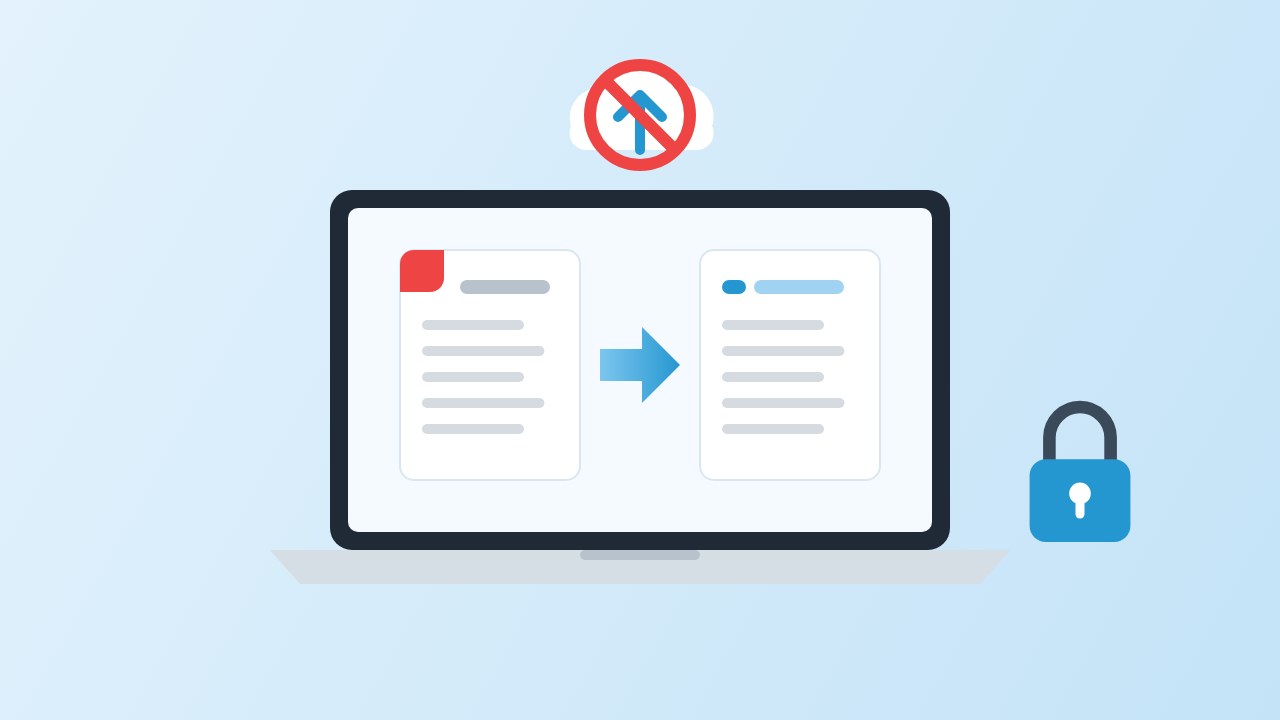
Open the batch page, click Choose files (or drag a selection onto the drop zone) and pick every PDF at once. Each file is converted in the tab, one after another, and the page offers a single ZIP with one .md per PDF. Because the work happens locally, the speed depends on your computer, not on an upload. This is the quickest way to convert several PDFs to Markdown at once when they all sit on one machine.
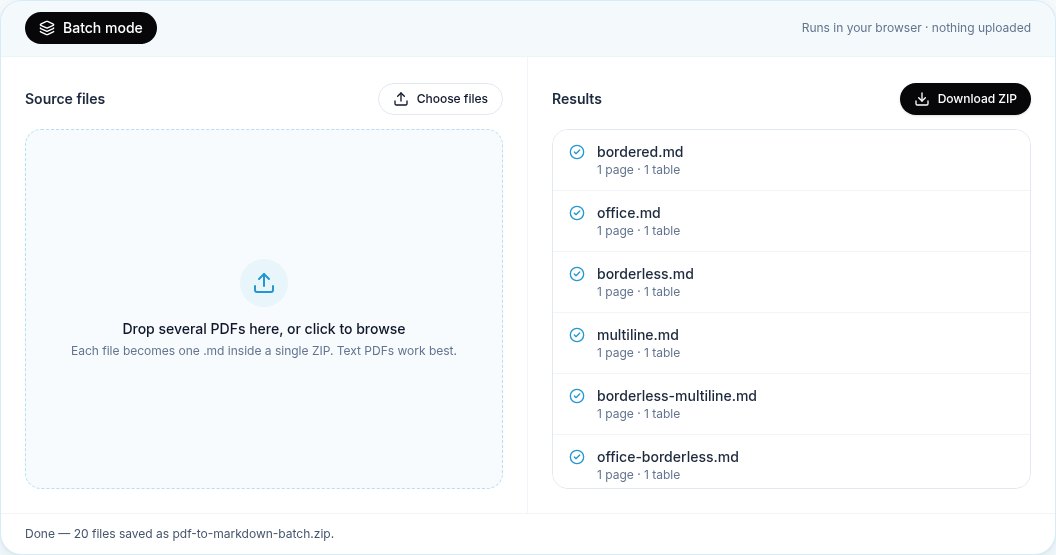
In our tests the whole set, from selecting the files to a finished ZIP, took about 0.8 seconds in Chrome 155.0.8059.84 (three runs, between 0.8 and 1.0 seconds). The ZIP held 20 Markdown files. The two notes.pdf files came out as notes.md and notes-2.md, so neither overwrote the other, and the scanned page was marked in the list instead of failing silently.
The limits: a browser cannot read a folder tree on its own, so files from several folders end up side by side in one ZIP, and very large sets are bounded by the memory of the tab. For a bulk pdf to markdown job of a few hundred files, split the selection into rounds or move to a script.
A Python loop with pymupdf4llm
A python loop pdf to markdown script needs only a few lines. This one turns a folder of PDFs to Markdown: it walks the folder, keeps the same structure in the output (so the two notes files stay apart) and carries on if one file fails:
import pathlib, pymupdf4llm

src, out = pathlib.Path("pdfs"), pathlib.Path("markdown")
for pdf in sorted(src.rglob("*.pdf")):
    dest = out / pdf.relative_to(src).with_suffix(".md")
    dest.parent.mkdir(parents=True, exist_ok=True)
    try:
        dest.write_text(pymupdf4llm.to_markdown(str(pdf)), encoding="utf-8")
    except Exception as e:
print(f"skipped {pdf}: {e}")On the same 20 files, the loop finished in 5.3 seconds in our tests, including starting Python and importing the library. It wrote 20 files. Two of them were empty: the scanned page, which has no text to read, and a page whose table is rotated 90 degrees. For thousands of files, the same loop can run in a process pool, one worker per CPU core, since each file is independent. Our Python guide covers the options for tables and page ranges, and the library comparison shows how pymupdf4llm does against two alternatives.
marker’s folder command
marker has a command for a whole folder: marker /path/to/pdfs --output_dir out. It reads only the top level of the folder (the script lists it with os.listdir), so we copied our files into one flat folder first. Useful options include --workers for parallel processes, --skip_existing to resume an interrupted run and --max_files for a trial.
With default settings on our CPU-only box, the folder took 5 min 51 s in our tests, including loading the models, and wrote 20 outputs. That is roughly 66 times as long as the Python loop. It recovered the rotated table, though it wrote it twice, and it still returned an empty file for the scanned page in our run. On a machine with a supported GPU the picture changes; on a laptop, keep marker for the files that need it.
Naming, duplicates and folder structure
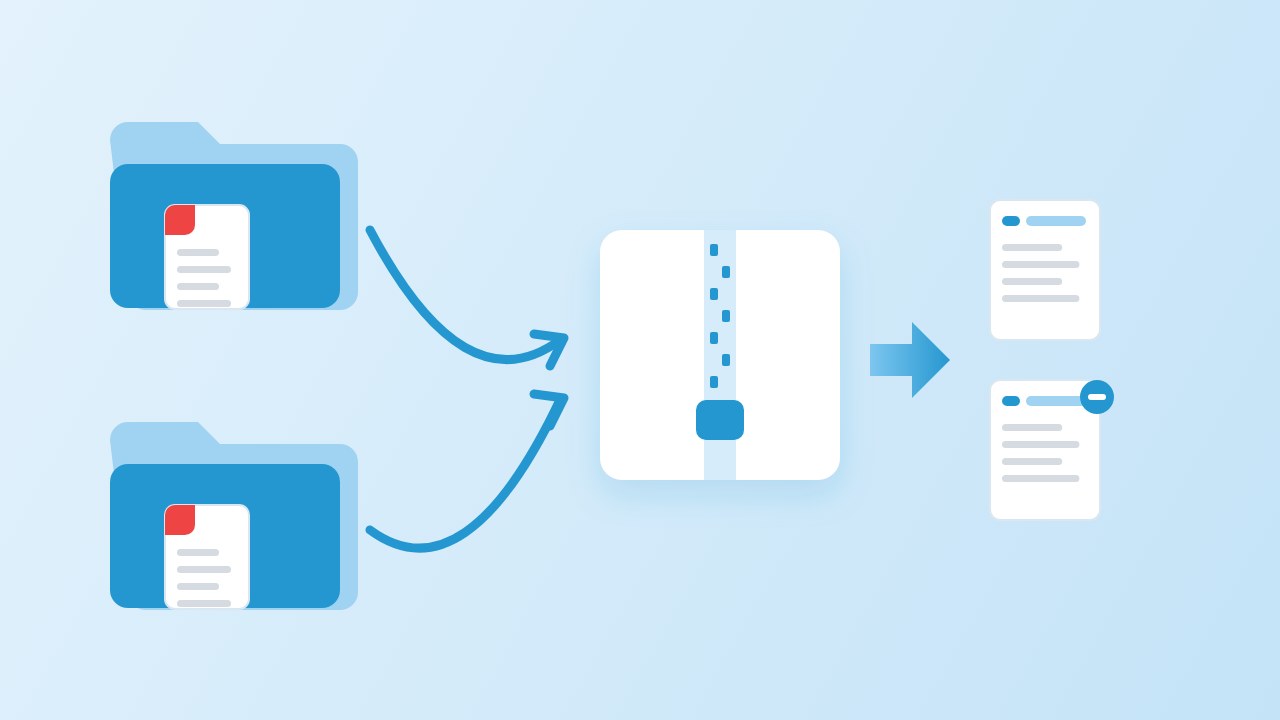
- Duplicates: when you convert many PDFs to Markdown at once, decide how the same file name in two folders should be handled. Our batch page adds a number; the loop above keeps the subfolders; a naive script overwrites the first file without warning.
- Structure: if the folder tree carries meaning (one folder per client or per year), keep it, either with
relative_toas above or by running the batch page once per folder. - Names: keep the PDF’s base name for the
.mdso you can always find the source. Rename for readability later, inside your notes app. - One ZIP of markdown files is the easiest handover to someone else; a folder is better when the output feeds another script.
Quality check: find scanned and empty outputs
Converting multiple PDFs to Markdown in one pass hides problems that a single file would show you at once. Every tool in our test returned at least one empty or near-empty file, and none of them can turn an unreadable page into text without OCR. So after any large run, look for the files that came out short:
# Markdown files under 100 bytes are usually scans or image-only pages
find markdown -name '*.md' -size -100c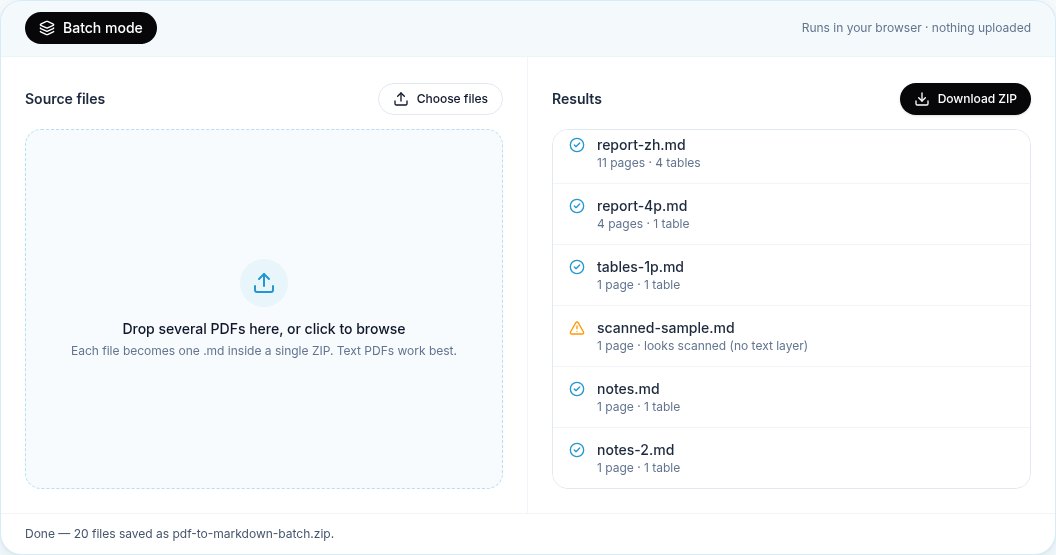
Then open a few outputs at random and compare them with the PDFs: headings, one table, the last paragraph. If you plan to send the files to a chat model, our note on the best document format for ChatGPT explains why the clean Markdown is worth this check.
Our timing on a 20-file set
| Method | Time | Outputs | Empty outputs | Duplicate names |
|---|---|---|---|---|
| Our batch page (browser) | 0.8 s | 20 | scanned-sample.md | Numbered (notes, notes-2) |
| Python loop, pymupdf4llm 1.28.2 | 5.3 s | 20 | rotated.md, scanned-sample.md | Kept in subfolders |
| marker 2.0.0 folder command | 5 min 51 s | 20 | scanned-sample.md | Flat folder only (we renamed) |
For most people the conclusion is simple: to convert multiple PDFs to Markdown in one go, start in the browser, script it when the job repeats, and save the model-based tool for the pages the others cannot read.
Sources
- PyMuPDF4LLM (README and licence) — Artifex, GitHub
- marker (README, licence and model licence) — Datalab, GitHub
- pathlib: Path.rglob — Python documentation
- find(1) — GNU findutils manual
FAQ
How do I convert multiple PDFs to Markdown at once?
Select all the files on a batch page such as ours and download the ZIP, or run a short Python loop over the folder. Check the outputs for empty files afterwards.
Is there a limit on how many files the batch page takes?
There is no fixed number; the limit is your browser’s memory. In our tests 20 files and 40 pages took about a second. For hundreds of large files, work in rounds or use a script.
What happens to files with the same name?
Our batch page numbers the second one (notes.md, notes-2.md). In a script you choose: keep subfolders, add a suffix, or skip.
Can I batch convert scanned PDFs?
Not with a text-layer tool: scans come out empty, and our tool flags them. You need an OCR step. marker is designed for that, but in our CPU-only run it returned our scanned page empty, so test a sample before a big job.
Can I batch convert PDF to MD on a schedule?
Yes, with a script. Put the Python loop in a cron job or a scheduled task and add --skip_existing-style logic so it only converts new files.
Are my files uploaded when I use the batch page?
No. Conversion runs in the browser tab and the ZIP is built on your computer.