Markdown to PDF Page Break: How to Start a New Page Where You Want
By pdftomd.tools team · Updated · 8 min read
Markdown has no page break syntax, so for a Markdown to PDF page break you add a line of HTML instead: <div style="page-break-after: always"></div>, with a blank line above and below. HTML-based exporters, including our Markdown to PDF tool, start a new page there. For Pandoc’s LaTeX route, write \newpage. Then check the PDF for blank pages.
Why Markdown has no page break
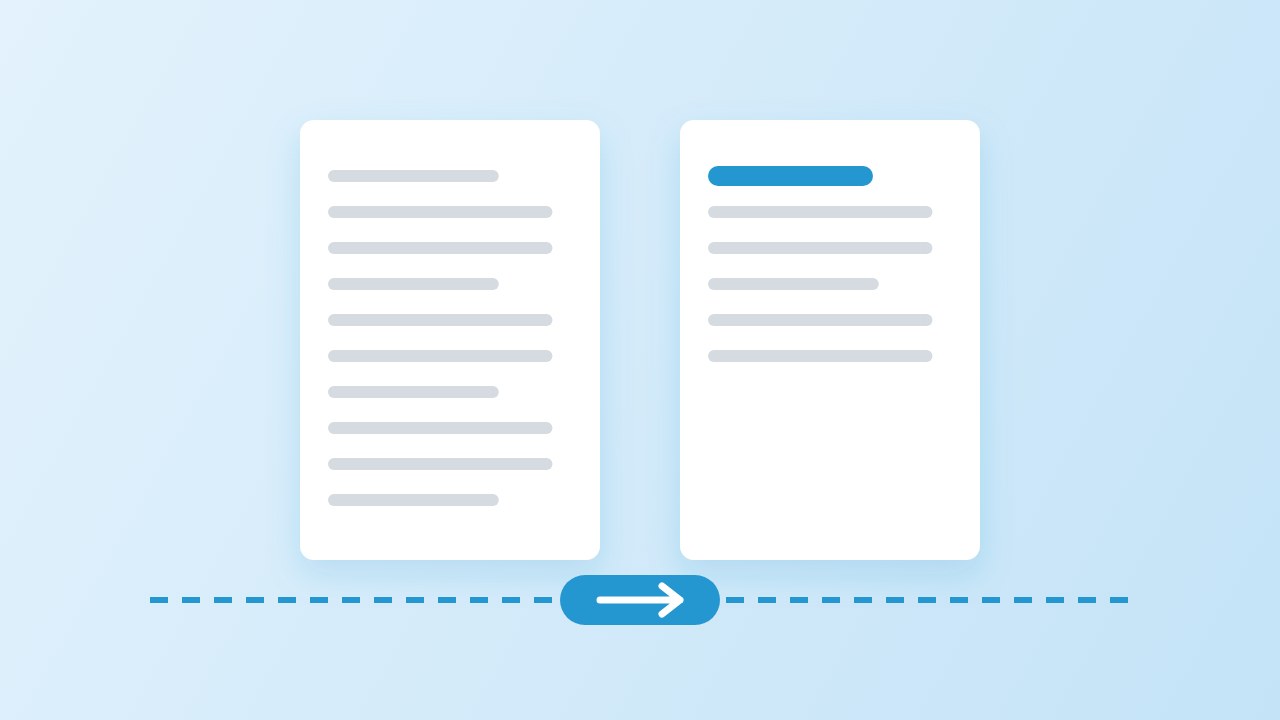
Markdown was written for the web, and a web page has no pages. Neither the original syntax nor CommonMark defines a page break. The closest thing, a line of three dashes ---, is a thematic break: it becomes an <hr> rule, not a new page. Many people try it first as a markdown page break and then wonder why nothing happened.
What Markdown does allow is raw HTML. Most exporters turn Markdown into HTML first and print that HTML to PDF, so a markdown to pdf page break is really a CSS instruction attached to an HTML element. The exception is Pandoc’s default route, which goes through LaTeX and wants a LaTeX command instead.
Markdown to PDF page break snippets that work
Pick the line that matches your exporter and put it on its own, with an empty line before and after so the Markdown parser treats it as an HTML block:
Last paragraph of the first part.

<div style="page-break-after: always"></div>

## Part two

This heading starts a new page.- Modern CSS:
<div style="break-after: page"></div>, orbreak-before: pageon the element that should start the page. - On a heading itself:
<h2 style="page-break-before: always">Part two</h2>, if you do not mind writing that heading in HTML. - VS Code Markdown PDF extension: its README gives
<div class="page"/>; the extension’s stylesheet supplies the break. That is the usual vscode markdown pdf page break answer, and the inline style above works there too. - Pandoc with LaTeX (the default PDF route): a line with
\newpage. Theraw_texextension passes it unchanged to the LaTeX and ConTeXt writers only. Pandoc newpage commands are not meant for HTML output, so if you use an HTML PDF engine, use the div instead.
Why both names? The CSS Fragmentation spec replaced page-break-before and page-break-after with break-before and break-after, and keeps the old names as aliases: page-break-after: always behaves like break-after: page. The old form is the safer choice for older tools; MDN documents both.
“Always force a page break before/after the principal box.”
How our exporter handles a manual break
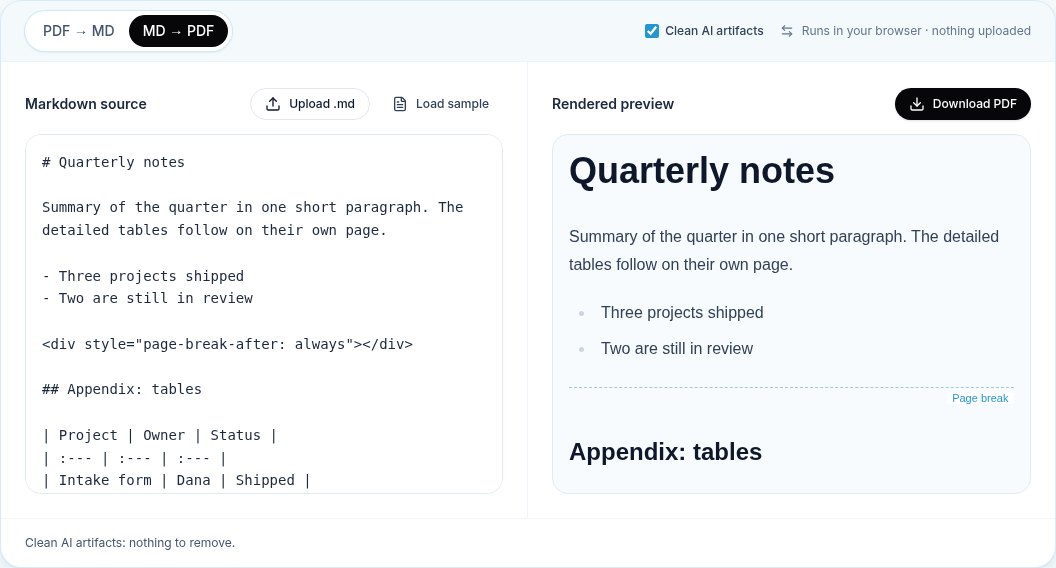
Until Oct 19, 2026 our exporter ignored a markdown to pdf page break and chose every break itself. It now reads the computed break-before and break-after of each element in the rendered document, so the page-break-after css in a style attribute is honoured, in either the old or the new spelling. The live preview draws a dashed line labelled “Page break” where the new page will start, and after export a note tells you how many manual breaks were applied.
A few rules keep the output clean:
- A break at the very start or the very end of the document is ignored, so you never get an empty first or last page.
- Two breaks in a row count as one. Chrome prints an empty page between them; we assume that is rarely what you meant.
- The values
left,right,rectoandversostart one new page. We do not add a blank page to land on a left or right side. ---stays a horizontal rule, as Markdown defines it.- Automatic breaks still apply inside long parts, and they still avoid cutting through a line, a table row or an image.
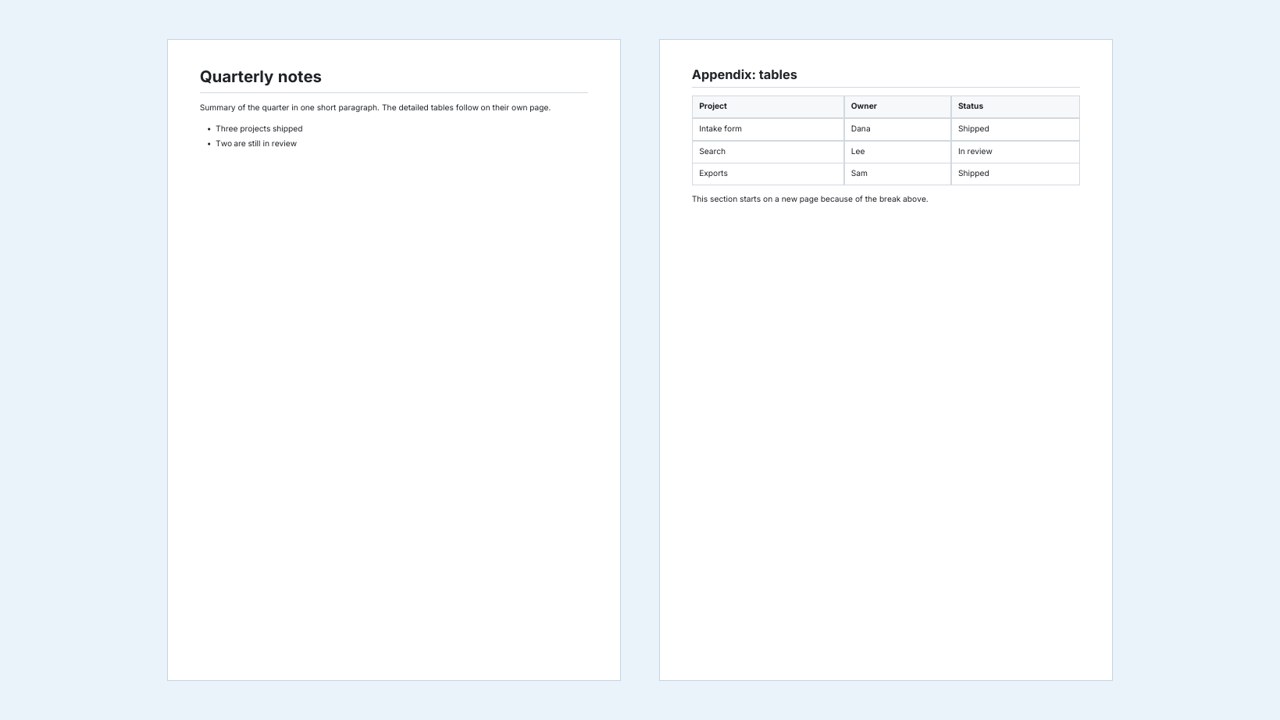
What we tested, compared with Chrome’s print
We wrote 9 small documents, each testing one way to write a markdown to pdf page break, exported each one through the real Download PDF button, and read the pages back with pdfinfo and pdftotext to see which text landed on which page. We also printed the same HTML with Chrome’s own PDF printer as a reference. In our tests all 9 cases gave the expected pages with no blank pages, and 8 of 9 matched Chrome page for page.
| Markup | Our pages | Chrome pages | Blank pages (ours) | Expected result | Compared with Chrome |
|---|---|---|---|---|---|
<div style="page-break-after: always"> | 2 | 2 | 0 | Yes | Same |
<div style="break-before: page"> | 2 | 2 | 0 | Yes | Same |
<div style="break-after: page"> | 2 | 2 | 0 | Yes | Same |
<h2 style="page-break-before: always"> | 2 | 2 | 0 | Yes | Same |
| Break, then a Markdown heading | 2 | 2 | 0 | Yes | Same |
| Two break divs in a row | 2 | 3 | 0 | Yes | Differs |
| Break at the very start and the very end | 1 | 1 | 0 | Yes | Same |
--- (a Markdown rule) | 1 | 1 | 0 | Yes | Same |
| Breaks mixed with automatic page breaks | 4 | 4 | 0 | Yes | Same |
Keep headings with their text, and other awkward breaks
Manual breaks fix the places you know about. The rest is the exporter’s job, and the classic failure is a heading stranded at the bottom of a page with its text on the next one. Word processors call the fix keep heading with next. In CSS the matching request is break-after: avoid on headings, but support for the avoid values in print varies between engines, so test before you rely on it.
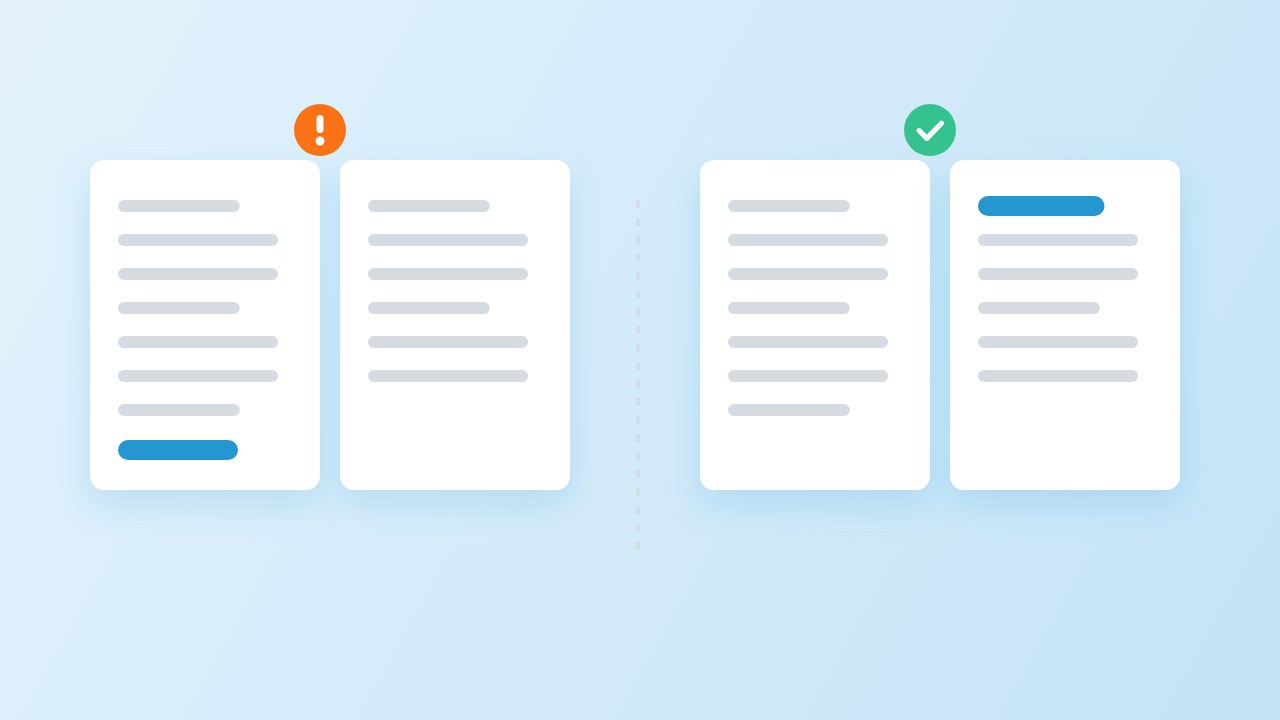
Our exporter does this without any markup: a heading is kept together with the first line after it, and table rows and images are not split when they fit on a page. If you still dislike where a page ends, add a markdown to pdf page break just before the heading. The image below shows the places a break can and cannot fall.
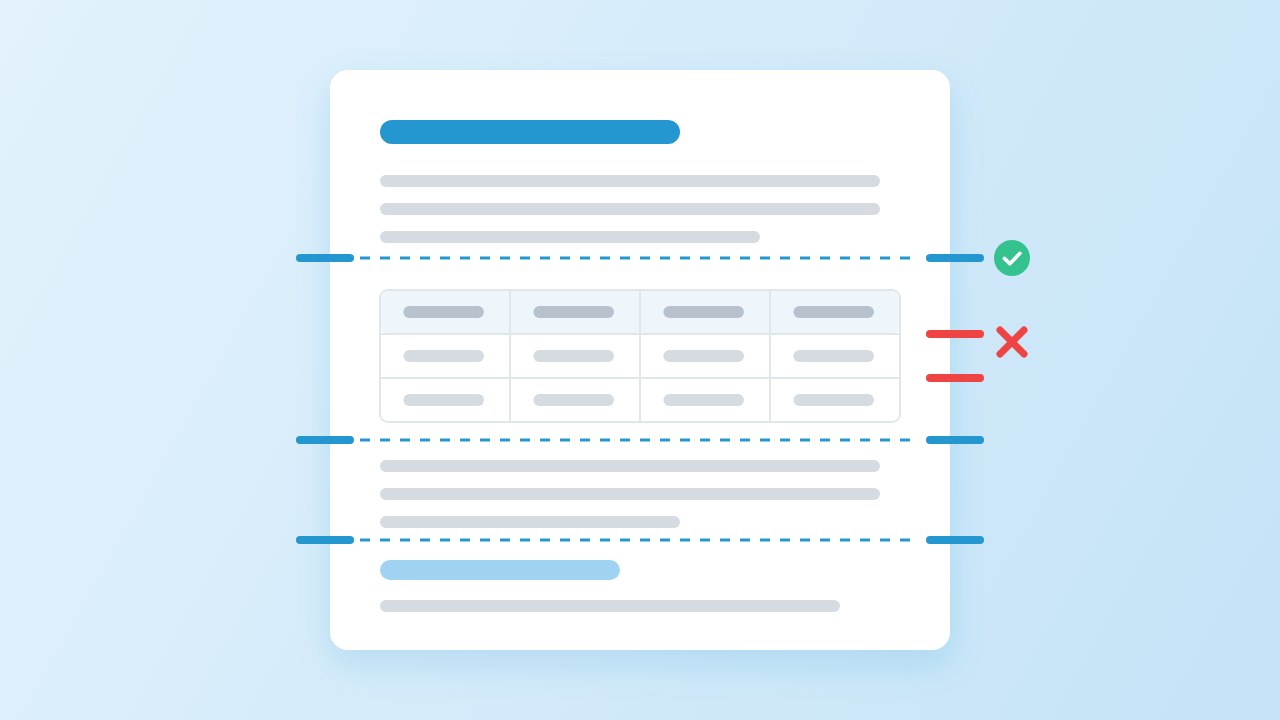
Tables need extra care. Our guide to printing tables covers long and wide ones, and a short Markdown to PDF export is the quickest way to try a layout before the real document.
Common markdown to pdf page break mistakes
When a markdown to pdf page break does nothing, the cause is almost always one of these four:
- No blank line after the div. In CommonMark an HTML block that starts with
<div>runs until the next empty line. Text written directly under it is swallowed into the HTML and shows up unformatted, with##and**as literal characters. - The div sits inside a list, a quote or a table. Keep it at the top level of the document, where every exporter can see it as its own block.
- Raw HTML is switched off. Some renderers disable HTML by default and print the tag as text. Turn HTML on in the settings, or use the tool’s own break syntax if it has one.
- Judging by the preview. Sanitising previews often strip inline styles, so the break looks missing on screen and still works at export. Our preview shows the dashed marker, but the exported file is the real test.
One more habit helps: put each manual break directly above the heading of the part that should start fresh, never below it. That way the heading and its first paragraph always travel together, and if you later delete the break the document still reads in order.
A quick check before you share the PDF
- Scroll through every page and look for blank pages, which usually mean two breaks in a row or a break at the end.
- Check that each part starts at the top of its page, heading first.
- Search for a word from the last page to confirm the text layer is real.
- If the PDF will be printed double-sided and chapters must start on the right, use a tool that supports
break-before: right; ours treats it as a plain new page.
Sources
- CSS Fragmentation Module Level 3 — W3C
- break-before — MDN Web Docs
- page-break-after — MDN Web Docs
- CommonMark Spec 0.31.2, Thematic breaks — CommonMark, 2024
- Pandoc User’s Guide (raw_tex extension) — pandoc.org
- Markdown PDF (VS Code extension) — yzane, GitHub
FAQ
How do I add a markdown to pdf page break?
Markdown has no syntax for it. Add the HTML line <div style="page-break-after: always"></div> with blank lines around it; HTML-based PDF exporters start a new page there.
Does `---` create a page break?
No. Three dashes make a thematic break, which renders as a horizontal rule. It stays a rule in the PDF.
Should I use page-break-after or break-after?
Either. break-after: page is the current CSS name and page-break-after: always is the older alias. The old one is a little safer in older tools; our exporter reads both.
How do I add a markdown to pdf page break with Pandoc?
For PDF through LaTeX, put \newpage on its own line. If you produce PDF through HTML (for example with an HTML engine), use the CSS div instead, because the LaTeX command is passed only to the LaTeX and ConTeXt writers.
Why did I get a blank page?
Usually two breaks follow each other, or a break sits at the very end. Chrome prints an empty page in both cases; our exporter skips them.
Can I make every H2 start on a new page?
With a stylesheet, h2 { break-before: page; } does it in tools that accept custom CSS. In our editor, add the div line before each H2 or write the heading as <h2 style="page-break-before: always">.